

DraftSight offers 2D and 3D CAD solutions with different licensing options to suit individual users and organizations. Standalone licenses are intended for installation on individual computers, while DraftSight Enterprise provides network-based licensing, allowing multiple users to share licenses. The installation procedure is largely the same for both license types.
Before starting the installation, ensure you have the following:
-
A valid DraftSight serial number or license key.
-
A Windows user account with administrative privileges.
-
A computer that meets the DraftSight System Requirements to ensure compatibility and optimal performance on a supported system.

Installing the SolidNetWork License manager (SNL) for DraftSight Enterprise
DraftSight Enterprise network licenses require a license manager to host and distribute licenses to client computers. This guide explains how to configure the SOLIDWORKS SolidNetWork License (SNL) Manager to manage DraftSight Enterprise licenses. The installation and configuration of the Dassault Systèmes License Server (DSLS) are outside the scope of this guide.
The guides below provide step-by-step instructions for installing a new SolidNetWork License (SNL) Manager, adding DraftSight serial numbers to an existing SNL setup, and understanding the SNL application and its key functions.
Installing DraftSight
1. Locate the downloaded DraftSight installation file and double-click the .exe file on Windows or the DraftSight.pkg file on macOS to launch the installation process.
2. In the DraftSight Installation Wizard, select the appropriate license type for your product to proceed with the installation.
For DraftSight Standalone licenses (serial numbers beginning with 900), select Serial Number (Standard, Professional, Premium) as the license type. Enter your valid serial number and click Next to continue.
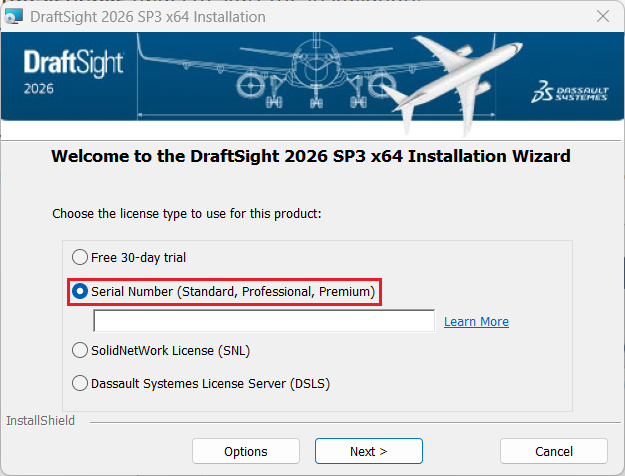
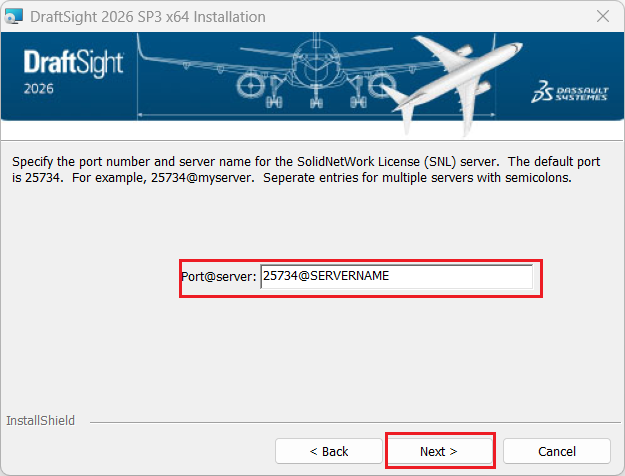
For DraftSight Enterprise licenses (network serial numbers beginning with 901), select the SolidNetWork License (SNL) option and click Next. When prompted, enter the port number and server name of the SolidNetWork License Manager, then click Next to continue.
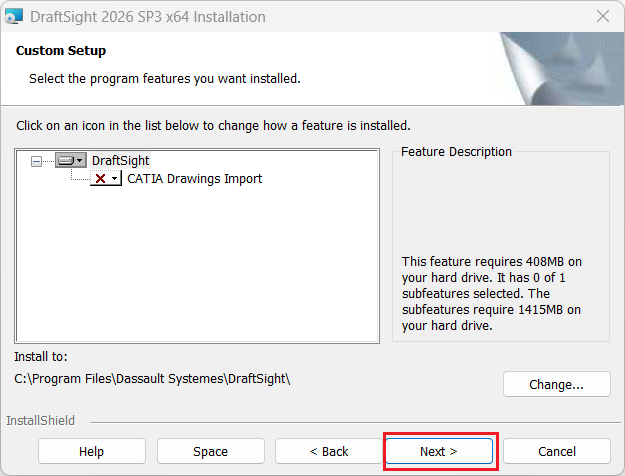
3. On the Custom Setup screen, select the CATIA Drawings Import option if you need to import CATIA drawing files into DraftSight. Click Next and follow the on-screen instructions to continue the installation.
4. When prompted, review and accept the Customer License and Online Services Agreement, then click Install to proceed. If DraftSight is already installed and activated on the computer, a warning message may appear. If you are moving the license to another computer, transfer or deactivate the existing license first, as applicable. If you are simply updating DraftSight on the same computer, you can disregard the warning and continue with the installation.
Once installed, click Finish to proceed.
Activation DraftSight Licenses
DraftSight Enterprise licenses are activated and managed through the SolidNetWork License (SNL) Manager. Client installations do not require separate license activation, provided they are correctly configured to connect to the SNL server.
If you are using DraftSight Standalone, you must activate the license on your computer to complete the activation process and start using the software.
1. When you launch DraftSight for the first time, the activation prompt will appear. Click Activate Now. Alternatively, navigate to Help > Activate DraftSight within the application.
2. Select your preferred activation method, enter your email address, and click Next to proceed.
3. The activation wizard submits the required information to the SOLIDWORKS Activation Server for validation. Once the validation is successful, a confirmation message will appear.
4. Click Finish to complete the activation process, then launch DraftSight and begin using the software.
Deactivating DraftSight Licenses
DraftSight Enterprise licenses are activated and deactivated through the SolidNetWork License (SNL) Manager. Client installations do not require separate activation or deactivation, provided they are properly configured to connect to the SNL server.
-
Launch DraftSight on the computer where the license is currently activated.
-
Navigate to Help > Deactivate DraftSight to release the license. Once deactivated, you can activate the license on another computer, subject to the applicable licensing terms.
Contributor: Naushad Ali Azim | Elite Application Engineer.
