
License server, server components and archive server setup (up to the point of vault creation)
Getting the PDM server layer right is the foundation of every SOLIDWORKS PDM deployment. This guide walks through the server-side installation on a single Windows machine: activating the SolidNetWork License (SNL) server, installing the PDM server components with the SOLIDWORKS Installation Manager, and running the Archive Server Configuration wizard. The screenshots were taken on SOLIDWORKS 2026 SP4.1; the flow is the same for neighbouring releases.
Covered in this guide
- Reading the admin guides, preparing the media
- SolidNetWork License server activation
- PDM server components installation
- Archive server configuration
Not covered
- Installing and tuning Microsoft SQL Server
- Creating the file vault and local view
- Web2 setup
- PDM client installation
1. Before you begin
1.1 Version rules to keep in mind
-
- Every machine that hosts a PDM server role or a PDM client must run the same major release (year) of SOLIDWORKS PDM. Service packs may differ between machines.
- The PDM client can integrate with SOLIDWORKS CAD up to two major releases older than itself, so plan the PDM version around the CAD versions your users run.
1.2 Prerequisites checklist
-
- A Windows machine with local administrator rights, meeting the published SOLIDWORKS and PDM system requirements for the version you are installing.
- A working SQL Server instance (installed beforehand, on this machine or another one) and the password of its sa PDM Professional needs SQL Server Standard or Enterprise; PDM Standard runs on SQL Server Express.
Click Here to know How to install SQL Server - Your SOLIDWORKS serial numbers, an internet connection for activation, and a valid email address.
- The installation media for the exact release, downloaded from the SOLIDWORKS portal or supplied by your reseller. If the media arrives as a compressed archive, extract it with a tool such as 7-Zip rather than the built-in Windows extractor, which can block files the installer depends on.
- Firewall exceptions for the license server ports (25734 and 25735 in the examples below) and for SQL Server.
1.3 Read the administration guides
SOLIDWORKS publishes version-specific administration guides on its support site. Choose your release in the SOLIDWORKS Version selector, then open the two documents that matter for this job: What’s New in SOLIDWORKS PDM and the SOLIDWORKS PDM Installation Guide. The first tells you what changed in the release; the second is the authoritative reference for installation, upgrade and backup.
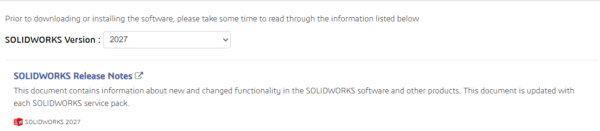
Figure 1: Selecting the release on the SOLIDWORKS administration guides page

Figure 2: What’s New in SOLIDWORKS PDM

Figure 3: SOLIDWORKS PDM Installation Guide
2. Activate the SolidNetWork License server
PDM clients check out their licenses from the SolidNetWork License Manager, so the license server is activated first. It may live on the PDM machine or on a separate one.
- Open SolidNetWork License Manager from the Windows Start menu (look under the SOLIDWORKS Tools folder if you do not see it directly). On the Server Administration tab, click Modify under License Information and choose the option to activate or reactivate the license. (Refer Figure 4)
- On the SolidNetWork License Server Information page, keep A firewall is in use on this server Confirm the Computer Name is the machine that hosts the license server, and note the two ports: 25734 (license port) and 25735 (vendor daemon port). Click Next. (Refer Figure 5)
- On the Activate/Deactivate Your SOLIDWORKS Product page, click Add, enter your serial numbers one per line, and accept.(Refer Figure 6)
- Click Select All, keep Automatically over the Internet selected, enter your email address under Contact Information, and click Next. (Refer Figure 6)
- Wait for the activation to complete, then click Finish. The license server should now show as started on the Server Administration tab.(Refer Figure 6)
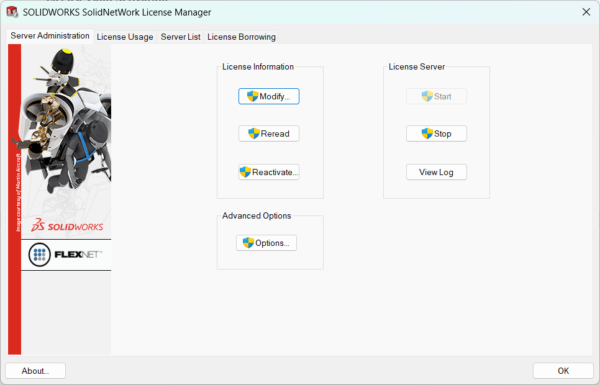
Figure 4: SolidNetWork License Manager – Server Administration tab
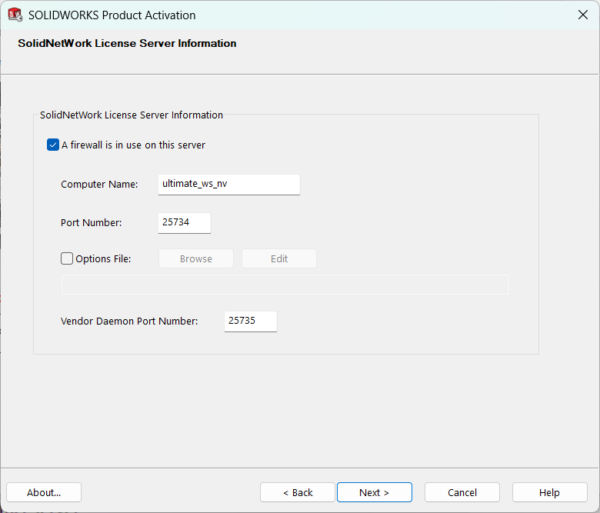
Figure 5: License server name and port numbers
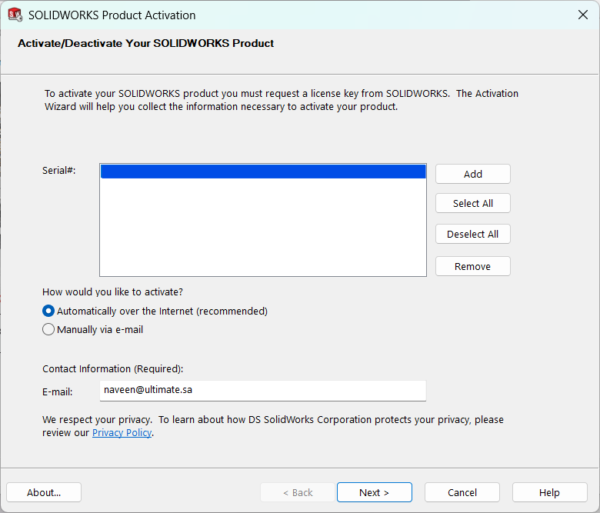
Figure 6: Adding serial numbers and choosing the activation method
Tip: Use the same computer name and port in the license server string that PDM will ask for later (format: port@servername, for example 25734@SERVERNAME).
3. Install the PDM server components
3.1 Start the Installation Manager
-
- Right-click exe in the root folder of the installation media and select Run as administrator.
- If Windows warns that a reboot is pending, you may click OK to continue. Rebooting first is the safer habit, though: if any component fails later, restart the machine and run the installer again.(Refer Figure 7)
- On the Welcome page, select Install server components. Tick Install SOLIDWORKS PDM Server components on this computer. Options that are already present on the machine (such as the SolidNetWork License Manager in our example) appear greyed out. Click Next. (Refer Figure 8)
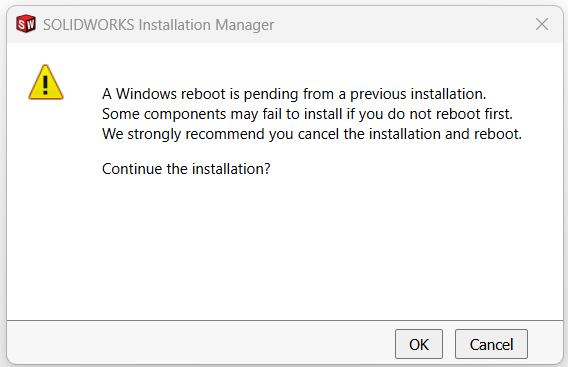
Figure 7: Pending-reboot warning from the Installation Manager
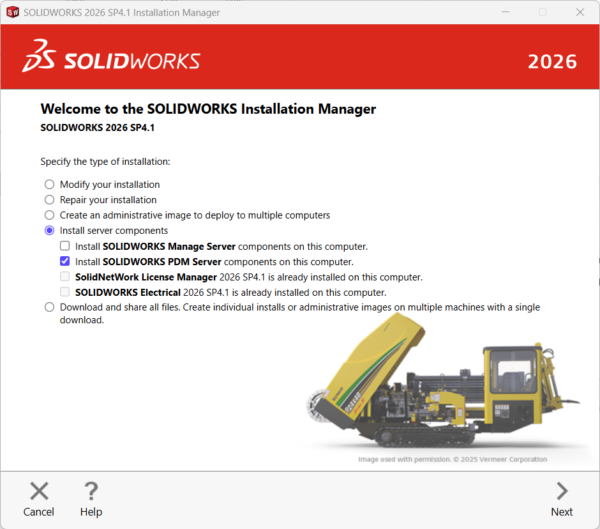
Figure 8: Choosing Install server components and the PDM Server option
3.2 Review the summary and choose the features
-
- The Summary page flags the PDM Server section in red because the features are not chosen yet. Click Change beside SOLIDWORKS PDM Server.
- Under Select Server Product, pick the edition that matches your serial number: SOLIDWORKS PDM Standard or SOLIDWORKS PDM Professional.
- Leave the Installation Location at its default unless your IT policy requires otherwise.
- Under Select Features, tick Archive Server, Database Server and Client. Tick Web2 Server as well if you plan to offer browser-based vault access (Professional only). Web API Server is only needed if you will use that service.
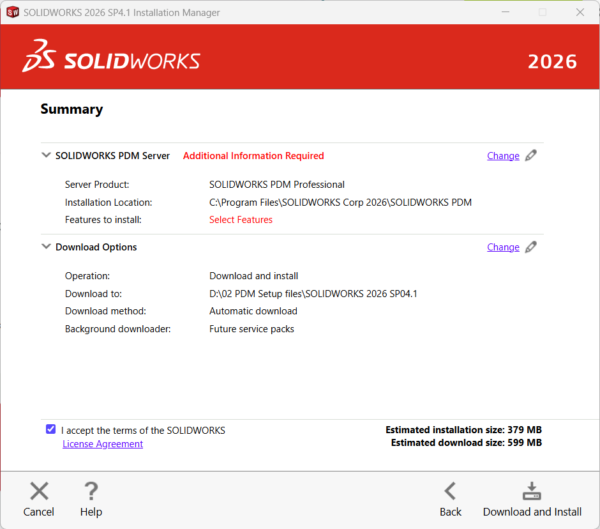
Figure 9: Summary page before the feature selection is completed
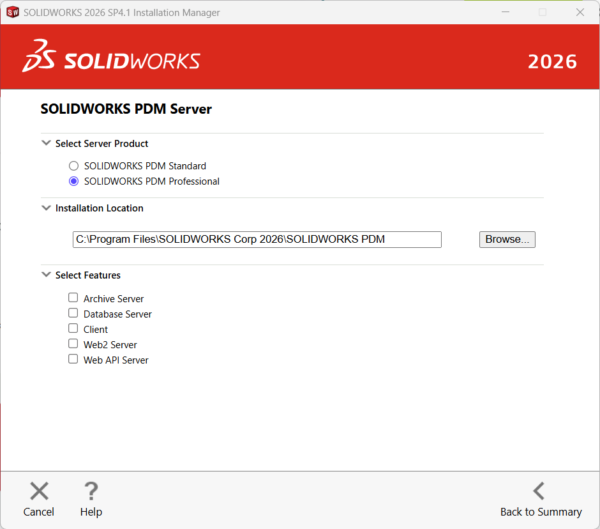
Figure 10: Selecting the PDM edition and server features
3.3 Point the installer at SQL Server
-
- Scroll down to the SQL Server In Name, enter the name of your SQL Server machine, adding the instance name if it is not the default instance (ServerName\InstanceName). Browse for it or type it in.
- Enter the SQL login (sa) and its password. Any login with at least db_owner rights on the PDM databases is acceptable.
- Click Back to Summary, review the Download Options (download folder and method), tick the license agreement checkbox, and click Download and Install
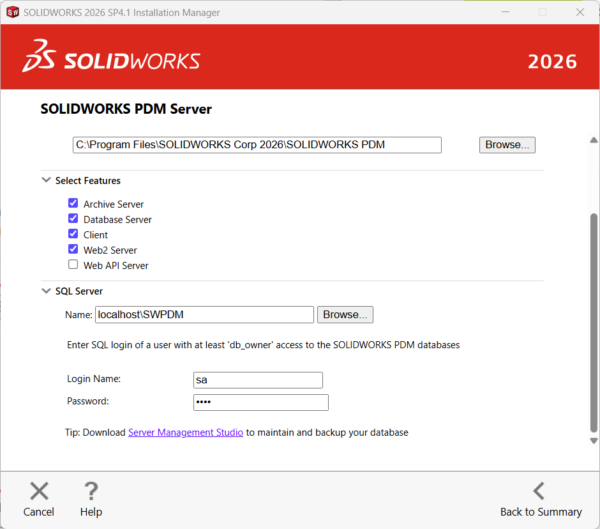
Figure 11: Features selected and SQL Server connection details entered
Note: The screenshot uses localhost because SQL Server runs on the same lab machine. In a real deployment, enter the actual server name so the setting remains valid when other machines connect.
Keep it safe: Record the “sa” password in your organization’s password manager. You will need it again for the archive server and for every new vault.
4. Configure the archive server
When the installation finishes, the Archive Server Configuration wizard opens automatically. It prepares the server that stores the vault files, so the settings below are worth a little thought.
- Welcome: Read the introduction and click Next.
- Archive folder: Choose where the vault archives will be stored. The default sits under the PDM program folder. For production, place it in a dedicated folder (ideally on a separate data drive with plenty of free space) and make sure it is part of your daily backup routine
- Admin password: Set the password for the built-in Admin This is the server-wide default; each vault you create later can reuse it or have its own.
- SQL user login and password: Enter the SQL login (sa) and password that PDM will use by default when it talks to vault databases. The login needs at least db_owner access.
- Security: Choose which Windows accounts or groups get Administrative access (permission to create, remove and attach vaults) and which get Attach access (permission to connect to existing vaults). These are Windows accounts and have no effect on who can log in to a vault.
- Login type: Pick the default login method for new vaults: SOLIDWORKS PDM login (simplest, standalone), Windows login (Professional only, lets users sign in with their Windows identity), or LDAP login (Professional only, for directory-based environments)
- Click Finish to save the configuration. These settings can be changed later with the Archive Server Configuration tool.
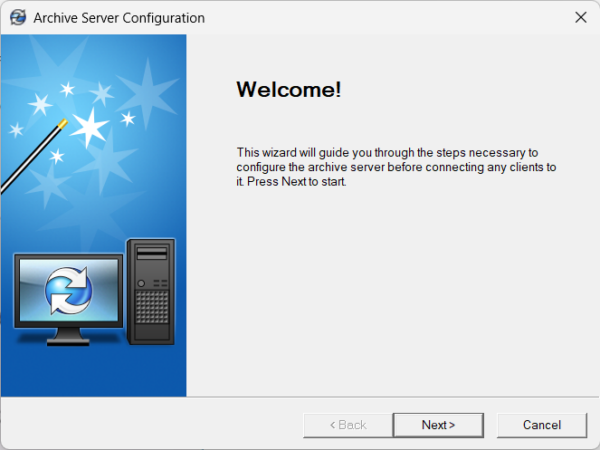
Figure 12: Archive Server Configuration – welcome page
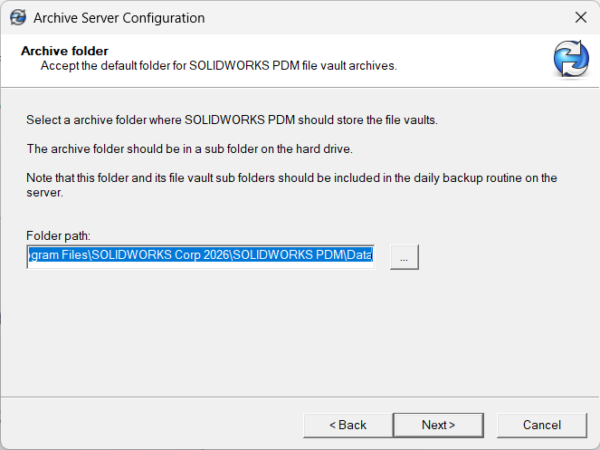
Figure 13: Selecting the archive folder
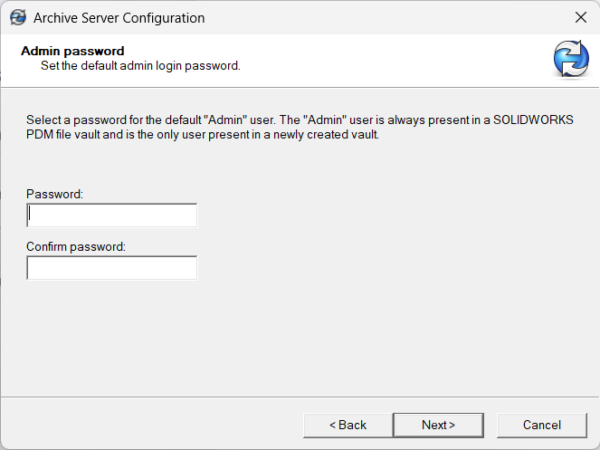
Figure 14: Setting the default Admin password
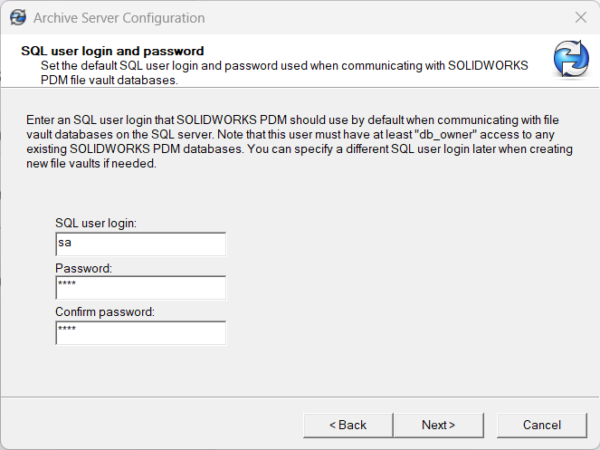
Figure 15: Default SQL user login and password
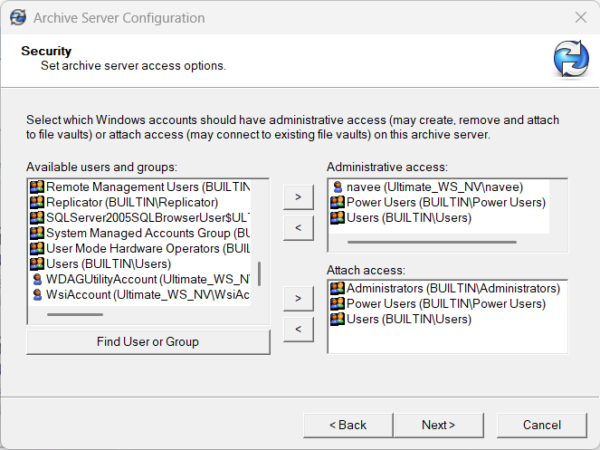
Figure 16: Archive server access permissions
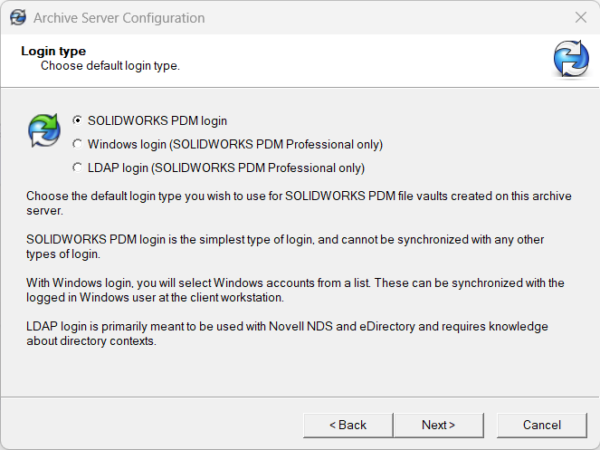
Figure 17: Choosing the default login type
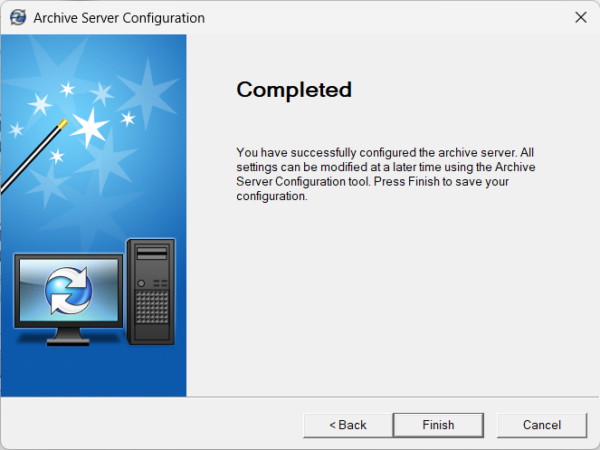
Figure 18: Archive server configuration completed
Good practice: Grant administrative access only to the people who genuinely manage PDM, and avoid giving broad groups such as Users the right to create or delete vaults
Contributor: Naveen Kumar Ravi | Elite Application Engineer
Install with confidence & Design with precision
