
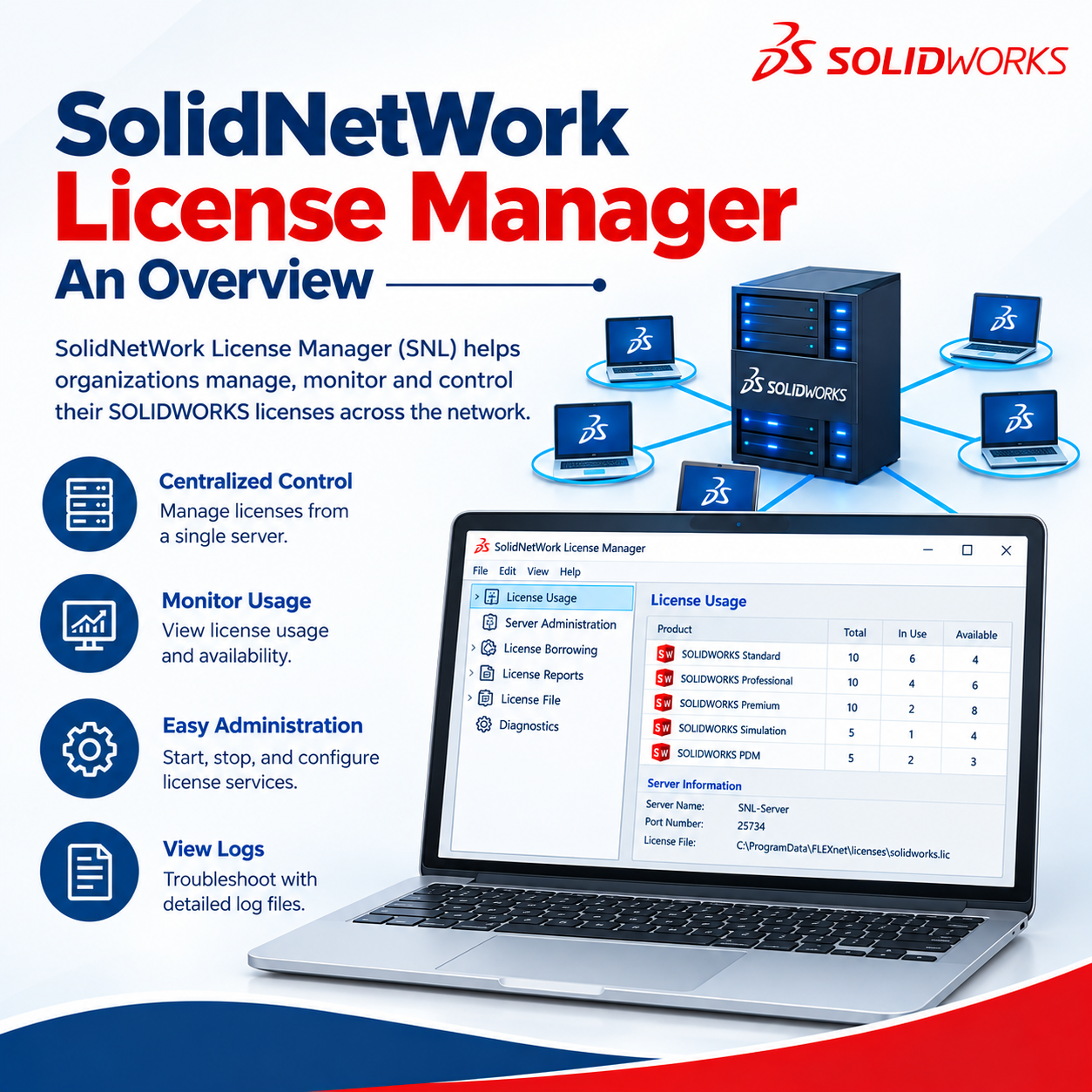
This article provides an overview of the SolidNetWork License Manager (SNL) Server, an application used to manage and distribute SOLIDWORKS network licenses.
Server Administration
The Server Administration tab is available only in the SolidNetWork License Manager Server application installed on the license server. This section is typically managed by the IT administrator or designated license administrator.
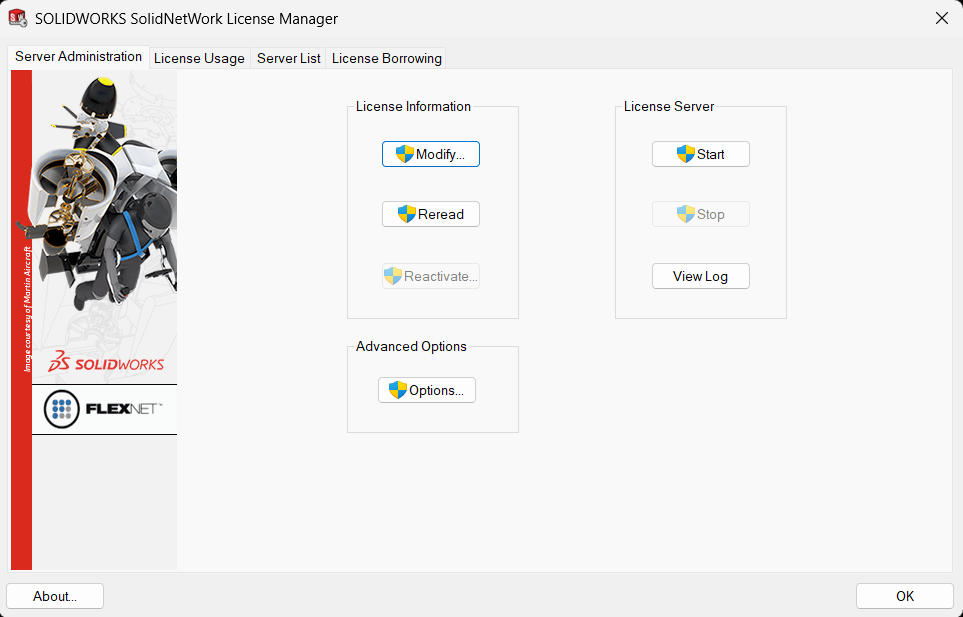
License Information
- Modify – Allows you to transfer product licenses to a new computer, activate or reactivate licenses, and view information about activated product licenses.
- Reread – Reloads and rereads the current license file to apply any changes.
- Reactivate – Allows you to reactivate your product licenses on the server.
License Server
- Start / Stop – These buttons are used to start or stop the SolidNetWork License service. Client machines communicate with the license server approximately every 30 minutes. If the license service is stopped, users typically have up to 30 minutes before SOLIDWORKS displays a message indicating that no licenses are available. Users must then save their work and close their SOLIDWORKS session.
- View Log – Opens the log file, which contains information about license usage and license server activity.
- With the log file open, select File > Save As to save a copy of the log file for technical support.
- By default, the log file is located at: C:\Program Files (x86)\SOLIDWORKS Corp\SolidNetWork License Manager
- To analyze license usage and generate detailed reports, a third-party FlexLM license usage monitoring tool may be required. Refer to the introduction section of the log file for additional recommendations on license usage monitoring.
License Usage
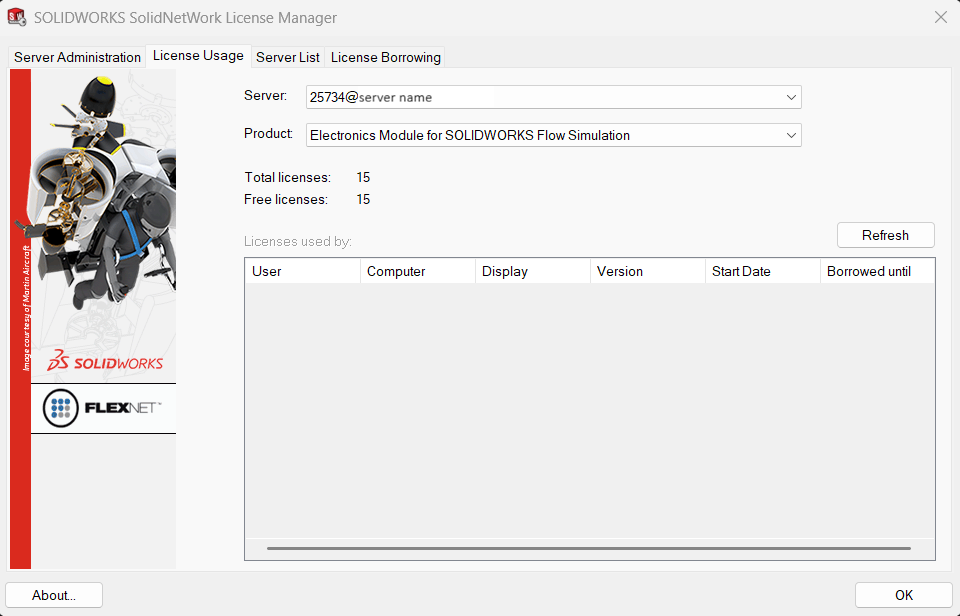
The License Usage tab provides information about the number of available and currently used licenses. It also displays a list of users to help identify who is using a specific license. The Product drop-down list allows you to switch between the different license types associated with your active serial numbers.
Note: A SOLIDWORKS Standard license is required as the base license for both Professional and Premium licenses. For example, if you have 5 Standard, 5 Professional, and 5 Premium licenses, the License Usage tab will display a total of 15 Standard licenses. Users will initially consume a Standard license, and the corresponding Professional or Premium license will be checked out when a Professional or Premium add-in is enabled in SOLIDWORKS.
Server List
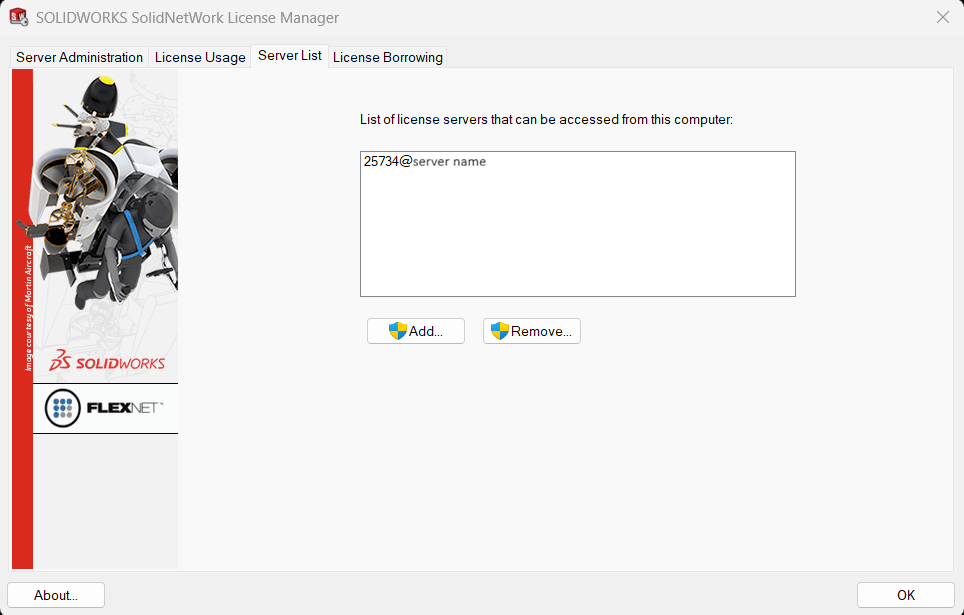
Displays the servers that have been added to manage network licenses. Each server is displayed in the format communication port@server name. The default communication port is 25734.
License Borrowing
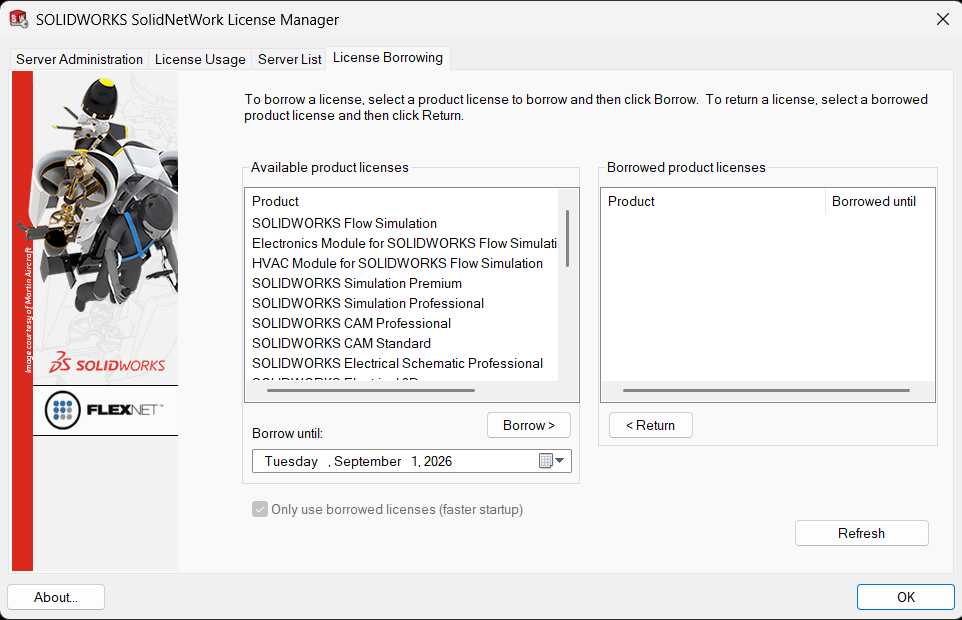
The License Borrowing tab allows users to borrow network licenses for a maximum of 28 days, enabling them to use SOLIDWORKS while disconnected from the license server. When borrowing a Professional or Premium license, the required SOLIDWORKS Standard license is also included automatically.
License Order
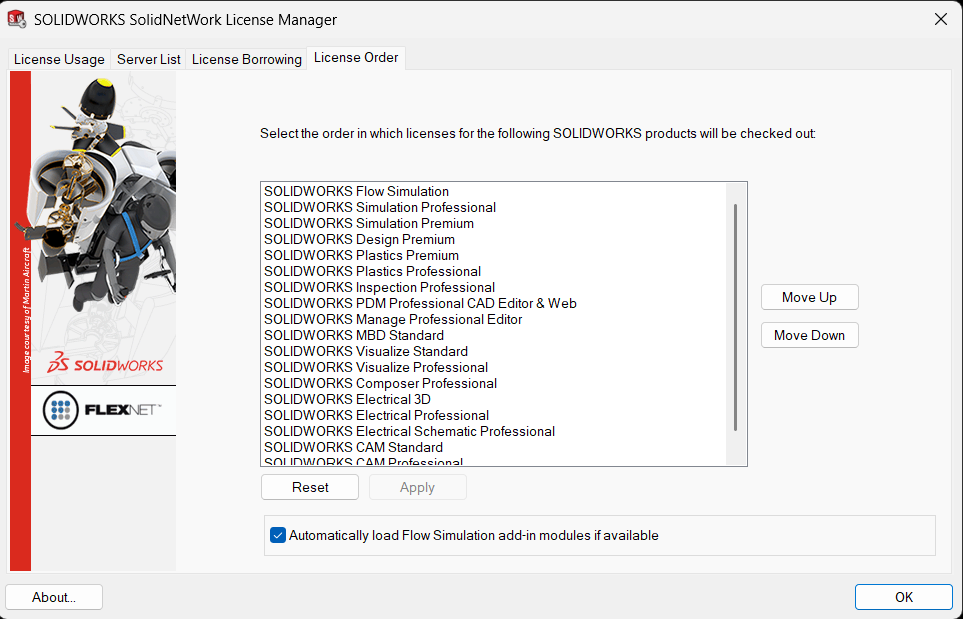
The License Order tab in the SolidNetWork License Manager allows you to define the order in which SOLIDWORKS network licenses are checked out. This helps ensure that licenses are consumed efficiently and according to your preferred priority.
Contributor: Naushad Ali Azim, SOLIDWORKS Elite Application Engineer, brings over a decade of experience in the SOLIDWORKS Partner Network, helping clients optimize CAD workflows and get the most from their SOLIDWORKS solutions.
