
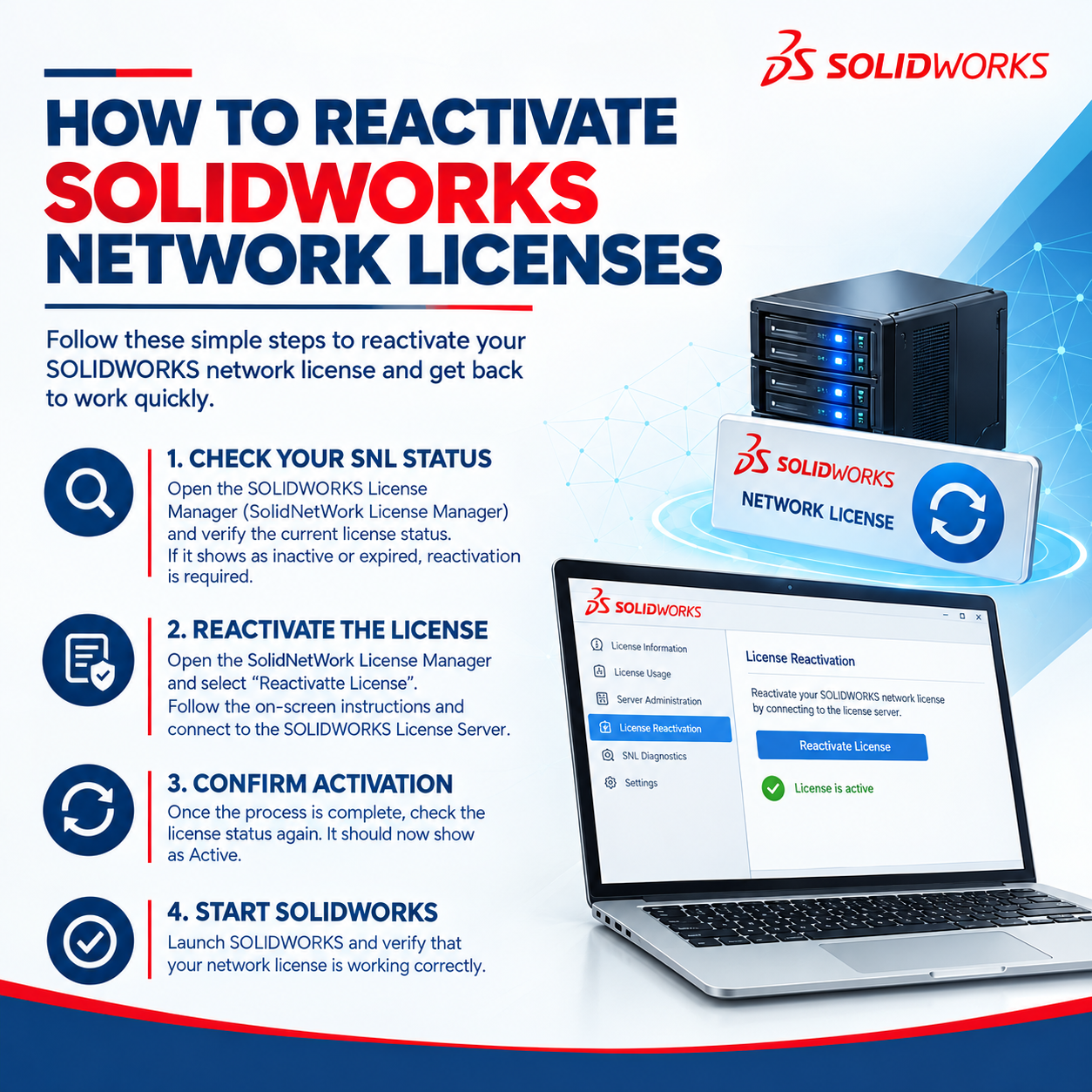
If you have recently renewed your subscription or purchased additional SOLIDWORKS network licenses of the same product type, you must reactivate the existing serial numbers in the SolidNetWork License Manager.
Reactivation updates the entitlement date on the SolidNetWork License Manager server. If additional licenses were purchased, they will also be added to the existing serial numbers after reactivation.
Annual reactivation is required for SolidNetWork License products once the organization has upgraded to the latest version SolidNetWork License Manager Server or later.
1.Launch the SolidNetWork License Manager Server
On the server machine hosting the network licenses, open the SolidNetWork License Manager Server application and check the License Usage and License Borrowing tabs for any borrowed licenses. If any licenses are currently borrowed, ensure that users return them before proceeding with the reactivation.
License Usage: For each product in the drop-down list, check the Borrowed Until column to identify any licenses that are currently borrowed.
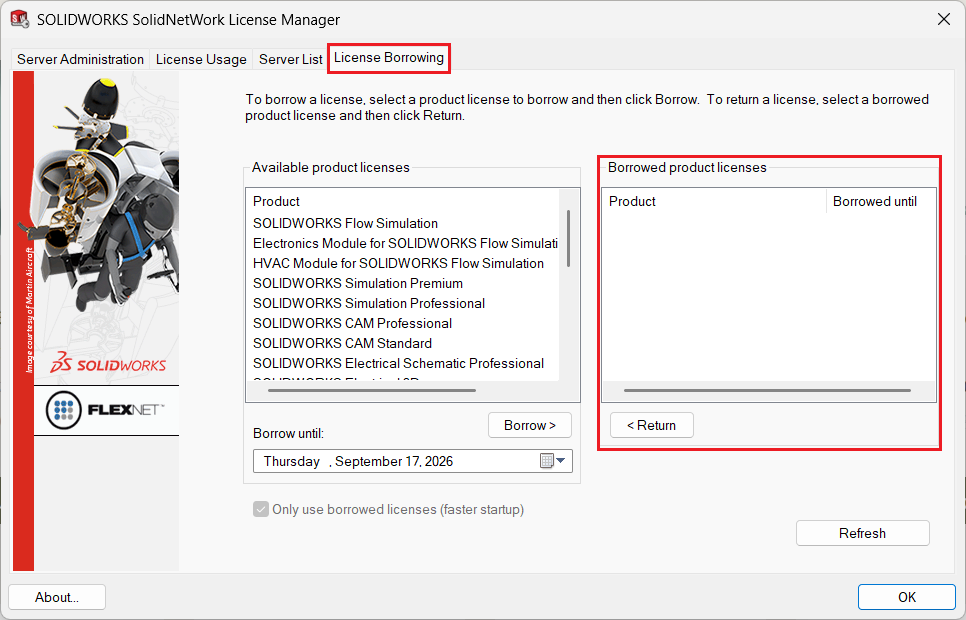
License Borrowing: Check the Borrowed Product Licenses section to review all currently borrowed licenses.
2. Launch Activation
From the Server Administration tab, select Reactivate… to open the activation dialog.
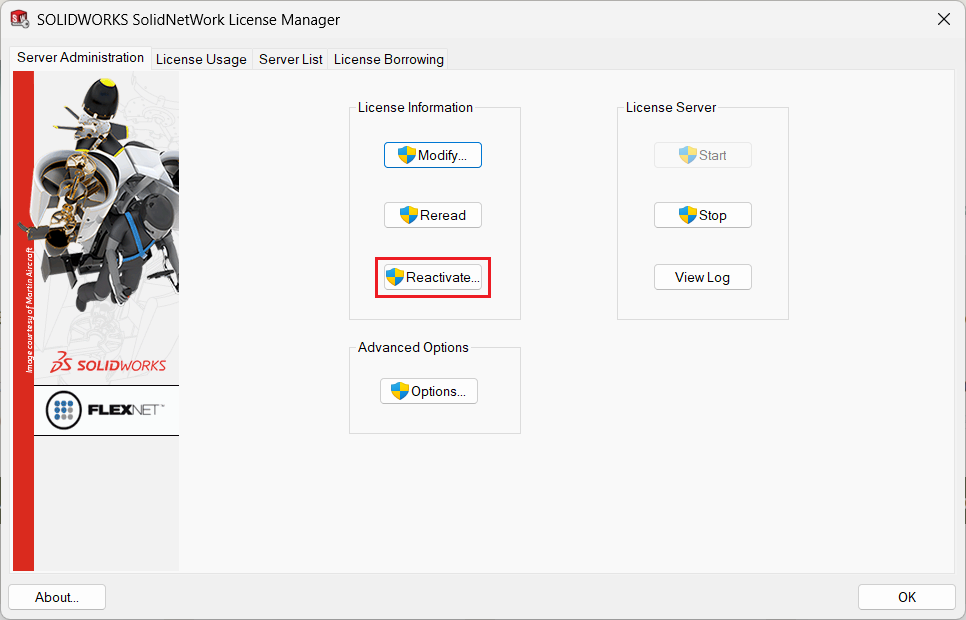
Note: In older versions of the SolidNetWork License Manager, the button may be labeled Modify… instead.
3.Review your product license(s)
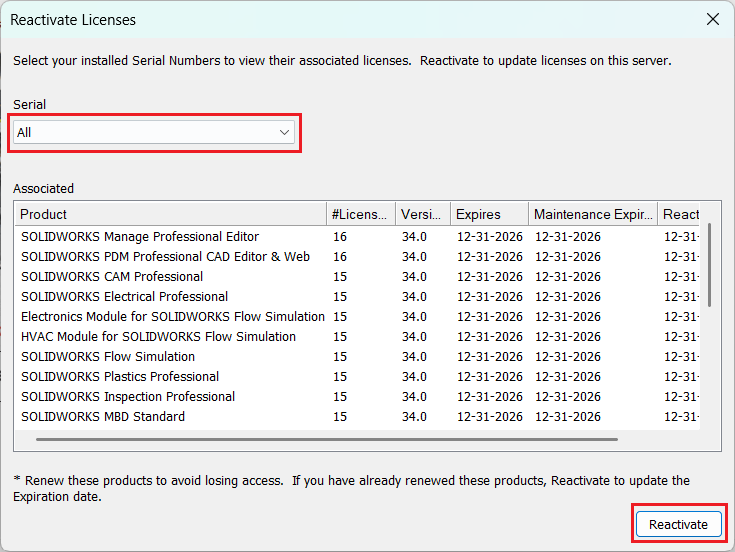
In the Reactivate Licenses dialog, use the Serial Number drop-down list to select All or a specific serial number. The associated licenses will be displayed. Click Reactivate to proceed.
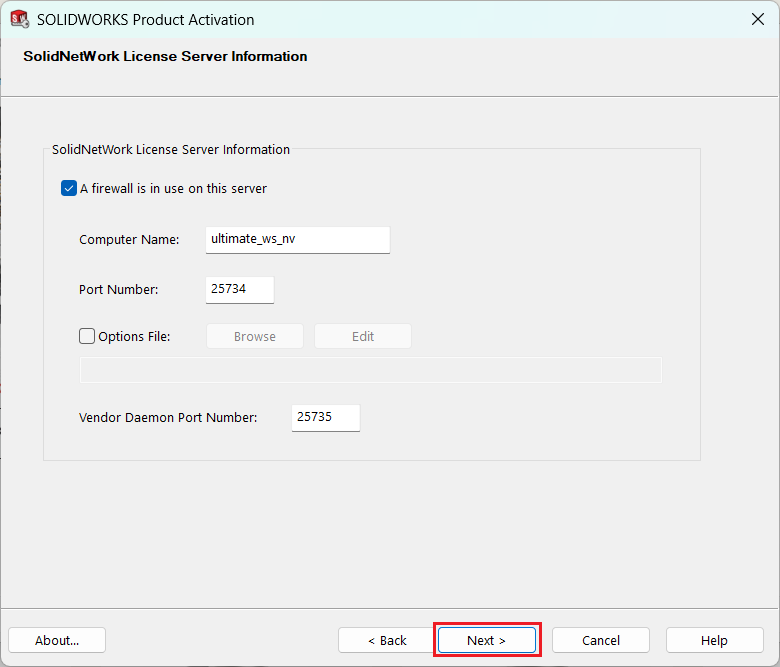
Click Next to retain the existing SolidNetWork License Server Information and continue with the reactivation process.
4. Select Your Serial Numbers
From the Serial # list, select the specific serial numbers you want to reactivate, or click Select All to select all SOLIDWORKS serial numbers. Choose the activation method; Automatically over the Internet is recommended. Enter a valid email address, then click Next to continue.
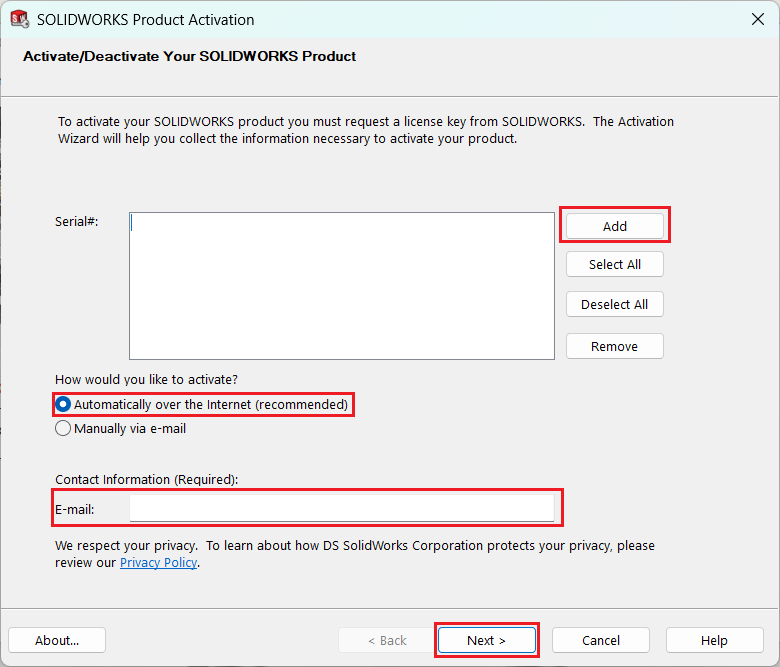
5. Finish Setup.
Once the activation is complete, a confirmation dialog will appear showing the current number of licenses available.
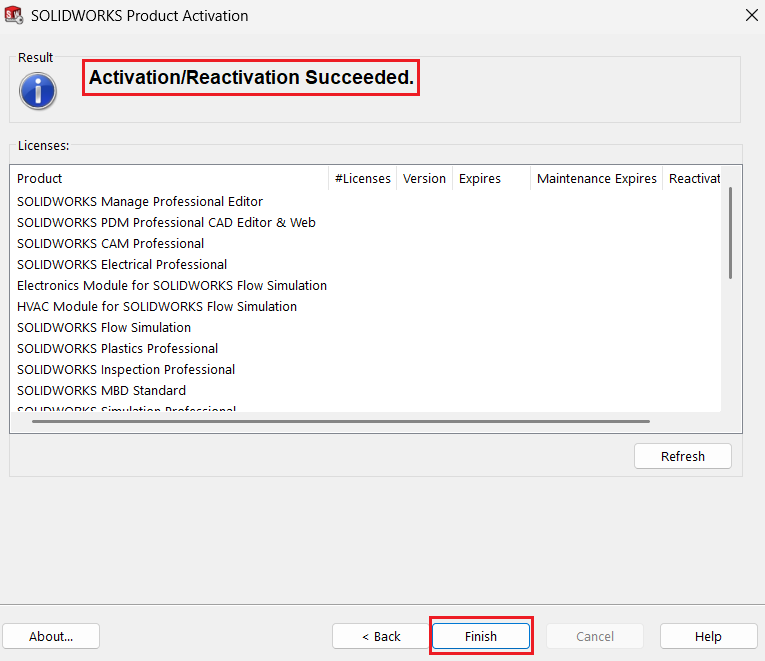
Click Finish to return to the SolidNetWork License Manager.
Your serial numbers are now successfully activated and ready to use.
Contributor: Naushad Ali Azim | Elite Application Engineer.
