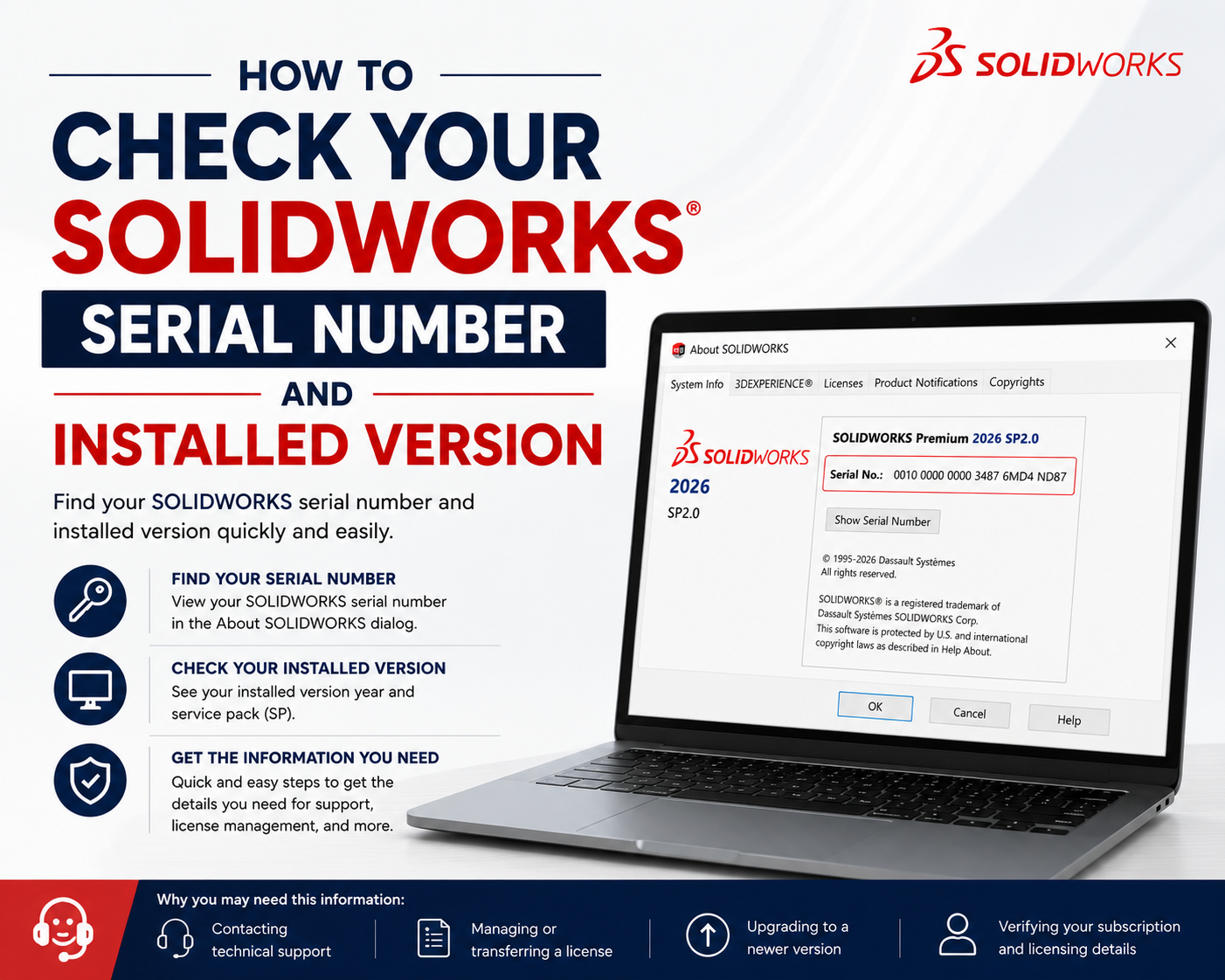
One of the most common requests from the Technical Support team is for users to provide their SOLIDWORKS serial number, installed version, and service pack. This information helps the support team accurately identify your installation and provide faster, more effective assistance.
The following methods will help you quickly locate your SOLIDWORKS serial number, version, and service pack information.
Within SOLIDWORKS Application:
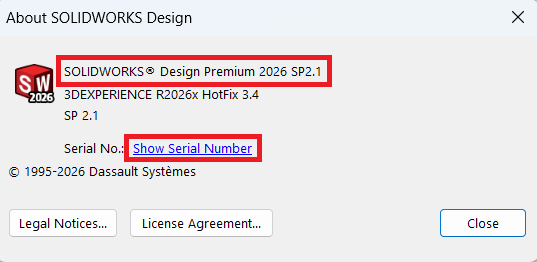
From the SOLIDWORKS Help menu, select About SOLIDWORKS.
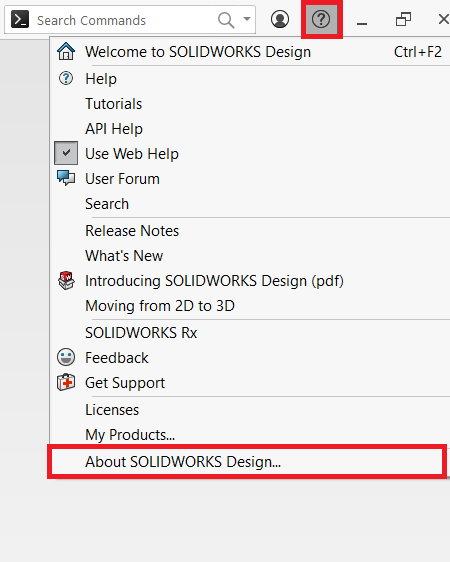
The About SOLIDWORKS dialog provides key information about your installed SOLIDWORKS software, including the edition (Standard, Professional, or Premium), the version year, and the installed service pack.
To view your license serial number, click Show Serial Number. This will display the SOLIDWORKS serial number associated with your current installation.
From the Windows Registry (serial number display only):
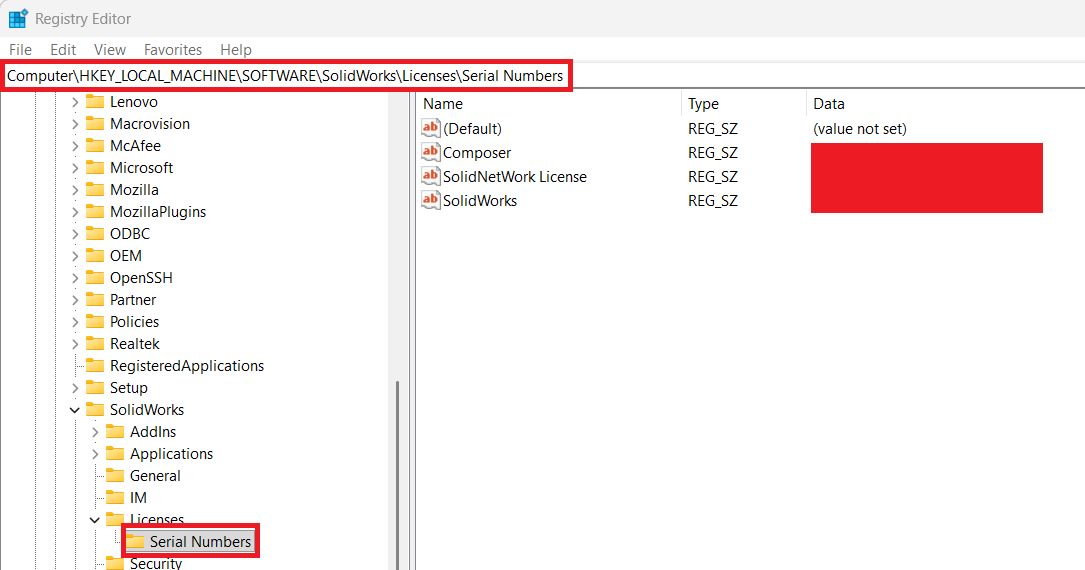
If SOLIDWORKS cannot be started, you can retrieve the serial number directly from the Windows Registry.
This method is useful when the software is unavailable or cannot be launched.
Important: Do not edit the serial numbers or any values within the Windows Registry key listed below. Unauthorized changes to these registry entries may prevent SOLIDWORKS from functioning correctly and could require a reinstallation to restore normal operation.
- Right-click the Windows Start button and select Run.
- Type
regeditin the Open field, then press Enter to launch the Registry Editor. - In the Registry Editor, navigate to the registry path shown below to locate your SOLIDWORKS serial number(s).
Note: You may be prompted by User Account Control (UAC) to allow Registry Editor to make changes to your device. Click Yes to continue.
SOLIDWORKS serial numbers on the client machine:
HKEY_LOCAL_MACHINE > SOFTWARE > SolidWorks > Licenses > Serial Numbers
From the Windows Control Panel or Apps and Features:
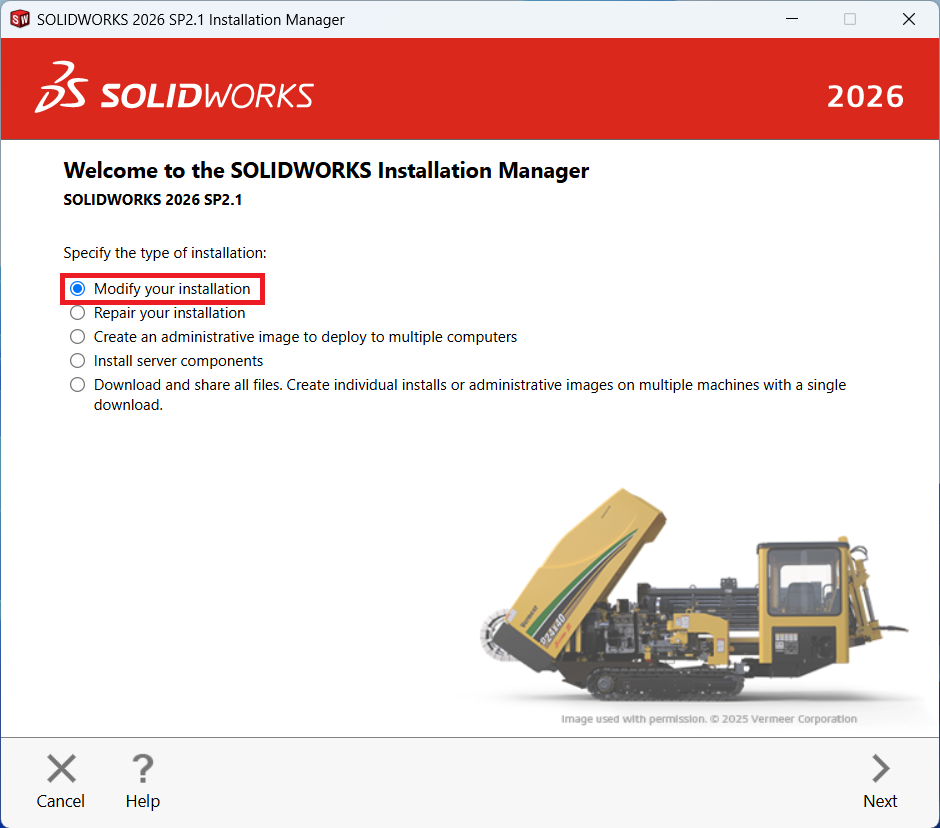
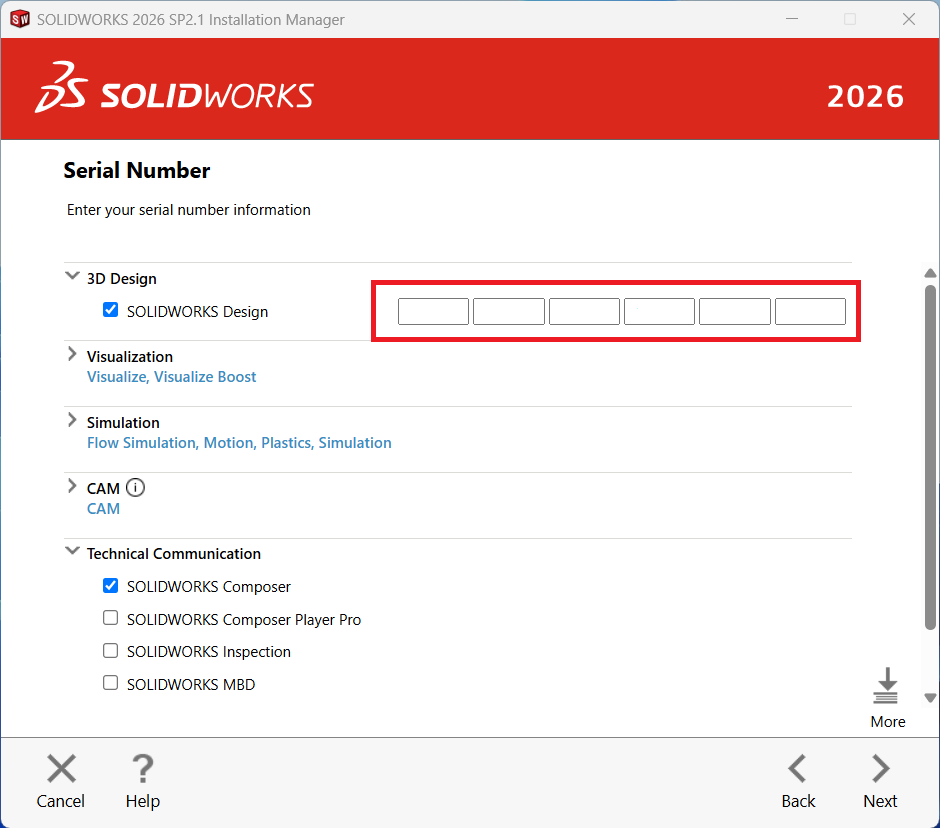
When the SOLIDWORKS installation manager appears, select ‘Modify your installation’ and click Next. The installed serial numbers are displayed on the next screen. The SOLIDWORKS version and service pack are also displayed at the top of the Installation Manager dialog.