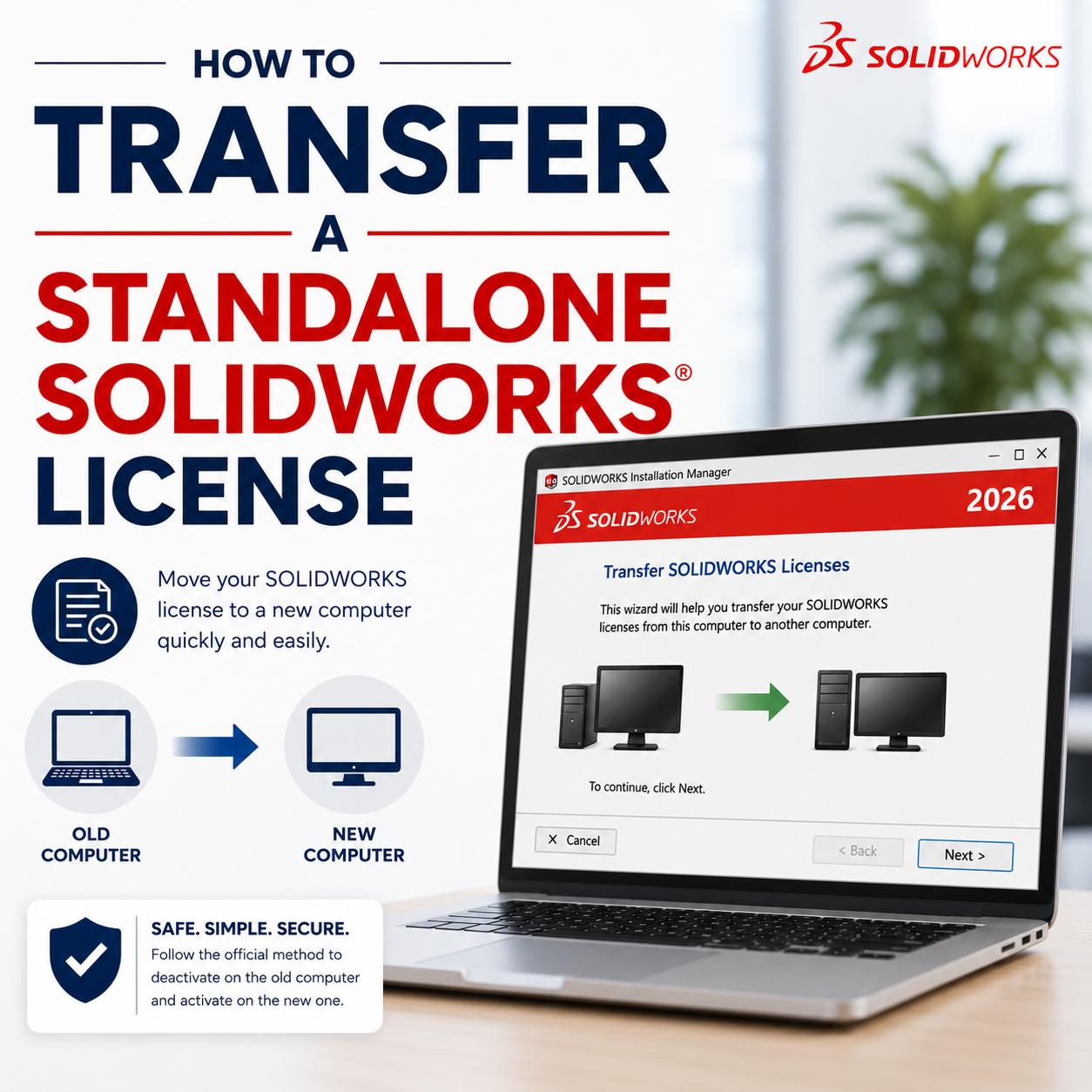
SOLIDWORKS Standalone licenses (serial numbers starting with 9000) are activated for use on a single computer and are linked to that system’s hardware. To move the license to another computer, deactivate it on the current machine and then activate it on the new computer using the steps below.
Common situations that require a SOLIDWORKS license transfer include:
- Switching SOLIDWORKS usage between a desktop and a laptop.
- Migrating to a new computer.
- Making significant hardware changes to the existing computer.
- Reformatting or reinstalling the operating system.
1. Locate your SOLIDWORKS Serial Number.
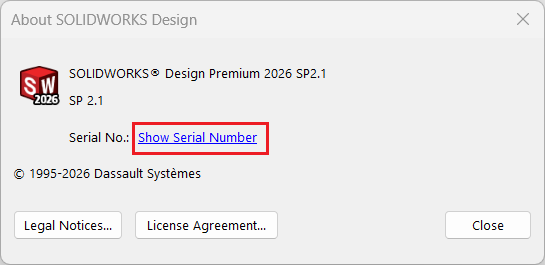
Before transferring your license, verify which serial number is installed on the computer to be deactivated within SOLIDWORKS by selecting Help > About SOLIDWORKS. Click ‘Show Serial Number’ to display the 24-character alphanumeric serial number. Record this number to install on the other computer.
2. Launch Product Activation.
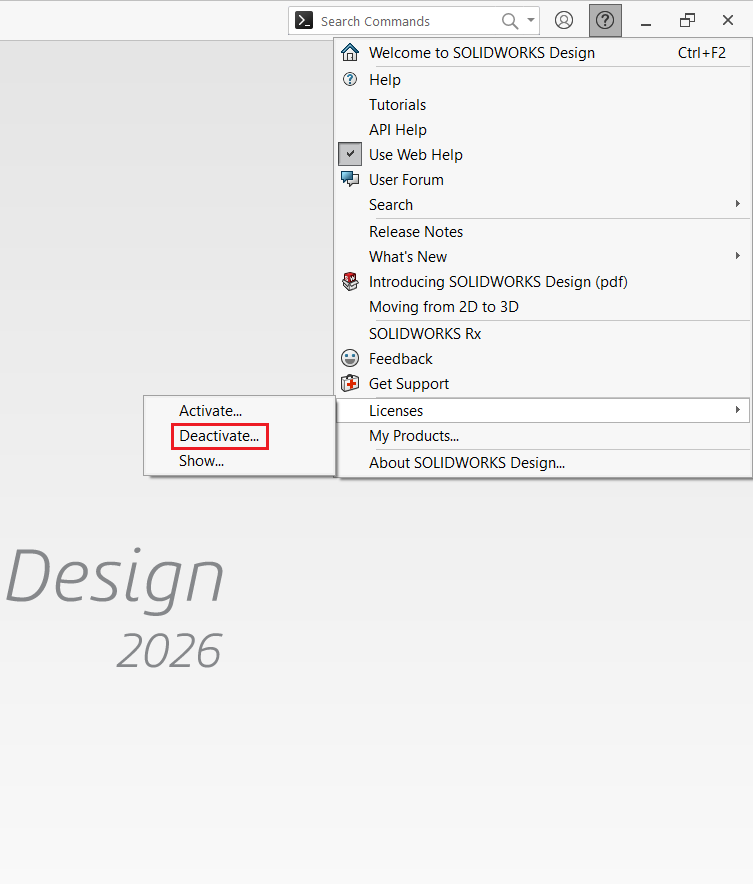
Depending on the version of SOLIDWORKS installed, the menu locations in the help menu may vary slightly.
- SOLIDWORKS 2020 and newer, select Help > Licenses > Deactivate.
- Note the Help menu is now the “?” inside a circle in the upper right corner.
3. Select Products to Transfer.
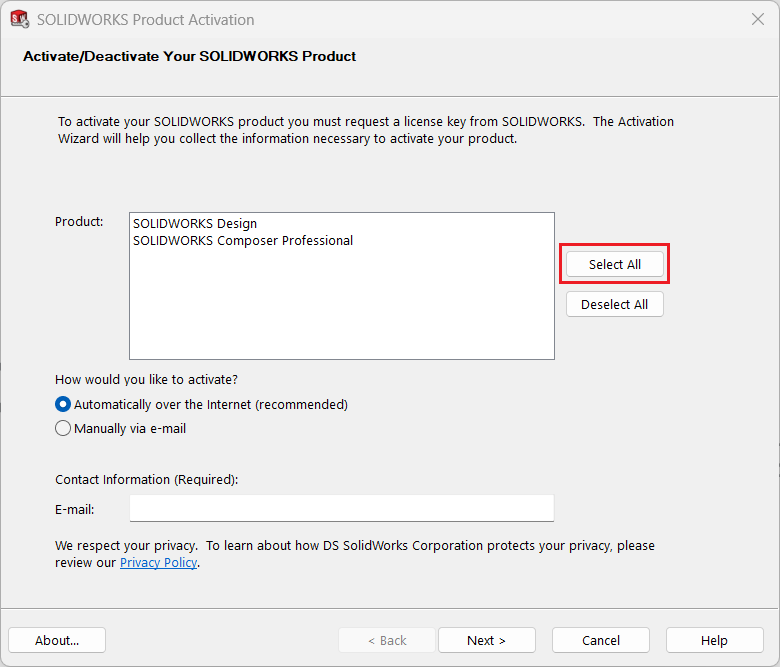
In the SOLIDWORKS Product Activation dialog box, select the product(s) you wish to transfer from the list displayed in the upper section. To transfer all listed products, click Select All.
4. Activation Details
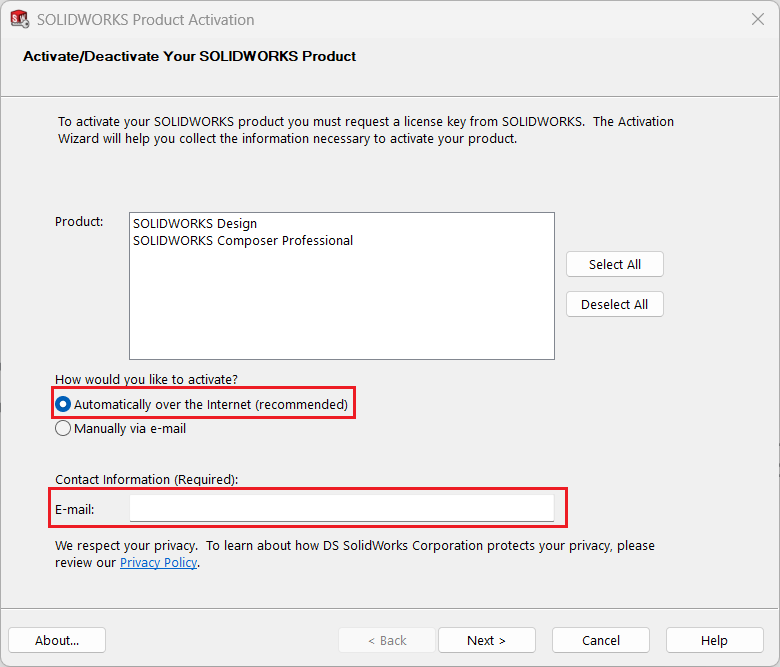
In the lower section of the dialog box, select the preferred deactivation method. Automatically over the Internet is the recommended option. If the computer does not have internet access, choose the email option and follow the on-screen instructions to generate a deactivation request file, which can then be sent from another computer with internet connectivity.
5. Review and Confirm the Results
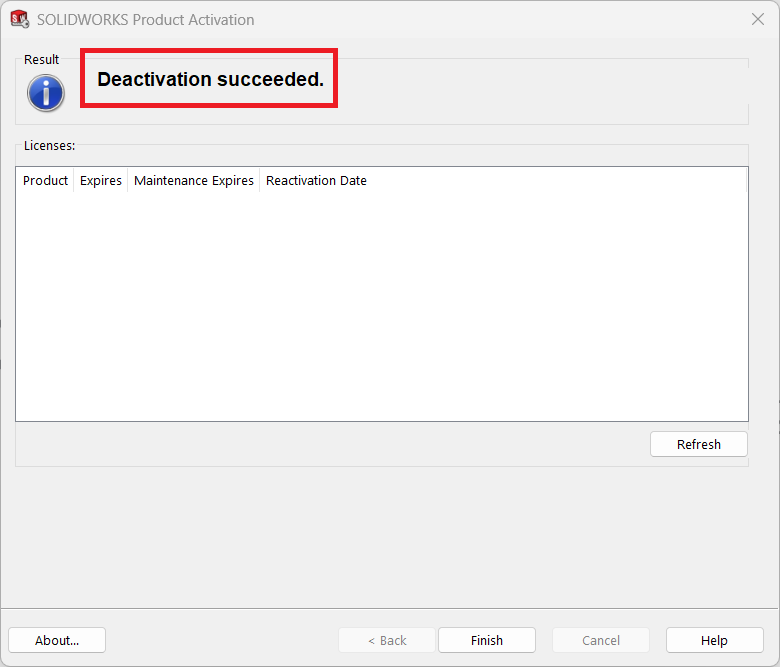
The Automatically over the Internet (Recommended) method will deactivate the license and display a confirmation message upon successful completion. Click Finish to close the dialog box. SOLIDWORKS will automatically exit since the license has been deactivated.
When using the Manually via E-mail method, you will be prompted to save a Request File (.txt). Transfer this file to a computer with internet access and email it to activation@solidworks.com. An automated response containing a Response File is typically received within a few minutes.
Copy the Response File back to the computer where SOLIDWORKS is installed. Repeat the manual deactivation process and select Open to browse for and load the Response File. Once the file is processed, the license deactivation will be completed successfully.