
The SQL Server products can be installed on the same or a separate machine from the PDM components as you desire. The first setup of the SQL Server Database is simple enough, but it’s important to not miss any steps. The instructions can be found in the Installing and Configuring SQL Server section of the PDM Installation Guide
Installing the SQL Server Database Engine:
-
- Close all Windows applications, including Windows File Explorer.
- Download the SQL Server installation media from the Microsoft SQL Server Downloads page.
- Right-click > Run as Administrator the Setup.exe file you just downloaded.
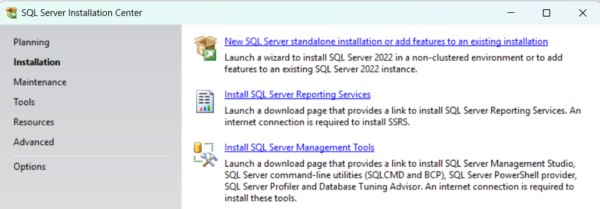
- On the left, choose Installation > New SQL Server stand-alone installation or add features to an existing installation.
-
- Enter your license key if you have one.
- Read and accept the license agreement, and then click Next
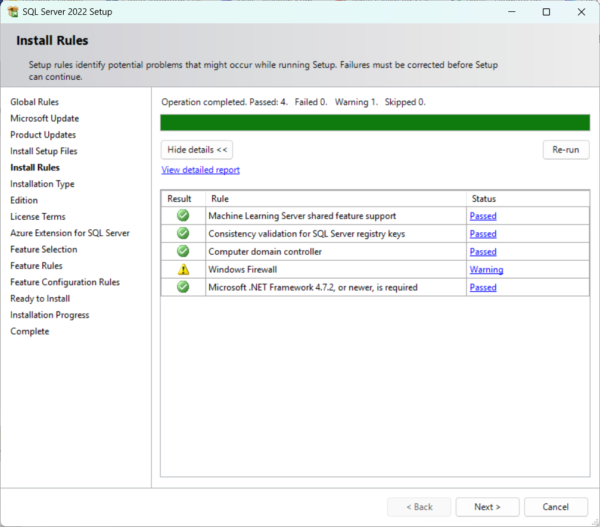
- The installer will run a check.
- If no problems are reported, click Next.
- If a problem is reported:
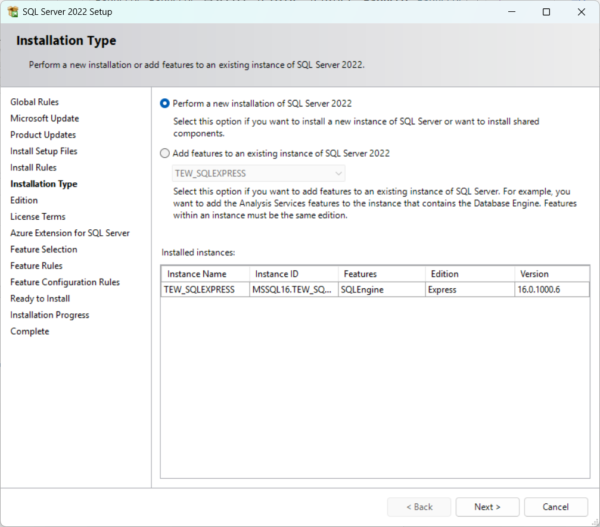
- Click Next > select perform a new installation of SQL server 2022 > Select next
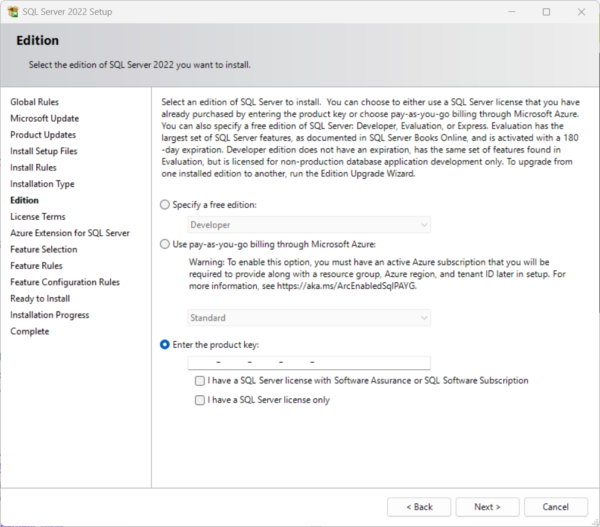
- Enter the Product key in the and click next to proceed with next page as shown
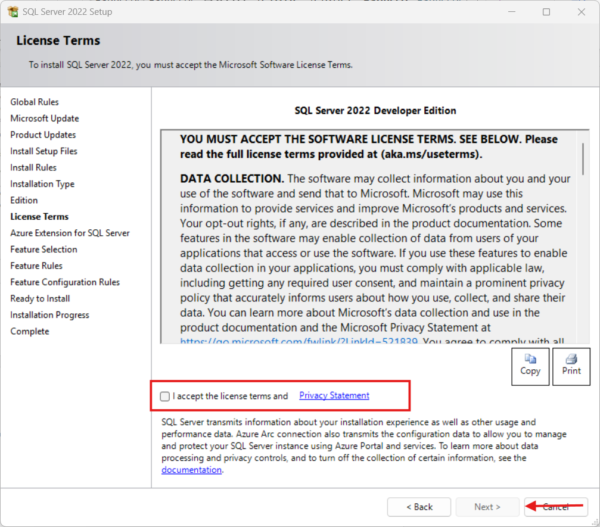
- Accept the license terms so that the next option will be enabled from grey out and click next
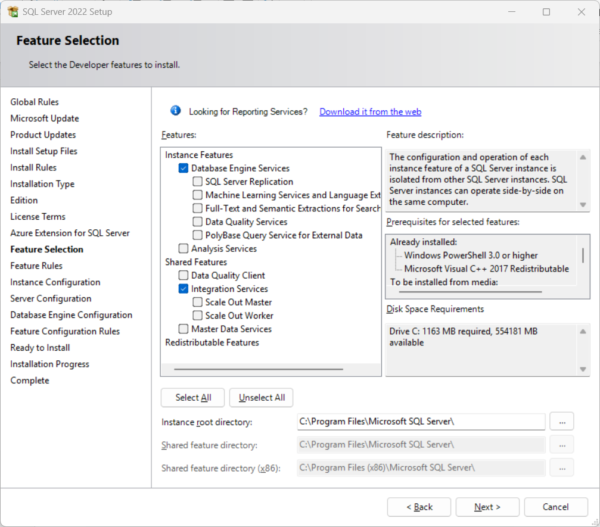
- No need to azure here and click next to open feature selection page
-
- Under Instance Features, choose Database Engine Services.
- choose Integration Services under Shared Features.
Note: If installing SQL Server 2019 – Under Shared Features, select Client Tools Connectivity, Integration Services, Client Tools Backward Compatibility, and Documentation Components
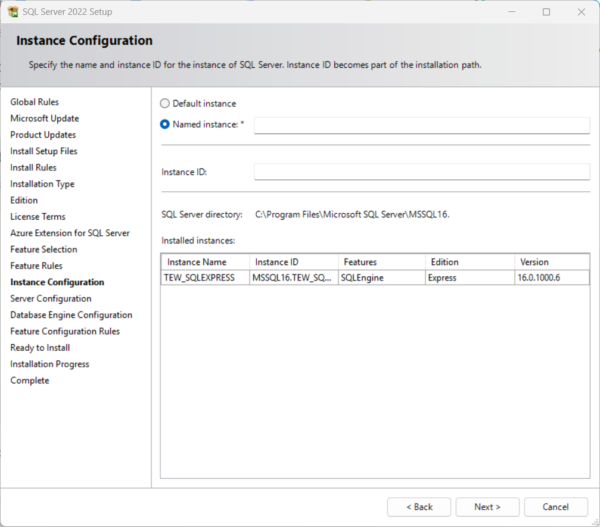
- For Instance Configuration, select Default Instance and click Next. (In my case I will go with named instance – PDMDB)
- For server Configuration, under services accounts tab – SQL Server Database Engine:
Account Name: NT Service\MSSQLINSTANCENAME
Startup Type: Automatic
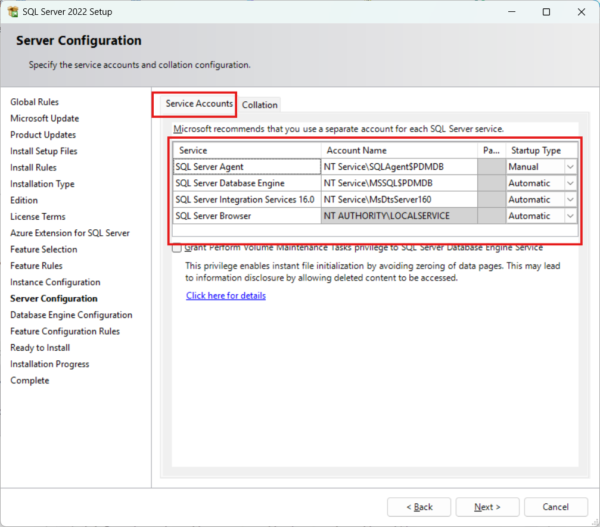
(Under collection Tab I will maintain the default – SQL_Latin1_General_CP1_CI_AS and proceed to next)
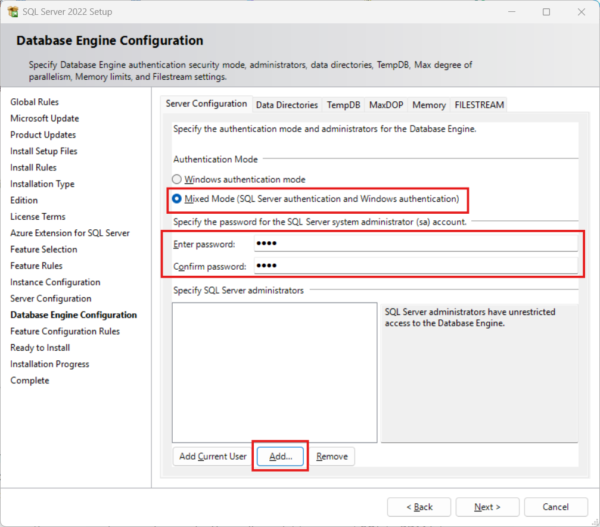
- For Database Engine Configuration:
-
- Server Configuration Tab:
- Select Mixed Mode (SQL Server Authentication and Windows Authentication).
- Type a strong password for the SQL Database System Admin account. Do not leave the password blank! You’ll need to fill it in twice
- To see the password requirements, click Help
- Remember to save this password somewhere safe. You will need it to connect SQL to PDM later.
- Under Specify SQL Server administrators, click Add
- In the Select Users/Computers/Groups dialog, enter the name of the local administrator of the system, or the local or domain Administrators group. These are users you want to have access to SQL should you ever lose the SA password. When done, click Next.
- On the Data Directories tab, it is optional to set the remaining paths. However, keep the default settings for the Then click Next.
- Server Configuration Tab:
- Click Install to begin the installation. This will take some time. When the success notice pops up, click Next and then Close.
- If an automatic restart does not occur, restart the machine
- If there are any cumulative updates or hotfixes needed for your chosen SQL version, apply those now.
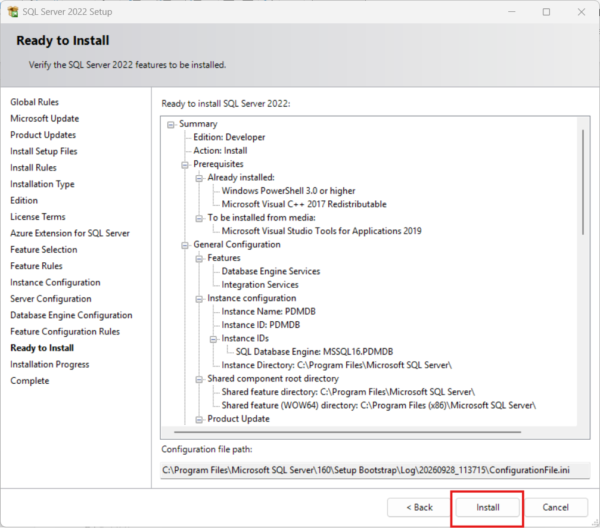
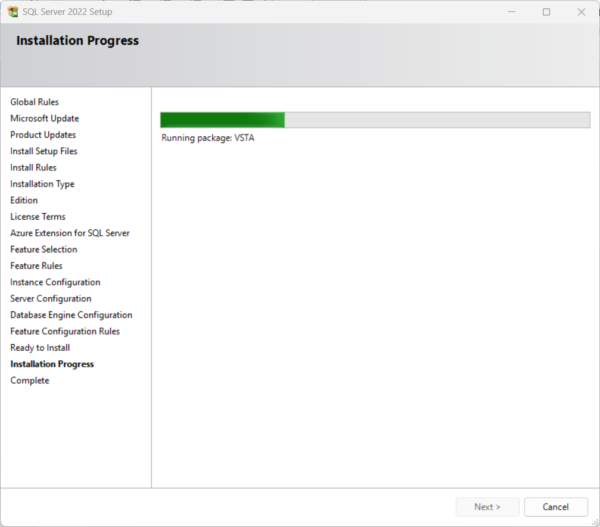
Install process will start and once done click finish to exit
SQL Server Management Studio:
After the reboot, you’ll need to download and install Microsoft SQL Server Management Studio. The newest version will work, as it is backward compatible.
Enabling SQL Server Remote Access
-
- Open SQL Server Management Studio (SSMS)
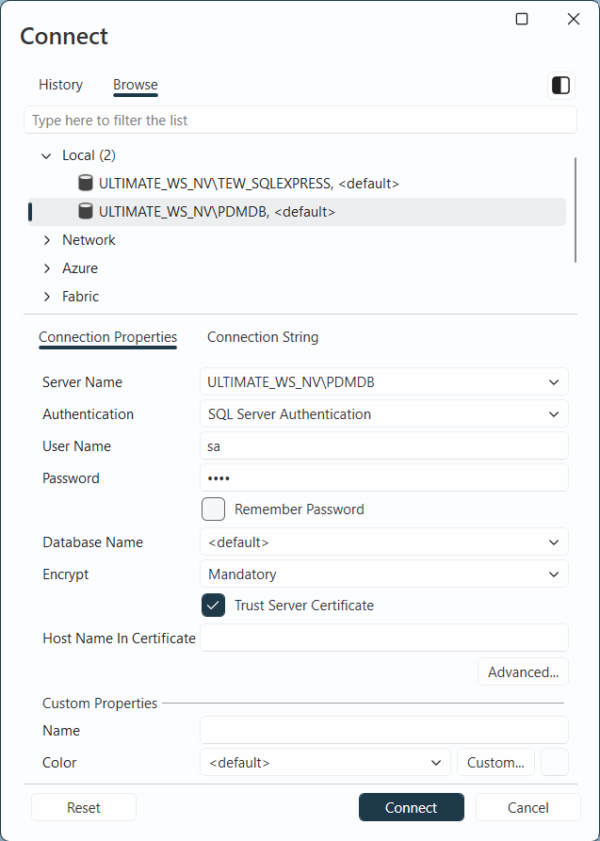
-
- Login to your SQL Instance.
- Select the SQL instance you want to connect to under Server Name (usually this will be the server’s name, but if you chose a named instance for PDM you’ll need to type the server name followed by \Instance Name. I.e. Server Name\Instance Name).
- Set the Authentication type to SQL Server Authentication. Enter the SA credentials you designated earlier.
- Be sure to check the Trust server certificate box any time you log in to SSMS.
- Leave all other options the same.
- Click Connect.
- In the Object Explorer on the left side, right-click the server’s name and choose Properties.
- Login to your SQL Instance.
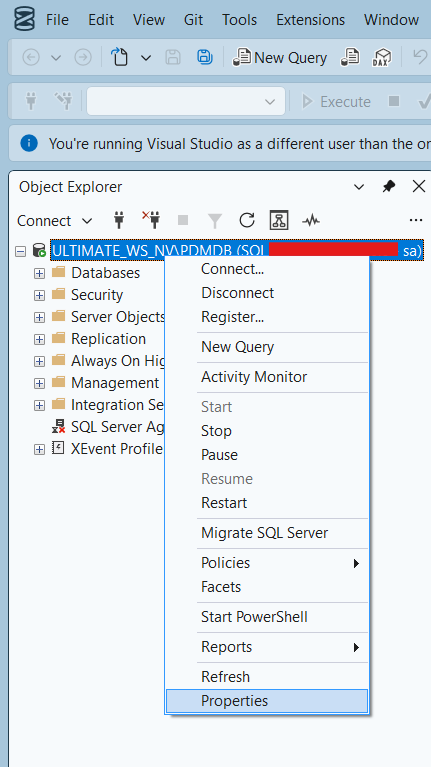
-
- In the Server Properties dialog box, click Connections
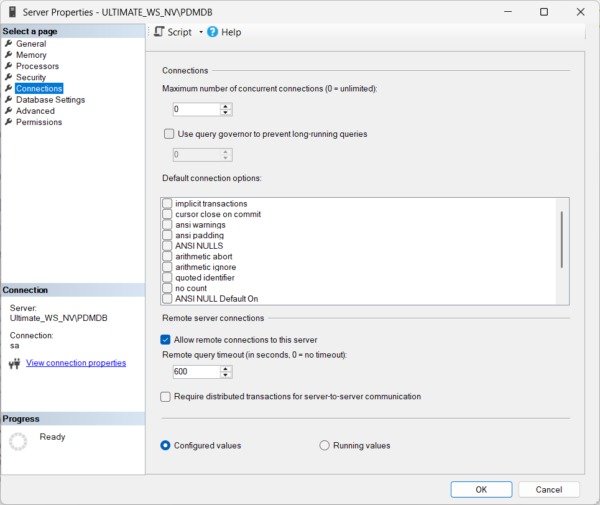
In the right pane, under Remote server connections, verify Allow remote connections to this server is checked and click OK
-
- Exit Microsoft SQL Server Management Studio
Enabling the SQL protocols:
- From the Windows Start menu, click Microsoft SQL Server version > SQL Server version Configuration Manager.
- In the left pane, expand SQL Server Network Configuration and click Protocols for PDMDB
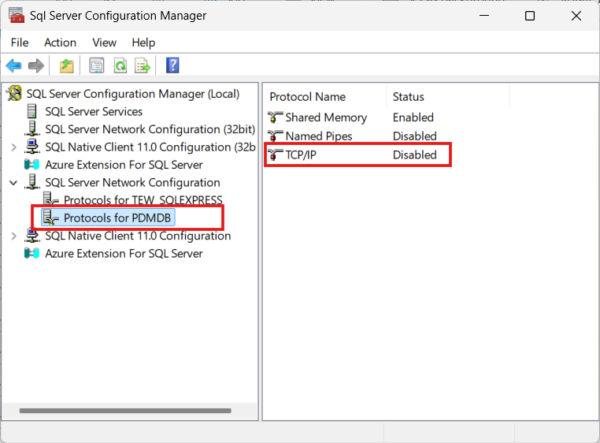
-
- In the right pane, verify that all three protocols are enabled. If any are disabled, right-click it and select Enable.
Configuring the SQL Instance to Listen on a Fixed TCP Port
By default, SQL is set up to listen to a dynamic port. However, it is difficult to configure port exceptions in this case, assuming a firewall or other security product is in place.
-
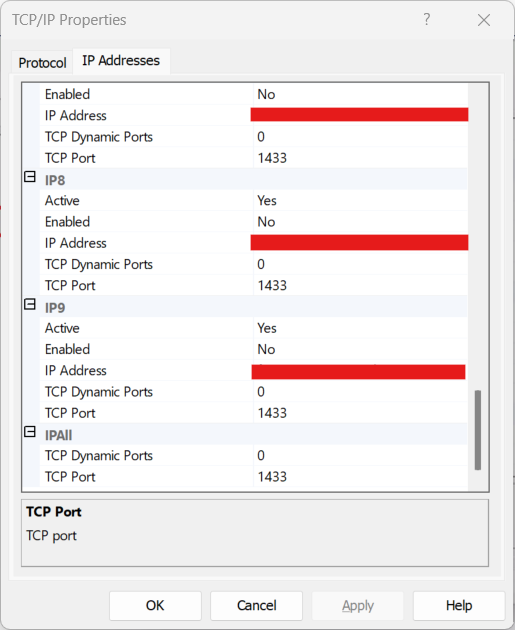
- Right-click TCP/IP and select the IP Addresses tab
-
-
- At the bottom of this screen, under IPAll, clear the value in TCP Dynamic Ports.
- Set the TCP Port to 1433
-
-
- In the left pane, select SQL Server Services.
-
-
- Right-click SQL Server (MSSQLSERVER)> Restart.
- Double-click SQL Server Browser and select the Service tab
-
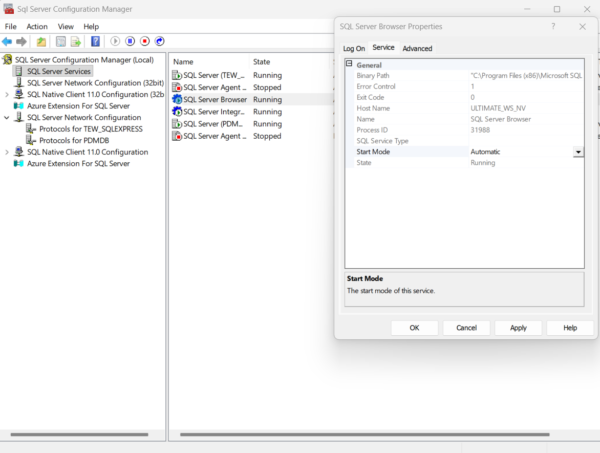
- Set the Start Mode to Automatic and click OK.
- Right-click SQL Server Browser and start the service if it is not running.
Contributor: Naveen Kumar Ravi | Elite Application Engineer
Install with confidence & Design with precision
