
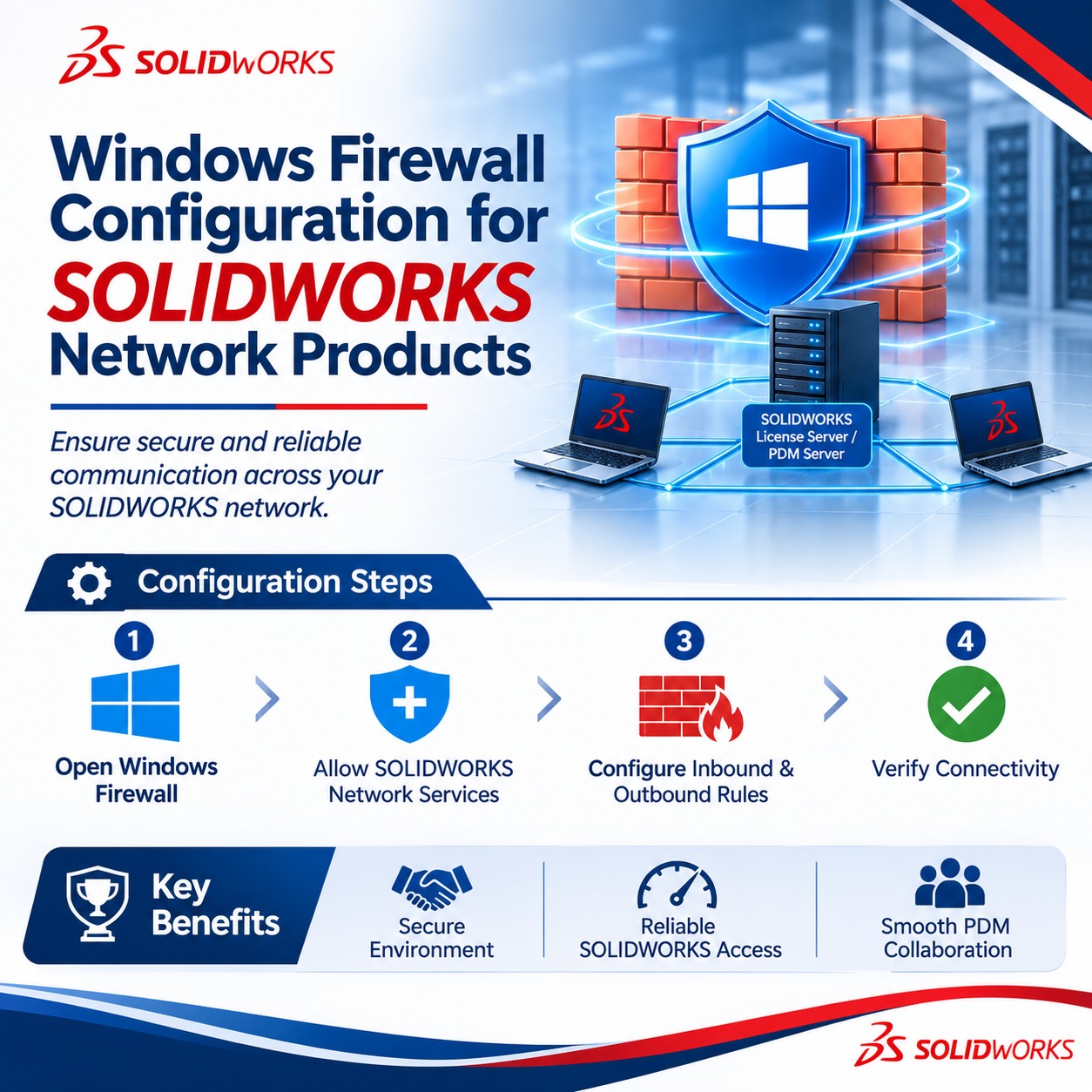
The purpose of this article is to provide the procedure for adding Windows Firewall exceptions for SOLIDWORKS network-based products.
Products such as SOLIDWORKS SolidNetWork License Manager, SOLIDWORKS PDM, SOLIDWORKS Manage, SOLIDWORKS Electrical, SOLIDWORKS Visualize Boost, SOLIDWORKS Simulation Worker Agent, and other network-based SOLIDWORKS products require network communication between the client and server.
To ensure proper communication, the required Windows Firewall rules and ports must be configured to allow network traffic between the client and server. This helps prevent the Windows Firewall from blocking the communication required for these SOLIDWORKS products to operate correctly.
Default Ports
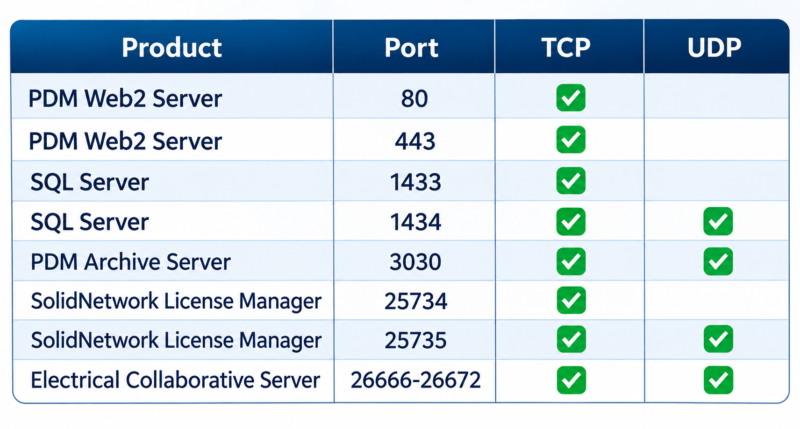
Below is a list of the default ports used by SOLIDWORKS products. Depending on the SOLIDWORKS product you are configuring, you may need to add the corresponding ports as Windows Firewall exceptions in the steps outlined later in this guide.
Adding Port Exceptions
You will need to modify firewall port settings on the server or remote worker machine by doing the following:
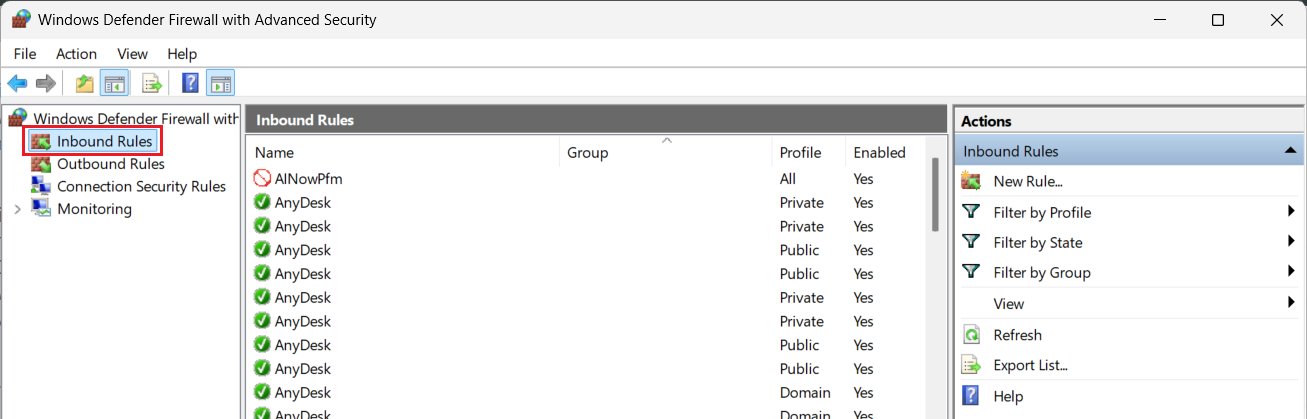
1. Go to Start > type in Firewall > select Windows Defender Firewall with Advanced Security
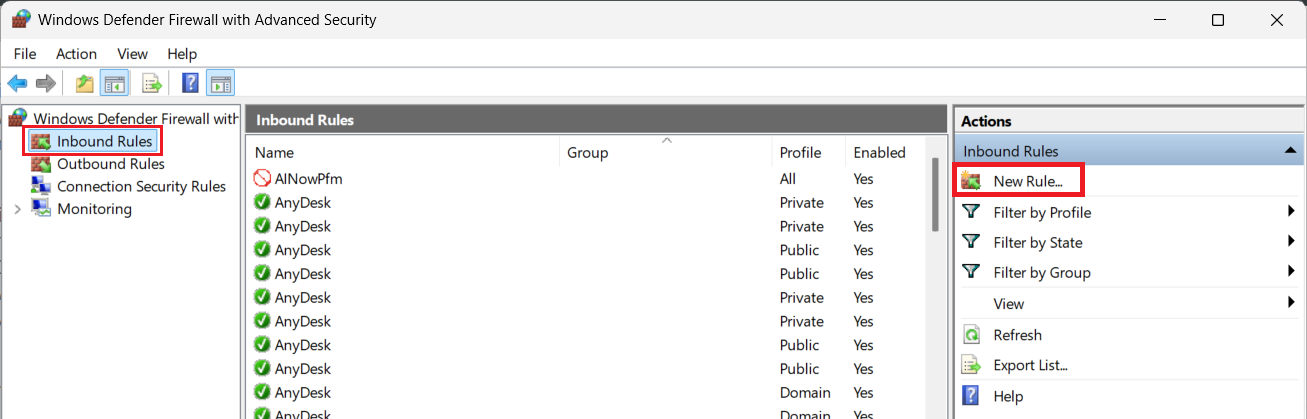
2. Select Inbound Rules on the left.
3. Select New Rule on the right
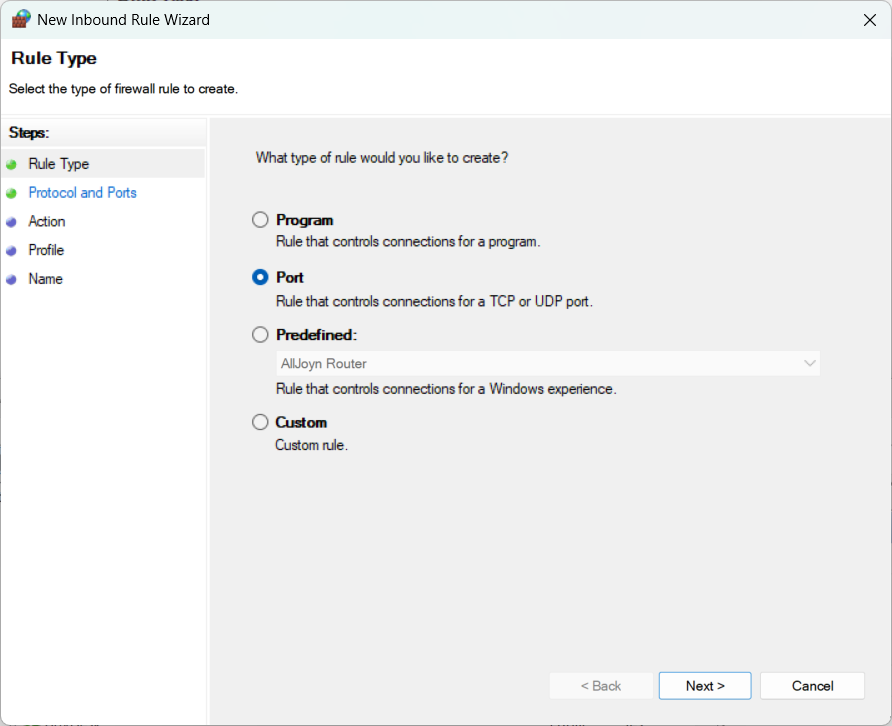
4. Select Port and click Next
5. Select TCP depending on the rule needed, then under Specific Local Ports, add the port numbers needed, and click Next
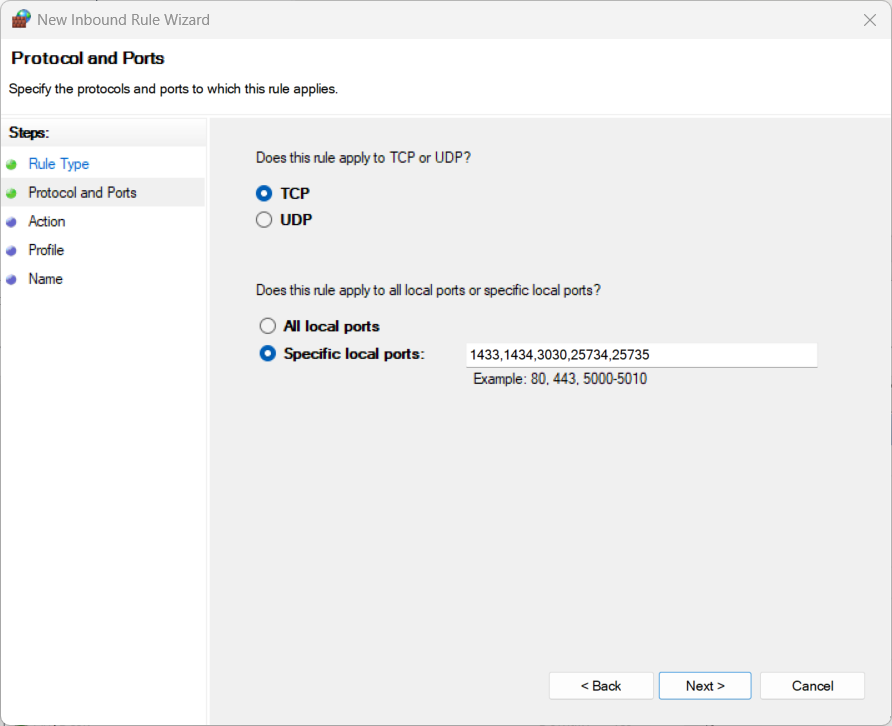
Note: This example opens all TCP ports needed for the operation of PDM and the SolidNetwork License Manger. Port List = 1433,1434,3030,25734,25735
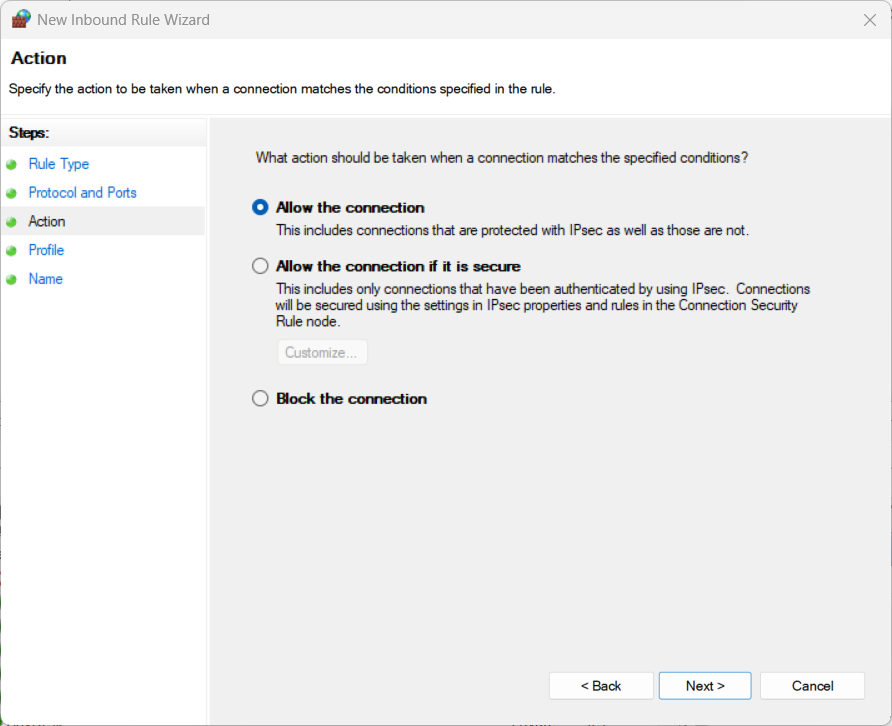
6. Select Allow the Connection and click Next
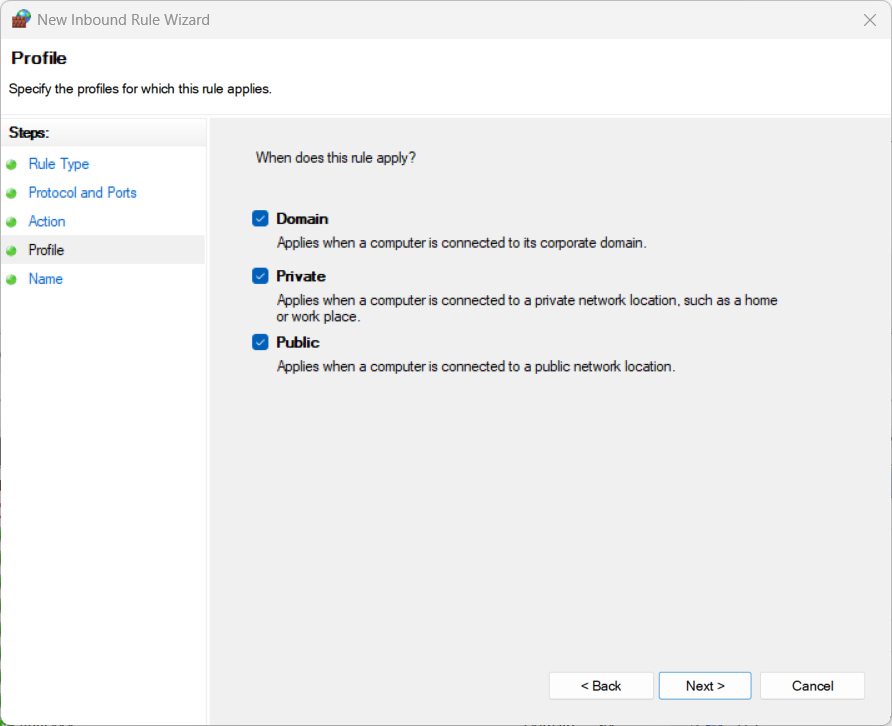
7. Enable Domain, Private, and Public profiles for operation in all contexts and click Next
8. Type a Descriptive Name including the Type-Direction and click Finish
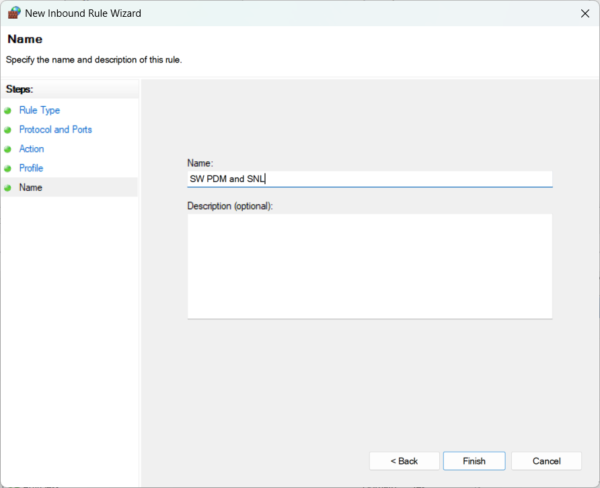
9. Process Complete!
Contributor: Naushad Ali Azim | Elite Application Engineer.
