

Managing SOLIDWORKS network licenses can be quick and straightforward when using the automatic activation method. Whether you are setting up a new license, transferring an existing license to another server, or reactivating a license after a system change, the SolidNetWork License Manager provides the necessary tools to manage your network licenses efficiently.
In this guide, we will walk through the steps to transfer or activate a SOLIDWORKS network license automatically, helping you ensure that your licenses are properly activated and ready for use.
The first step you want to do, is to make sure that there are no borrowed licenses out.
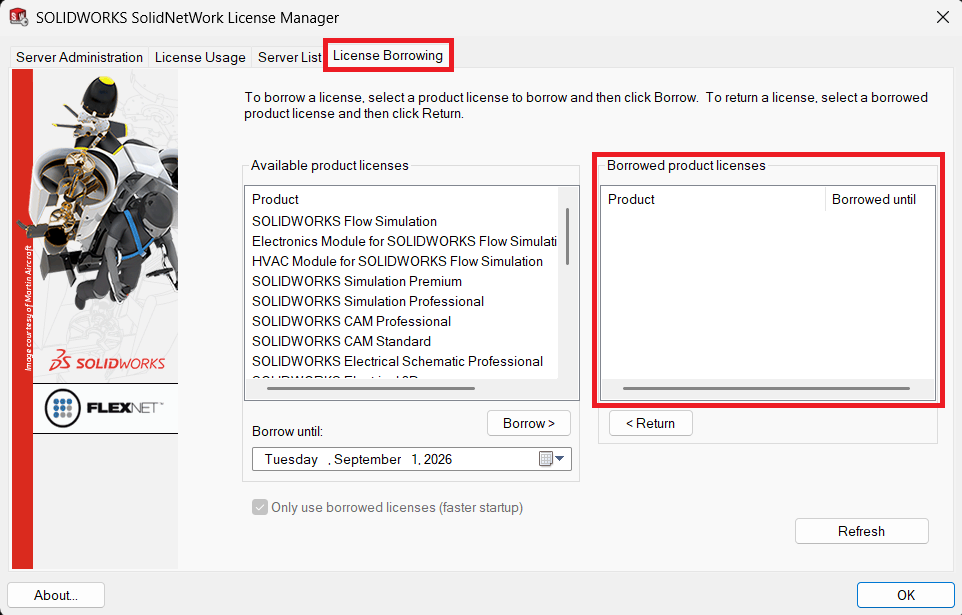
Note that all borrowed licenses returned, can transfer the SolidNetwork License.
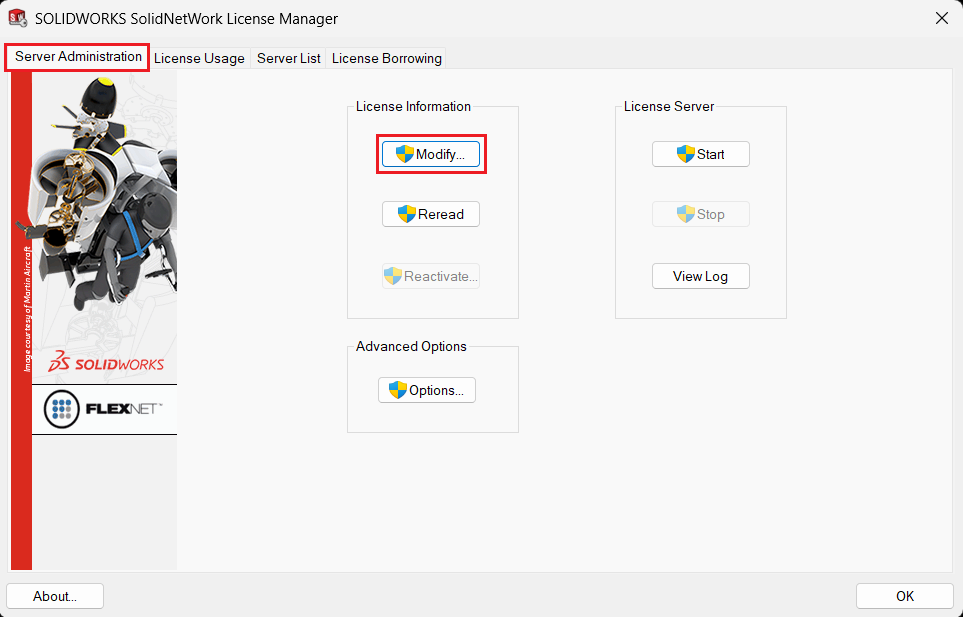
Now go the “Server Administration” tab, then select the “Modify” button.
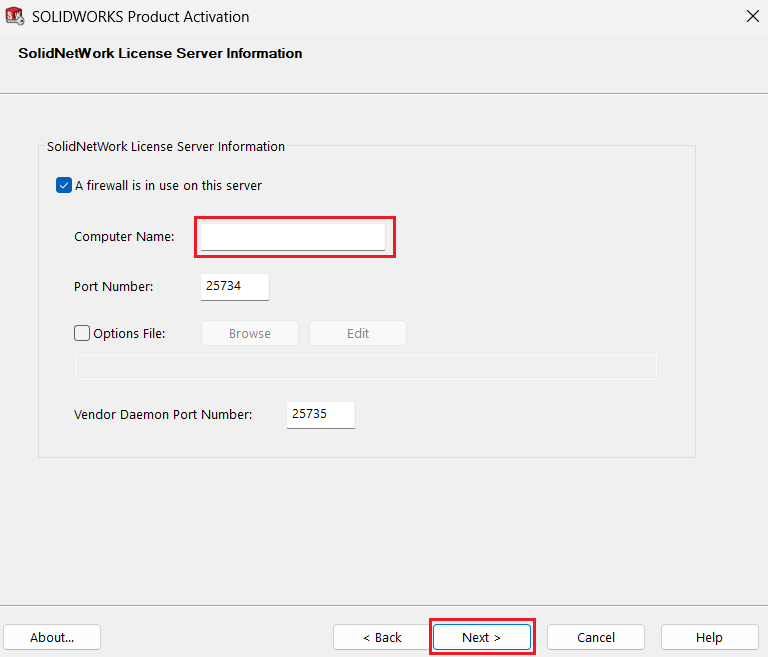
Click Next on SOLIDWORKS product Activation.
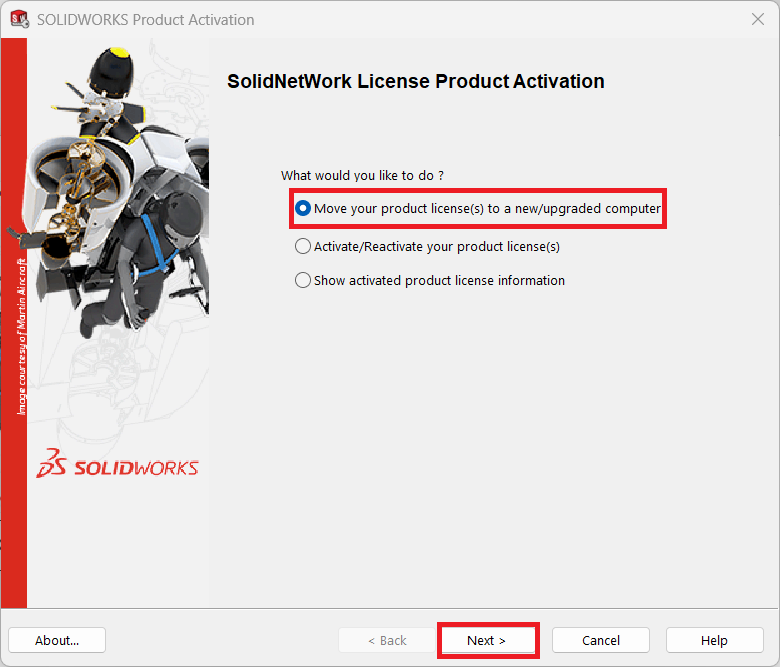
Once selected, check the option to “Move your product licenses to a new/upgrade computer” and click Next.
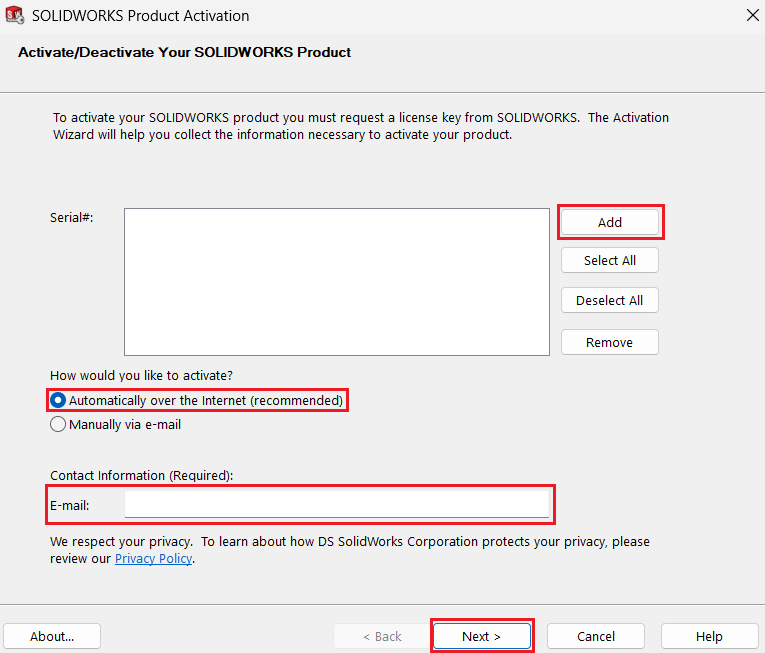
Select Automatically over the internet. Under Contact Information, specify an email contact address and Click Next.
Click Finish
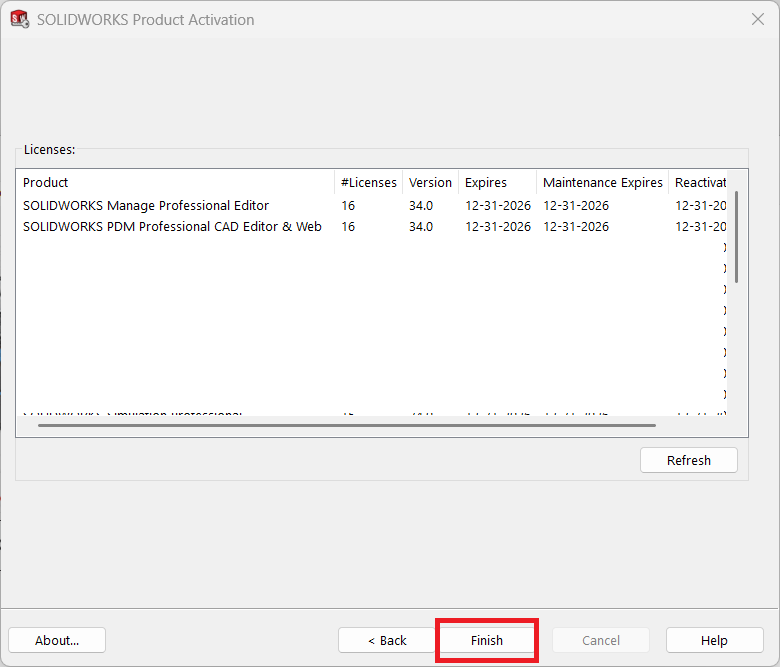
Now, the license has been deactivated successfully.
