Download from the SOLIDWORKS website
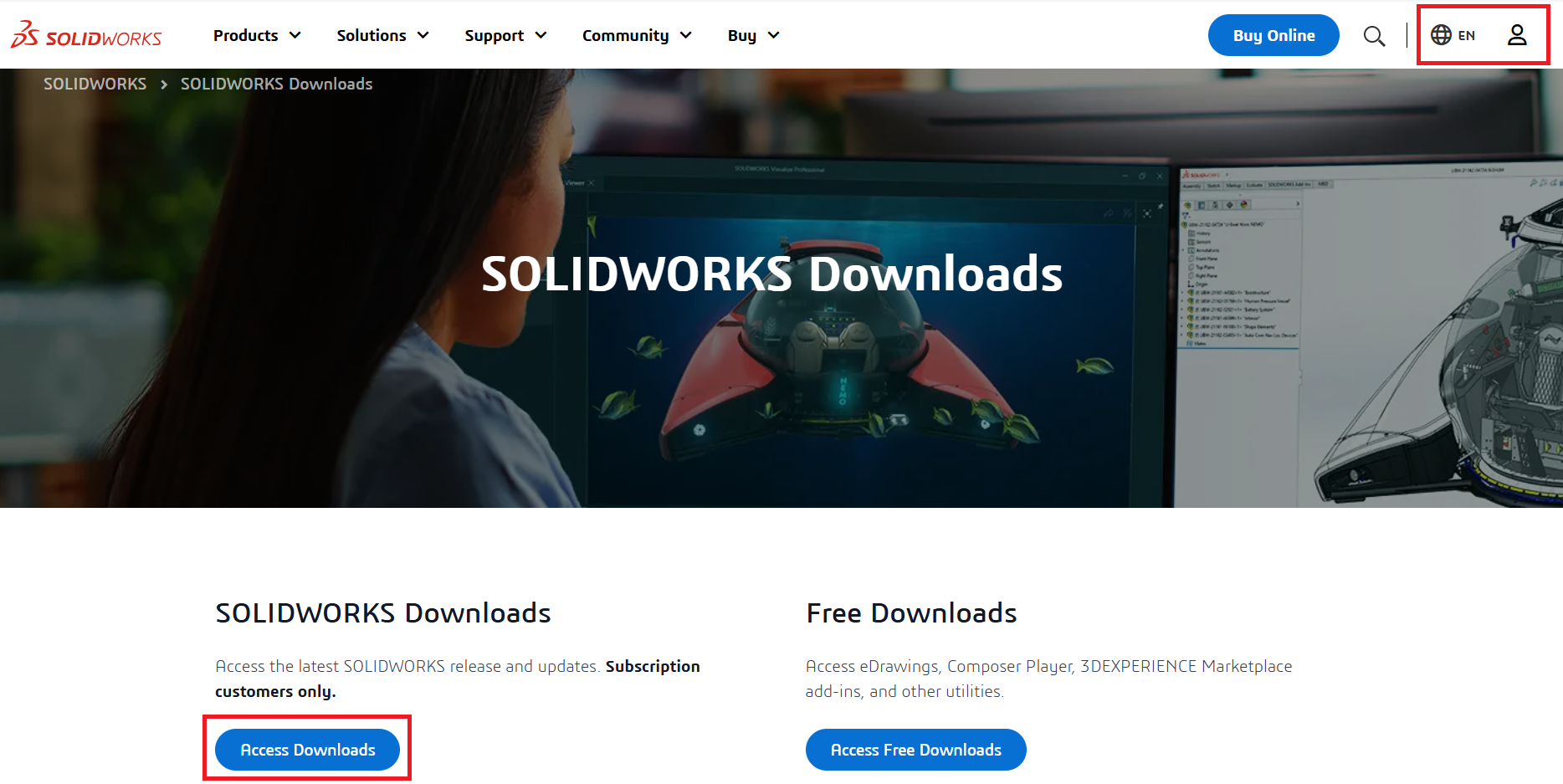
- Go to https://www.solidworks.com/sw/support/downloads.htm
- Click on Log in.
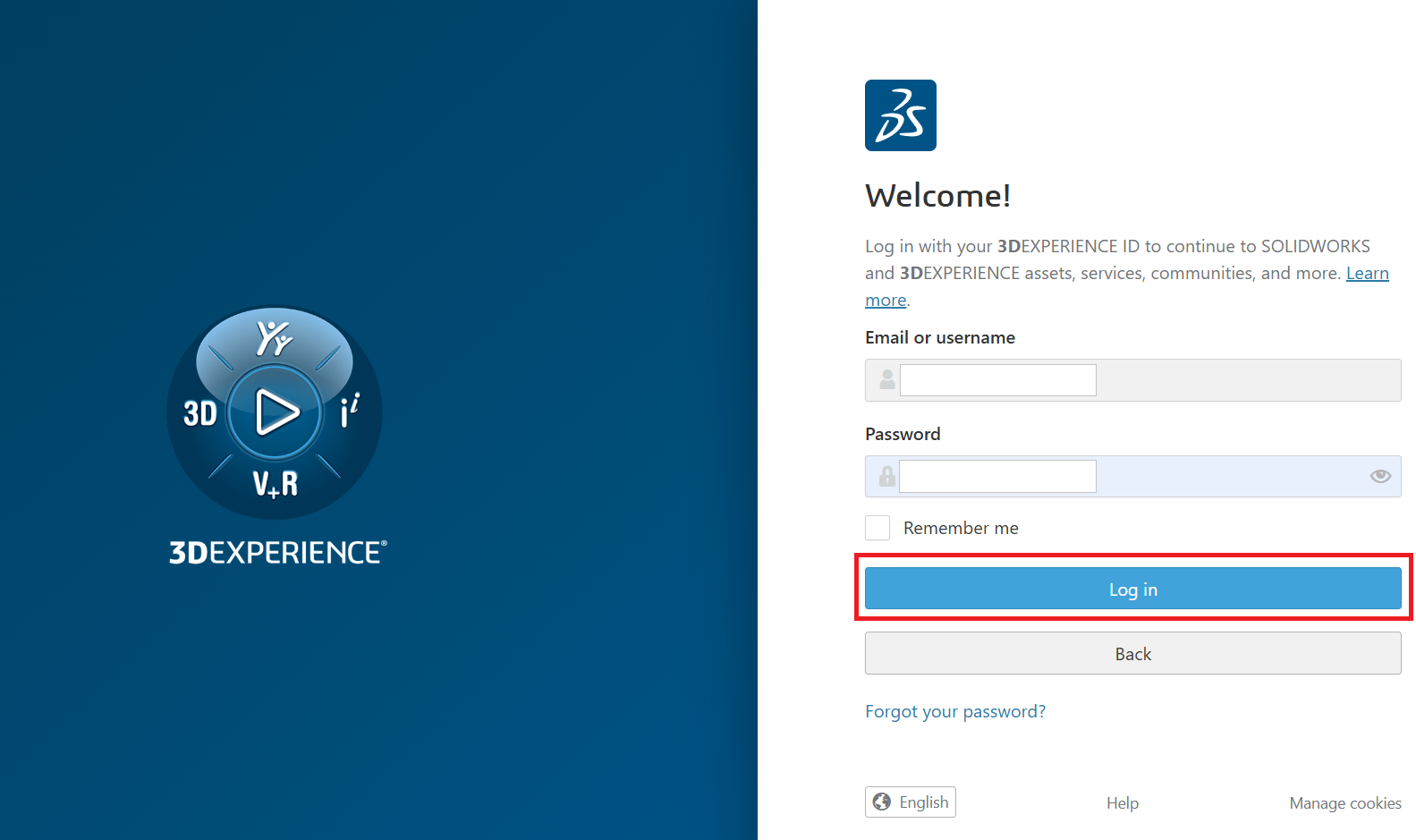
- Enter your 3DEXPERIENCE/SOLIDWORKS ID credentials. If the ID is not available, create your 3DEXPERIENCE ID
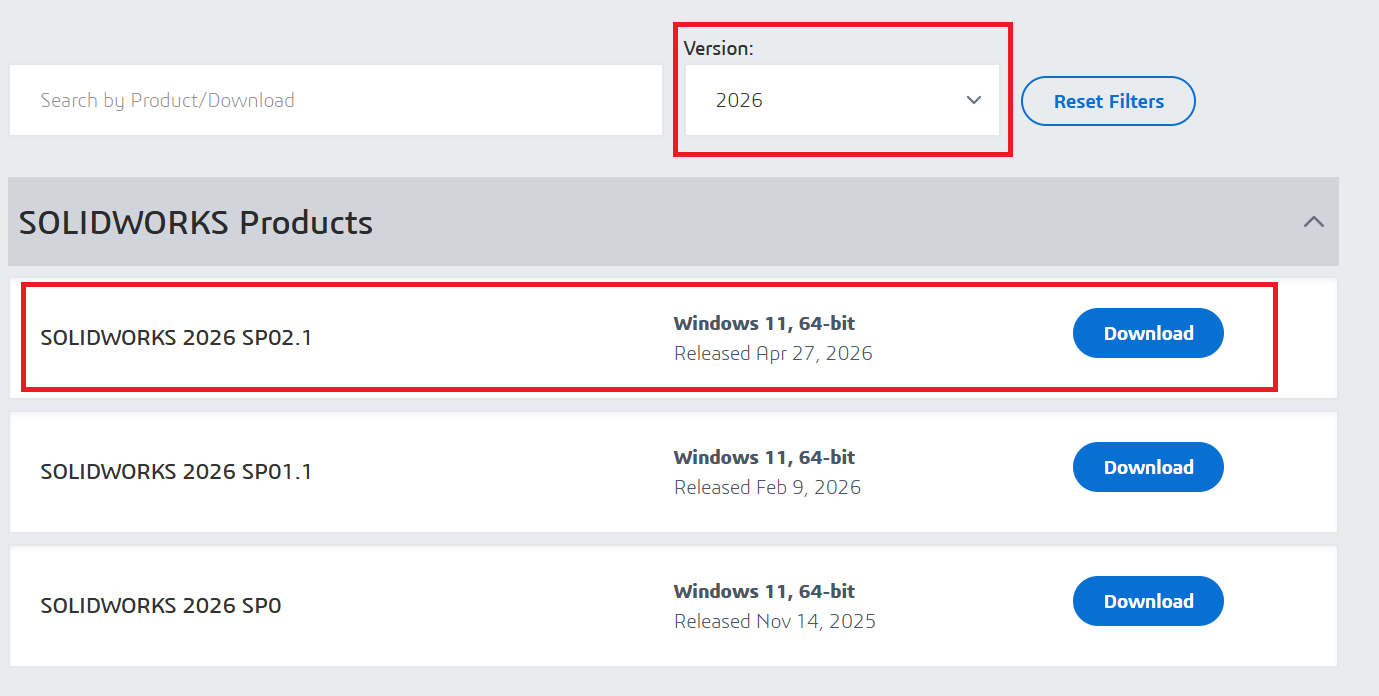
- Select the version and then click the SOLIDWORKS Products with corresponding Service Pack. It will download the SOLIDWORKS Installation Manager file.
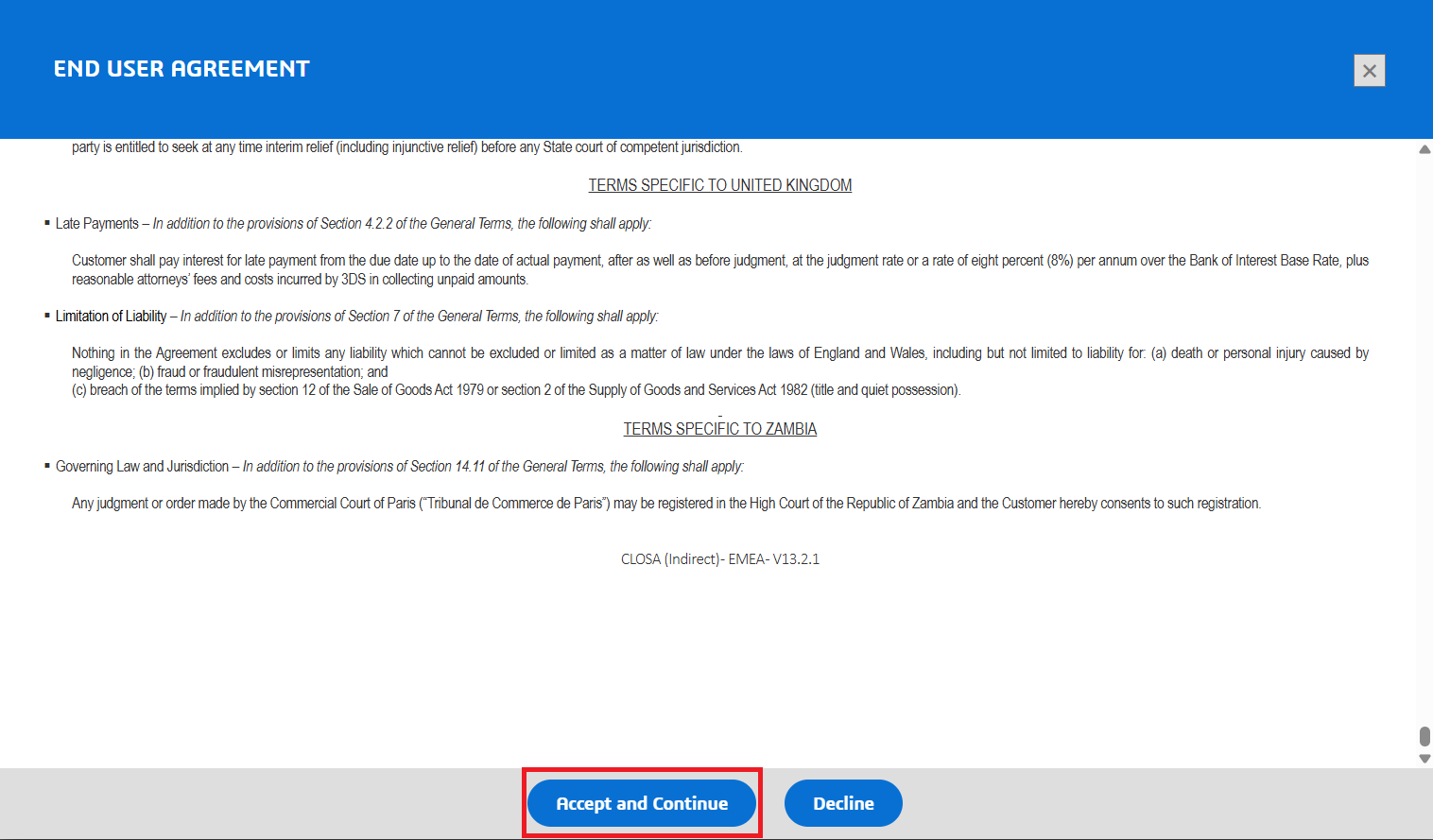
- Accept the license agreement (scroll down as you read to the bottom to activate the Accept Agreement & Continue button). Click Download to start the download of the Installation Manager.
- The file should be downloaded in your browser and will be called SolidWorksSetup.exe
NOTE: This is the installation manager only, it contains everything you need to start an installation, but it will require additional downloads during the installation process depending on what is selected to install.
- Run SolidWorksSetup.exe. Accept any security prompts and click Unzip to extract the installation files.
NOTE: If a message appears indicating that a reboot is pending, you can still proceed, though it is recommended to reboot once before installing.
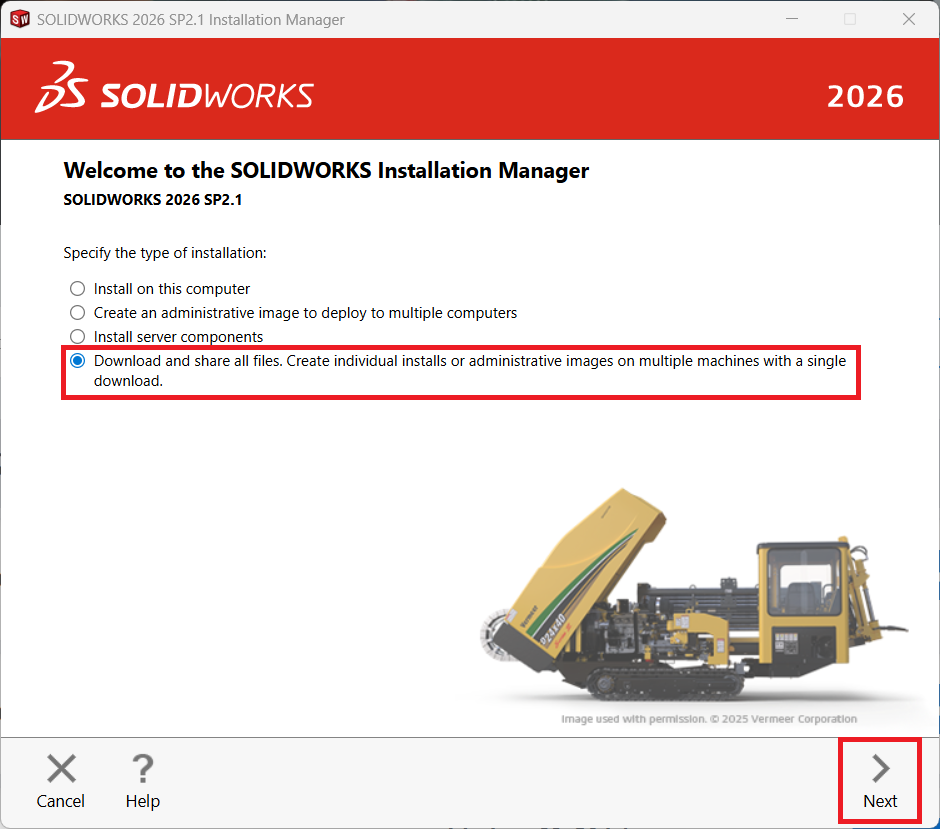
- To perform a full download of all installation files, select Download and share all files and click Next
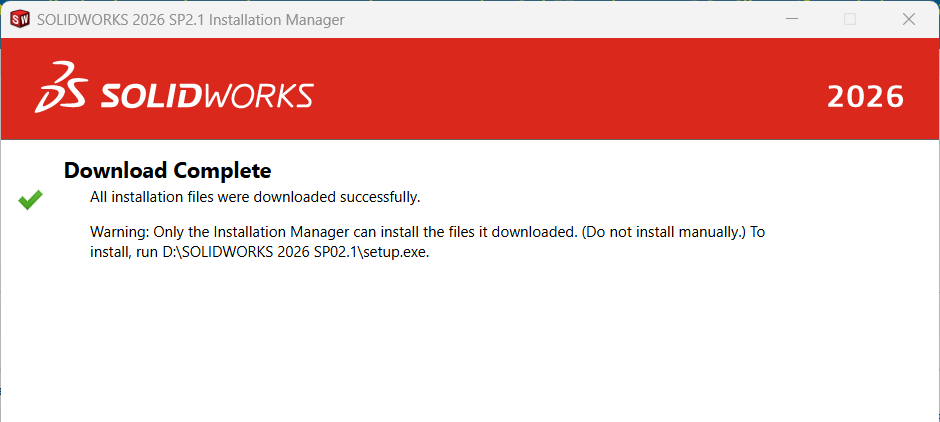
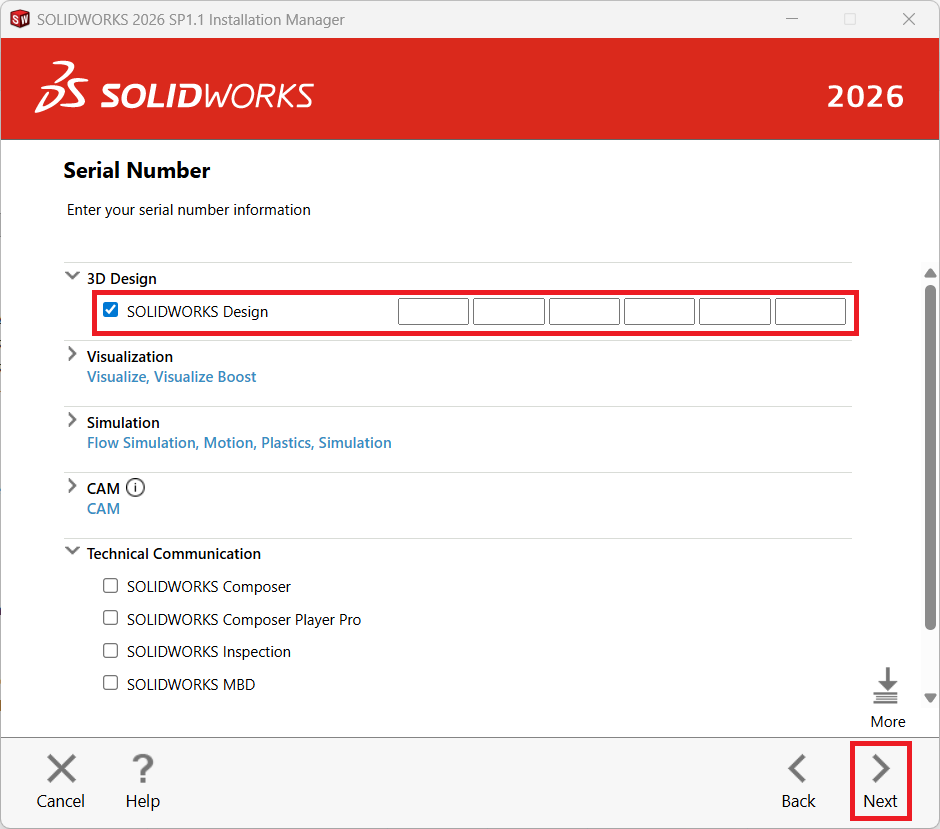
9.Enter the SOLIDWORKS Serial Number and click Next
10.Accept the terms and click Download Now
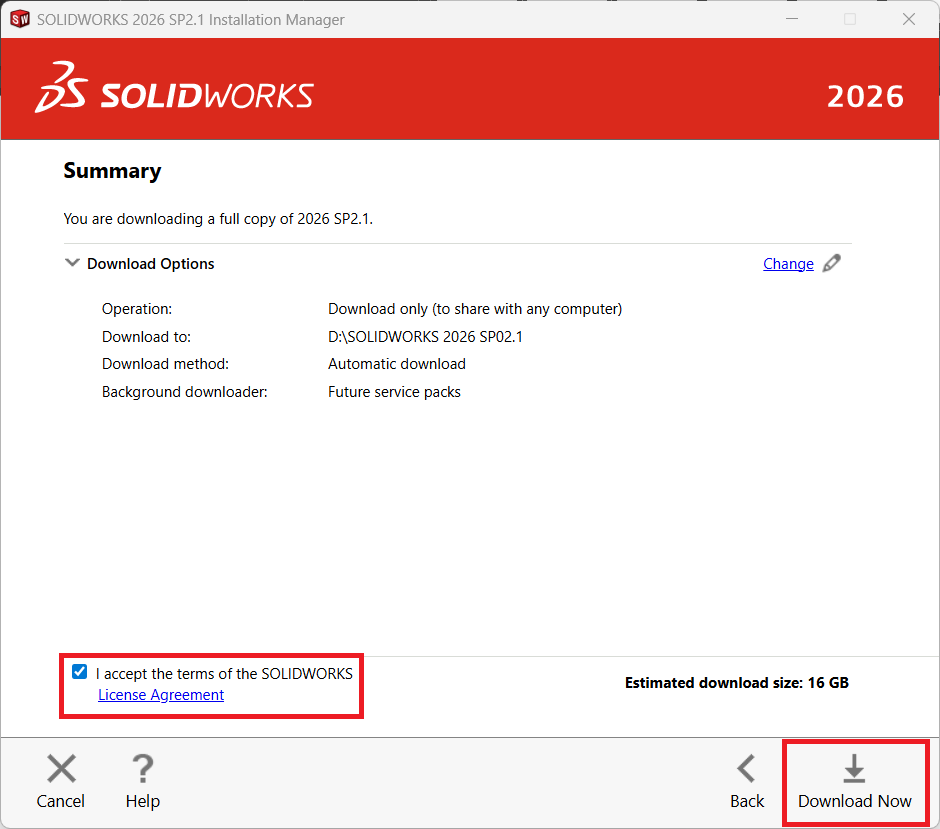
11.Once the Download is completed, you will find the complete setup files in the mapped local drive folder to do the Installation.