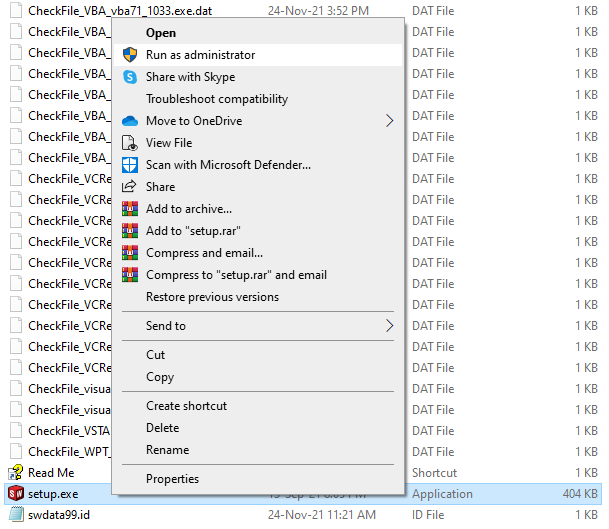
Step 1: Right click the “Setup” file from the installation folder and select “Run as administrator”.
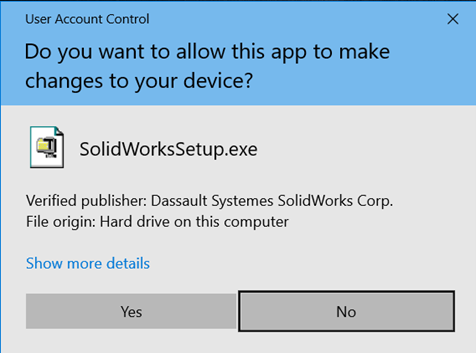
Step 2: Click “Yes” to accept.
Step 3: Click “Ok” to continue.
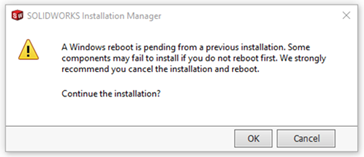
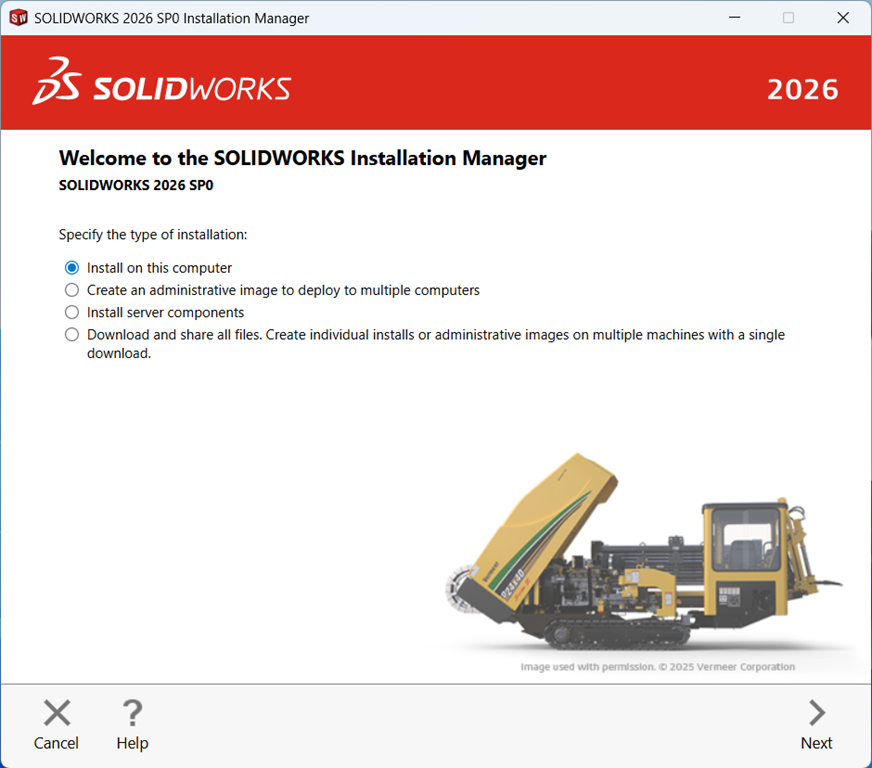
Step 4: In the installation process is to select the type of install required from the four choices. In this example we will use the popular choice which is Install on this computer. Other choices include:
- Administrative image for downloading a set of installation files for deploying to multiple machines
- Server components for network licensing installations
- Download and share all files allows you to download all installation files for a later deployment
With the Install on this computer select Next
Step 5 : The next step is to enter your SOLIDWORKS Serial number[s] for the purchased product[s], you don’t have to install all products at once, you can modify the installation later if required.
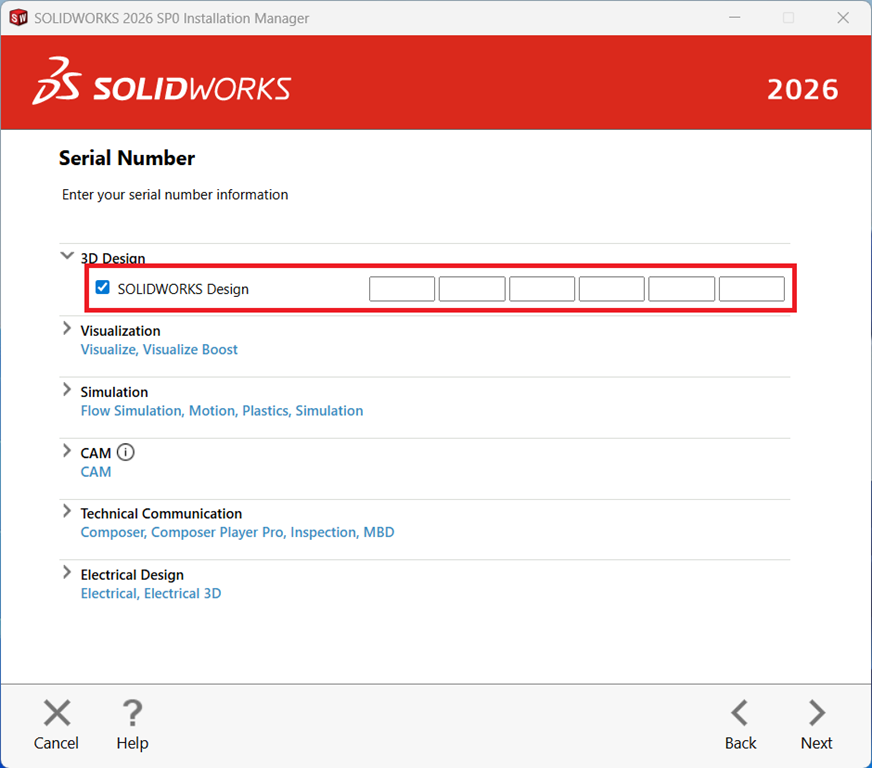
Step 6: Select Next to continue and SOLIDWORKS will connect to the online installation server and determine which products you have purchased based on the entered serial number.
Optional: Change Products to Install
In this next step you can choose which products to install and more often than not you will keep the selection as the default as the license manager will have determined the products you are entitled to install based on your serial number:
Step 7: Use the default options for the installation unless there is a specific application you don’t want to install
Step 8: Select Change next to Products to view the applications that are going to be installed along with their file size, you should see all the products you have purchased listed, contact your VAR if you think you are missing any purchases (only English is installed, but other languages can be selected under Products)
Step 9: Select Back to Summary to go back
Optional: Download Options
In the download options you can specify details for completing the download operation, such as the location of the downloaded files, how to download the files, and whether to install the downloaded files.
Step 10: Select Change next to the Download Options
Optionally choose the download file location required, I’d recommend the default if you have the space on your machine
- Optionally you can specify a different location on your machine to install the files
- There are additional download options available but you should contact your Value Added Reseller (VAR) if you experience difficulties with the download
- Additional Options:
-
-
- Use the Background downloader — automatically checks for updates
- Conduct manual download — we recommend avoiding this option and contact your reseller if you are experiencing problems downloading the files.
-
Step 11: Select Back to Summary when you’ve reviewed or finished modifying the options
Optional: Installation Location
You can modify where SOLIDWORKS will be installed.
Step 12: Select Change next to Installation Location
Step 13: Enter a new location if required. By default, it will install to C:\Program Files\SOLIDWORKS Corp
Step 14: Select Back to Summary when you’ve reviewed or finished modifying the options
Optional: Toolbox/Hole Wizard Options
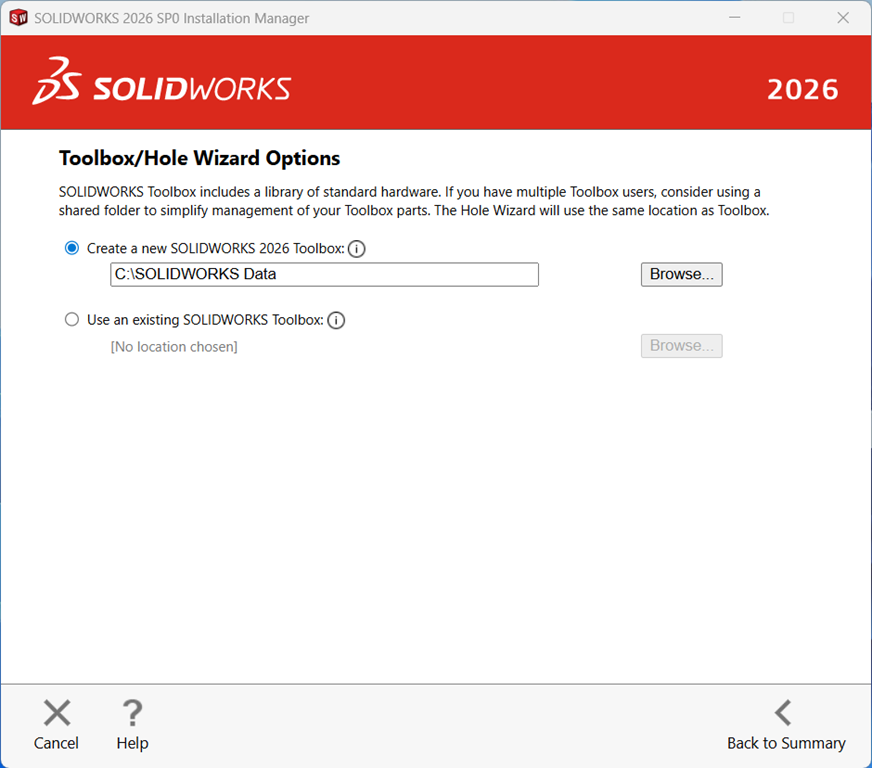
You can modify where the Toolbox/Hole Wizard library database will be installed:
Step 15: Select Change next to Toolbox/Hole Wizard Options
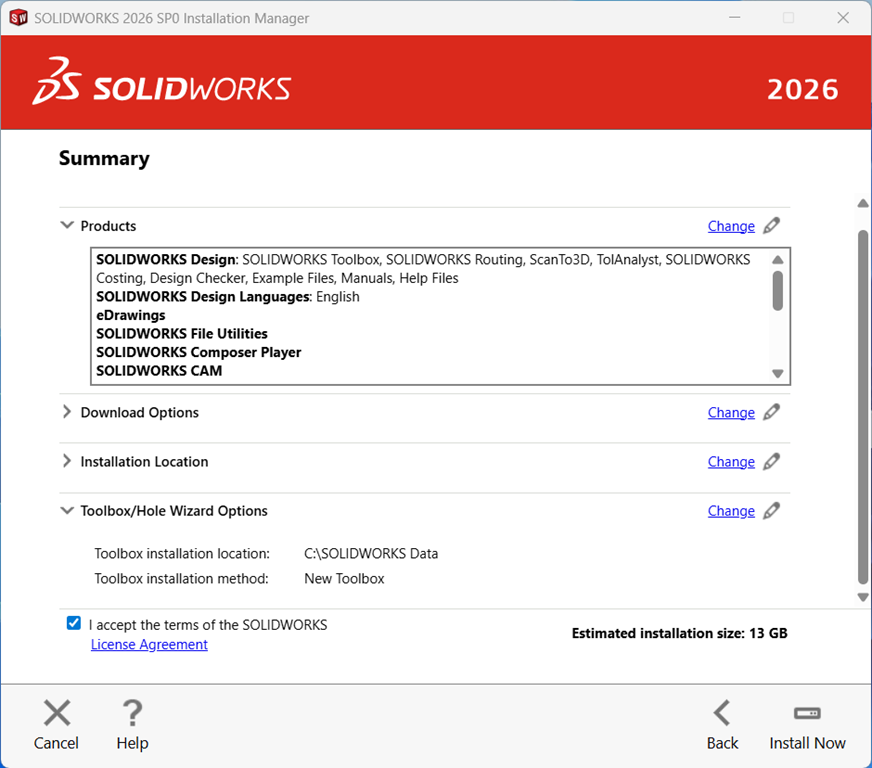
Step 16: Enter a new location if required. By default, it will install to C:\SOLIDWORKS Data
Step 17: Select Back to Summary when you’ve reviewed or finished modifying the options
Download and Install
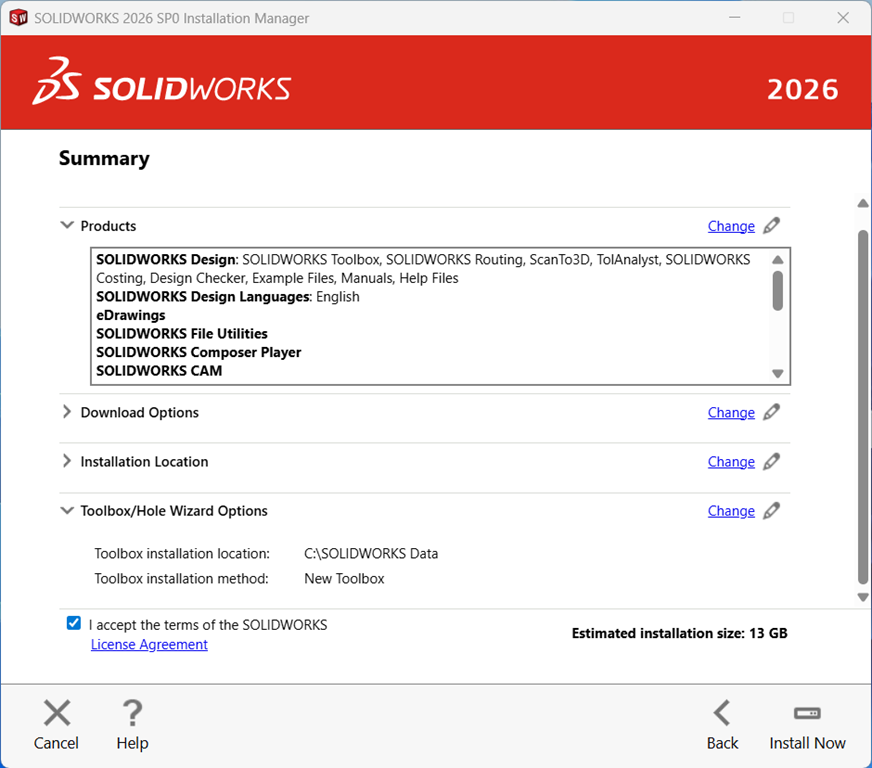
The final installation step is to download and install onto your machine, you will notice the estimated installation file size is listed along with the download file size:
Step 18: Make sure you check the I accept the terms of the SOLIDWORKS license agreement option
Step 19: Select the Download and Install option to run the installation
The SOLIDWORKS Installation Manager will now download the files and then install SOLIDWORKS on your machine, this may take some time depending on your internet speed.
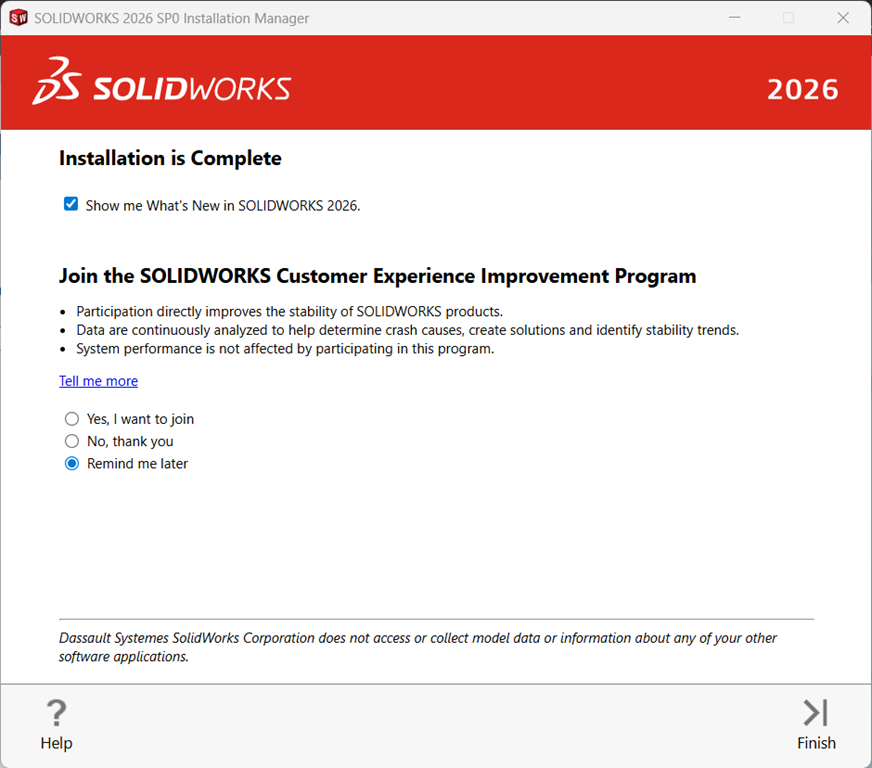
Step 20: When the installation is complete SOLIDWORKS has a few options you can choose for joining the SOLIDWORKS Customer Experience Improvement Program. Select the Yes, I want to join option as this will be very helpful for DS SolidWorks Corp. This is a confidential program and it will not effect your system performance.
Step 21: Then pick Finish and you’ll find the SOLIDWORKS application icons on your desktop and under the Start menu.