
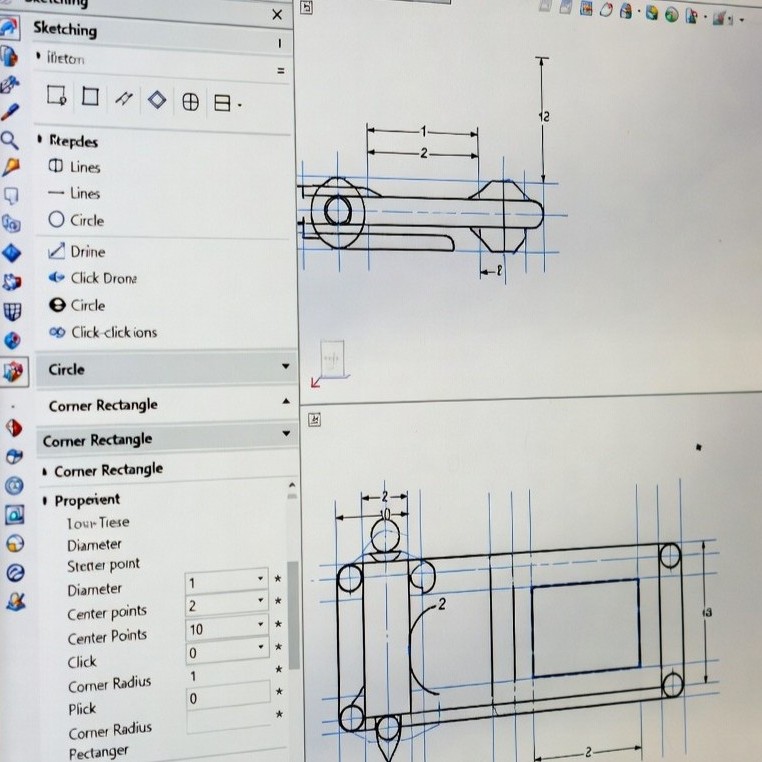
What sketching methods are available in SOLIDWORKS?
In SOLIDWORKS sketching, you will typically use one of two main methods. The first is the click-and-drag method: click and hold the mouse button, drag the cursor to create the entity, and release the button to finish.
The second method is the click-click approach for creating sketch entities. You click once to place the starting point, move the cursor to form the entity, and click a second time to finalize it.
Using the Click-Click Method
The click-click sketch method is also commonly referred to as the click-move-click method, because it allows you the freedom to move the mouse cursor freely between the two clicks.
This click-click method works for many other sketch entities too.
For example:
- Circle (Center Circle tool): First click sets the center, second click defines the diameter (or radius).
- Corner Rectangle: First click places one corner, second click sets the opposite corner.
This approach gives precise control and works with most SOLIDWORKS sketch tools.
Key Advantages of the Click-Click Method
Hands-free freedom: No need to hold the mouse button — zoom, pan, or precisely place the next point with ease.
Continuous polylines: Each new segment automatically connects from the previous endpoint for smooth, aligned shapes.
Smart loop detection: SOLIDWORKS instantly recognizes a closed contour and stops adding segments.
Easy exit: Double-click anywhere or press Esc to finish early and exit the tool.
Using the Click-And-Drag Method
Let’s look at an example of the click-and-drag method. To draw a line starting from the origin, click and hold the left mouse button, drag the cursor to the desired endpoint, and release the button to place the line.
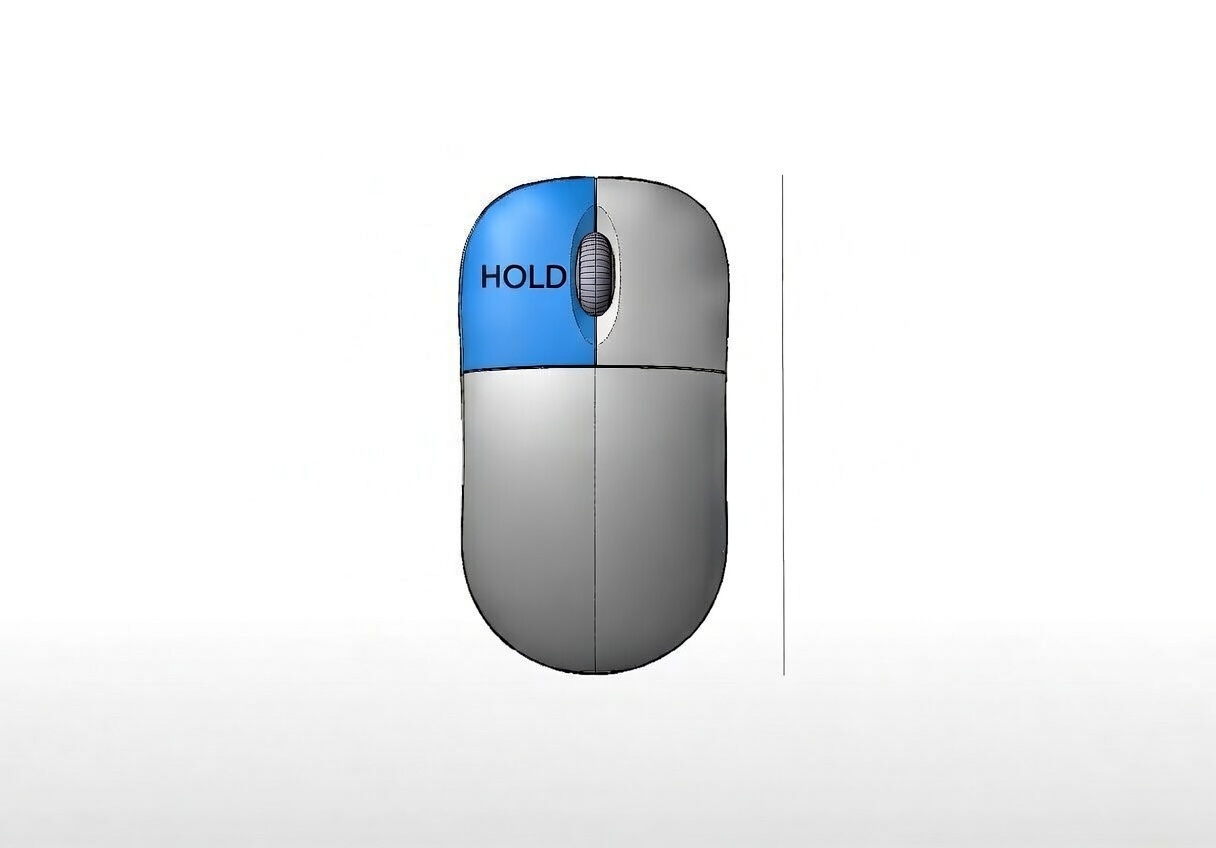
The click-and-drag method creates only one sketch entity at a time. To continue sketching, you must repeat the full process: click, hold, drag, and release. When drawing something like an L-shaped bracket, this means performing the action for each segment while manually ensuring it connects to the previous endpoint. This repetitive workflow is where many new SOLIDWORKS users commonly run into difficulties.
Common Mistakes to avoid with This Method
One of the most common mistakes with the click-and-drag method is failing to connect two lines properly, leaving your sketch open when you intended to create a closed shape. SOLIDWORKS requires a fully closed contour for features like extrude, cut, or revolve, and it will not accept an open profile.
Although it’s easy to fix by dragging one endpoint onto another, the risk of errors is higher—especially for new users. Additionally, holding the mouse button down throughout the action feels more tedious and cumbersome, particularly when aiming for precise endpoint targets.
Which Method Suites you?
Click-and-drag sketching is valid and can be a quick shortcut for single entities. However, over-relying on it often leads to clunky workflows, missed snaps/endpoints, and unnecessary frustration.
Click-click is generally more precise, efficient, and beginner-friendly once mastered. Mastering both methods is what separates novices from SOLIDWORKS professionals!
