The SOLIDWORKS Installation Manager is a lightweight application used to download and install all of the SOLIDWORKS products. This can be downloaded by logging into the SOLIDWORKS Downloads website with a 3DEXPERIENCE ID.
The 3DEXPERIENCE ID used must be associated with an account with an active subscription. Based on the license information entered and selected products to install, the required SOLIDWORKS installation files are automatically downloaded. During the installation process, you may be presented with warning or error messages if something is potentially blocking the installation.

Text Size Too Large
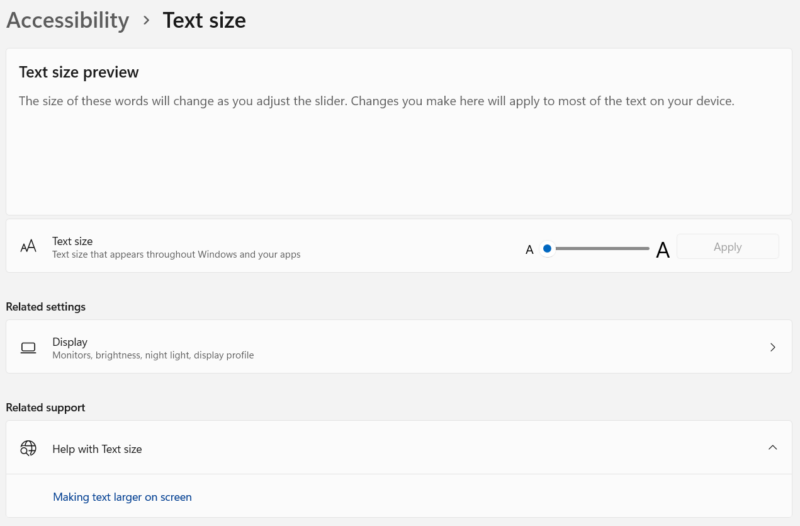
High-resolution monitors sometimes require increased Windows text size for better visibility. This affects the Installation Manager user interface where text and selection boxes are cut off leading to the inability to enter the full serial number.
To avoid this issue, the Windows Text Size settings will need to be set to 100% during the installation. To do so, search “Text Size” in the Windows start menu. This is also available from Windows Settings>Accessibility>Text Size.
A Windows Reboot is Pending
The most common message that pops up when first launching the Installation Manager is “A Windows reboot is pending…”. This is actually a Windows operating system message indicating that a user or program has tried to rename a file that is in use. The file names are stored in a registry key until the system is restarted and then they are renamed. This warning message is not specific to SOLIDWORKS as it can affect other applications as well.
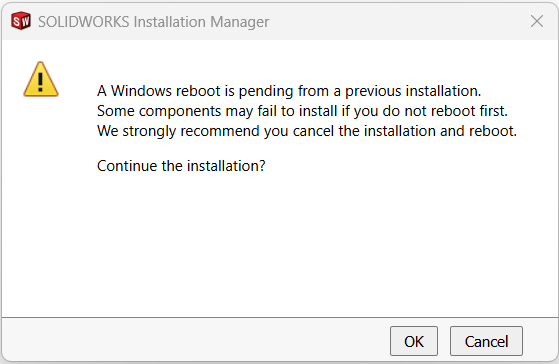
In most cases, the message can be ignored, and hitting OK will allow the installation to continue as normal. If this does not work, a full reboot of the system may be required by using Start>Power>Restart. In this case, a restart is preferred as a shutdown may not end all computer processes.
Blank SOLIDWORKS Installation Manager
If the SOLIDWORKS installation files were downloaded as a ZIP and then extracted, the Installation Manager may open with a blank page. This is caused by blocked HTML files inside the extracted file set. Follow the steps from our Blank SOLIDWORKS Installation Manager Window blog article to resolve the issue.
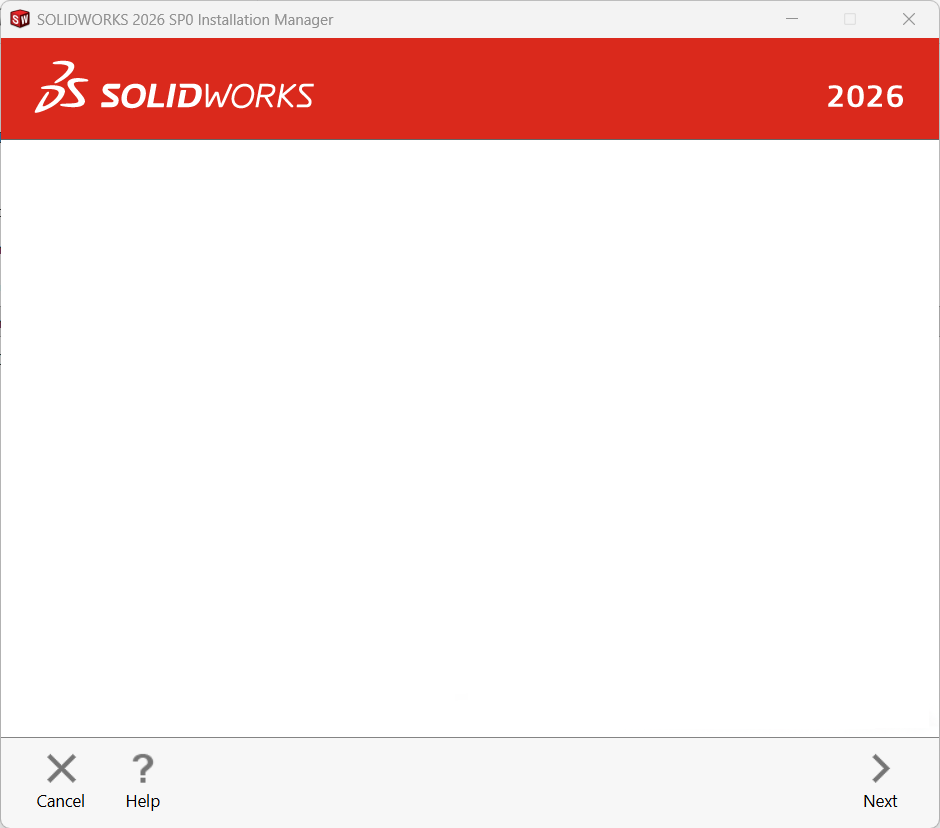
Solution #1: Extracting From Compressed File
Receiving a compressed (zipped) folder of the full installation files is convenient as a single file download. The ZIP file will need to be extracted before the installation can begin. The following two solutions can be used.
Option A: Prior to extraction, right-click on the ZIP file and choose Properties. On the General tab, click Unblock (if available) and click Apply/OK. Then you can right-click on the ZIP and Extract All…
Option B: Use another extraction tool aside from the default Windows option, such as 7-ZIP.
Solution #2: Unblocking HTML for uncompressed files
If the installation files have already been extracted or were not compressed to begin with, there are 4 (four) HTML files that can be unblocked.
- Browse to the downloaded installation file location <downloads>\sldim\lang\english\HTML
- Right-click on frameset.html and select properties from the shortcut menu
- If there is an ‘Unblock’ checkbox, select this checkbox and click Apply
- Repeat this process for all HTML files in the folder if they are blocked (framesetstartup.html, header.html, navpanestartup.html)
- Re-launch the SOLIDWORKS Installation Manager process
Solution #3: Reset Internet Browser
Try resetting your Internet Browser settings to default, close the browser and re-launch the SOLIDWORKS Installation Manager.
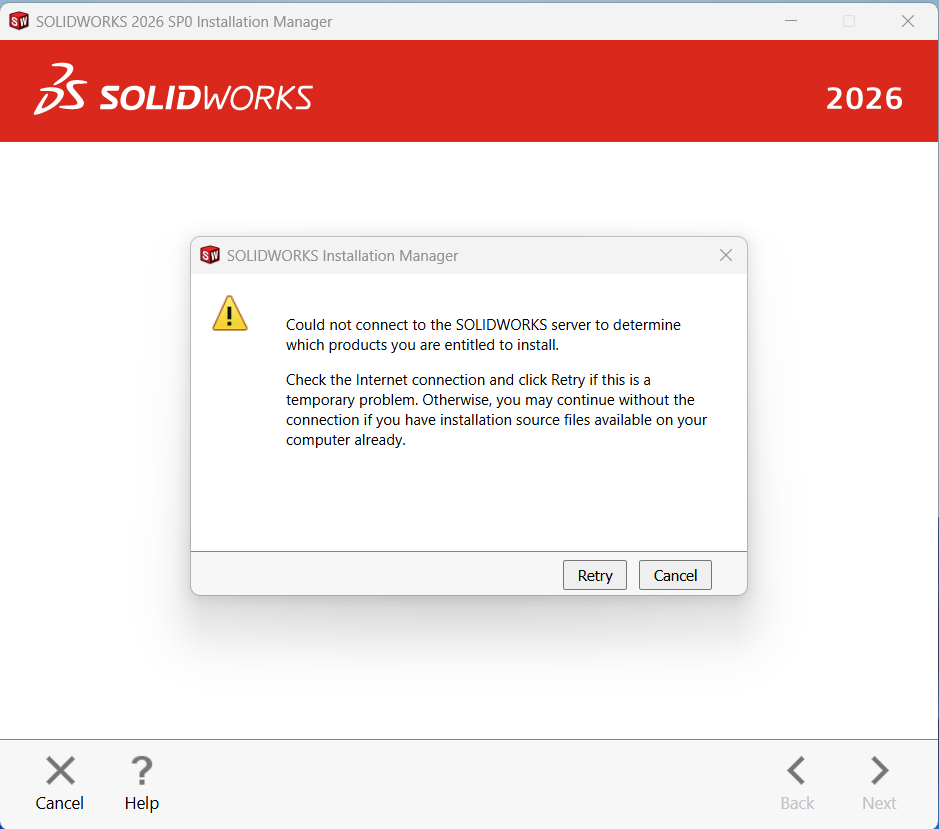
Could Not Connect to the SOLIDWORKS Server
The SOLIDWORKS Installation Manager requires a connection to the SOLIDWORKS servers to confirm license entitlement. This error may be presented after clicking Next on the serial numbers page. You can continue with the installation by clicking Cancel if you already have a full set of installation files downloaded.
Additional Files are Needed Based on the Products Selected
If the entitlement check fails and you don’t have all installation source files, you will likely receive a message that additional files are needed and cannot be downloaded. This prevents the installation from proceeding.
To help with a successful installation, please verify the following:
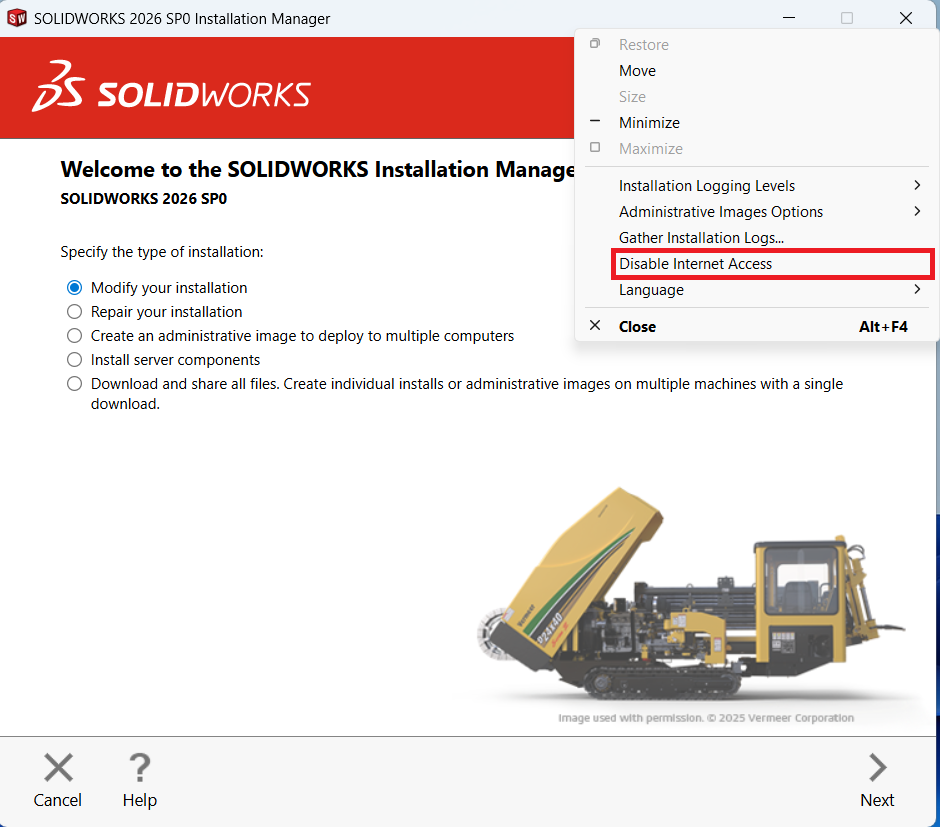
- Ensure that the option “Disable Internet Access” is unchecked by right-clicking the Installation Manager title bar.
- Use a Windows account with full local administrative permissions.
- Allow outbound TCP connections to port 80 in the Windows Firewall for sldim.exe and sldimdownloader.exe.
- Add the following domains to a firewall exception (all use HTTP port 80)
- im.solidworks.com
- im-ak.solidworks.com
- dl-ak.solidworks.com
- Avoid proxy servers. IP randomization will prevent downloads through the Installation Manager.