
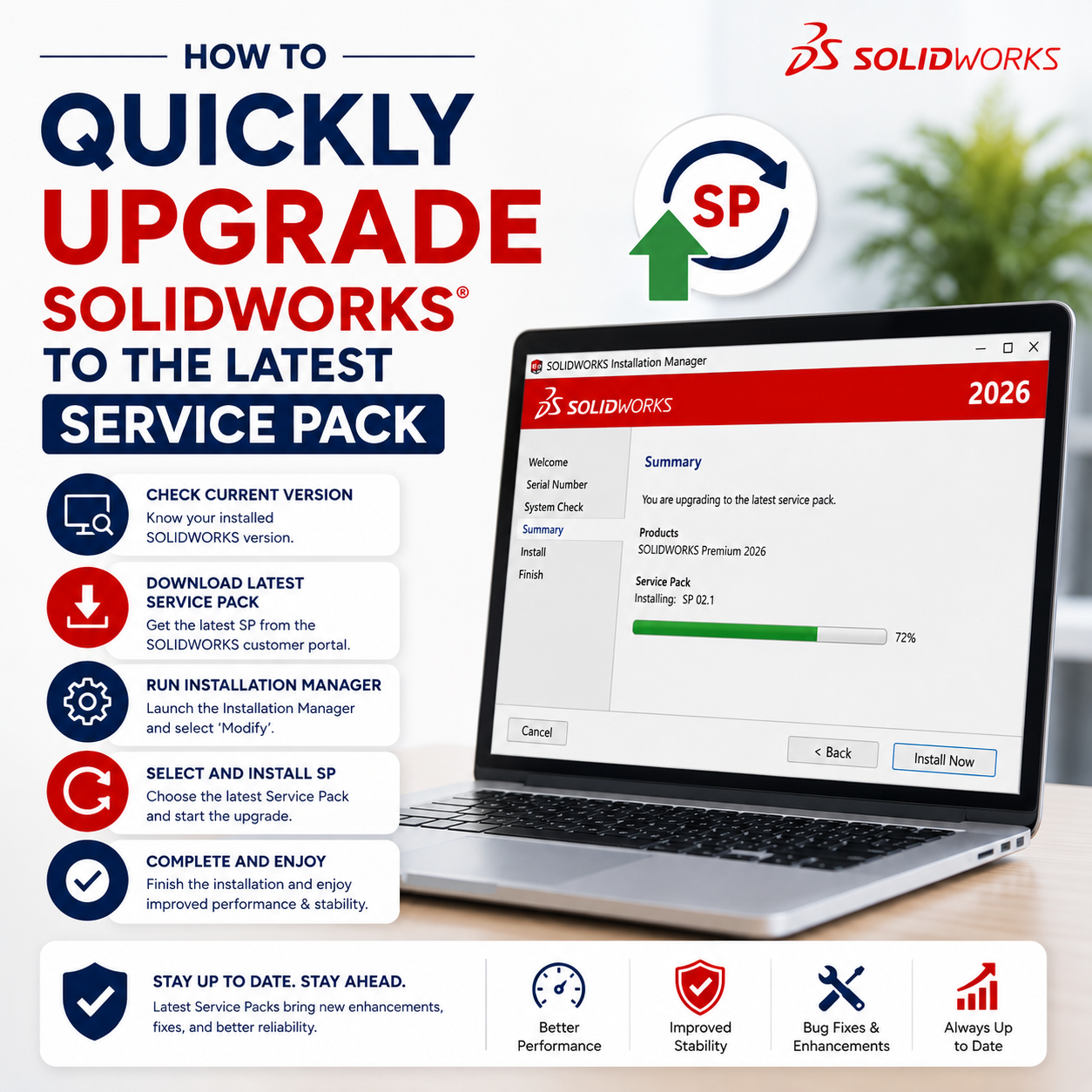
Keeping your SOLIDWORKS installation up to date with the latest service pack ensures you benefit from the newest enhancements, performance improvements, and bug fixes. Fortunately, updating to a newer service pack is quick and easy using the built-in SOLIDWORKS Installation Manager. Follow the steps below to update your installation with minimal effort.
Before You Begin
Before updating your SOLIDWORKS installation, ensure that the following requirements are met:
- SOLIDWORKS is already installed on your computer.
- Your SOLIDWORKS license is covered by an active subscription, which entitles you to service pack updates.
- Your SOLIDWORKS installation was not deployed using an Administrative Image, as the update process differs for Admin Image installations.
If your installation meets the above requirements, proceed with the steps below to update to the latest service pack.
Note: If your installation does not meet these requirements, please refer to the appropriate guide or contact your SOLIDWORKS administrator or reseller for assistance with the correct update procedure.
Update Options: Standard Method vs. Quick Method
Many users are familiar with updating SOLIDWORKS by downloading the latest service pack from the SOLIDWORKS Customer Portal. While this is a reliable method, it is not always the quickest or most convenient. SOLIDWORKS includes a built-in update feature that allows you to check for and install the latest available service pack directly from the application, streamlining the update process and reducing the number of steps required.
Using the Check for Updates Feature
To access the built-in Check for Updates feature in SOLIDWORKS:
-
Open SOLIDWORKS.
-
Click the Help (?) icon located in the upper-right corner of the application window.
-
Select Check for Updates from the drop-down menu.
Alternatively, use your Windows search bar:
- Type “Check for Updates” and select the application with the SOLIDWORKS logo.
Important Considerations
Before updating your SOLIDWORKS installation, keep the following points in mind:
- Administrator Permissions: Ensure you have local administrator rights on your computer to download and install the service pack.
- Major Version Compatibility: Service pack updates are only available within the same major release. If a newer major version (for example, SOLIDWORKS 2027) is available, avoid upgrading unless it has been approved by your organization, as newer major versions are not backward compatible with previous releases.
- Collaboration with Your Team: While users can collaborate across different service pack levels of the same major version (for example, SOLIDWORKS 2026 SP1.0 and 2026 SP5.0), it is recommended that all users stay on the latest service pack to benefit from the latest fixes, performance improvements, and compatibility enhancements.
- Administrative Image Installations: If your SOLIDWORKS installation was deployed using an Administrative Image, updates should be performed by your SOLIDWORKS administrator using the Administrative Image rather than the Check for Updates feature.
- Best Practice: Before installing any update, close all SOLIDWORKS applications and back up any important custom settings or data to help ensure a smooth update process.
Updating SOLIDWORKS to the Latest Service Pack
Once you have selected the desired service pack update:
- The SOLIDWORKS Installation Manager will automatically download and launch.
- Follow the on-screen instructions to begin the update process.
- For most installations, the Installation Manager will detect your existing configuration and retain your current settings. Simply proceed with the default options unless you need to make specific changes.
- Review the installation summary and click Install Now to begin the update.
- Once the installation is complete, restart your computer if prompted.
Note: The update process typically takes 20–30 minutes, depending on your system configuration, internet connection, and the size of the service pack being installed. Installation times may vary from one system to another.
