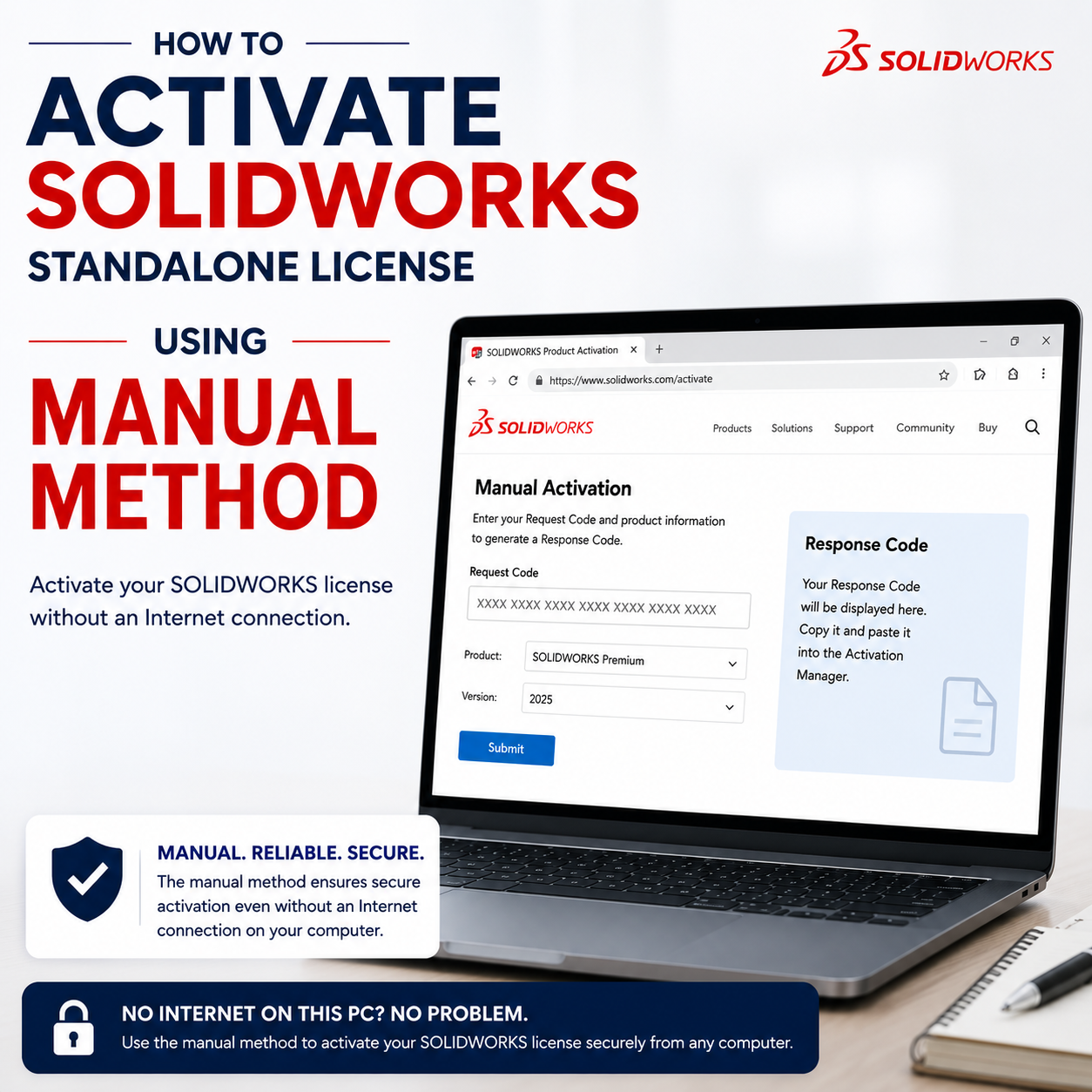
If the computer is not connected to the internet or if your organization’s security system blocks connection to the activation server, then you can use this option to create a license activation text file to email from a machine with internet connection to the activation server system. The text file is evaluated and returned with an activation approval that is then loaded into the client computer. This process typically only takes a few minutes to complete.
Depending on the version of SOLIDWORKS being activated, an email address may be required under ‘Contact Information’. This email is not linked to the SOLIDWORKS license. It is used to record who activated the product. Please enter the email address of the person performing the activation.
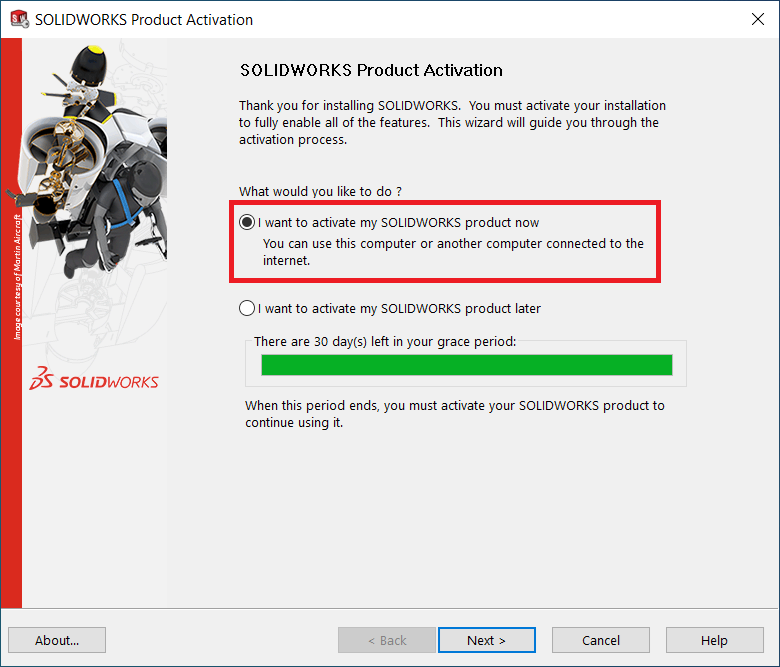
1. Launch SOLIDWORKS 20xx and chose the option “I want to activate my SOLIDWORKS product now”, then click “Next >”.
2. Select the product (only one item per manual transaction is permitted) you would like to activate.
Make sure the option “Manually via e-mail” is chosen. Then click “Next >”.
Note: Do not forget to fill in your registered email ID.
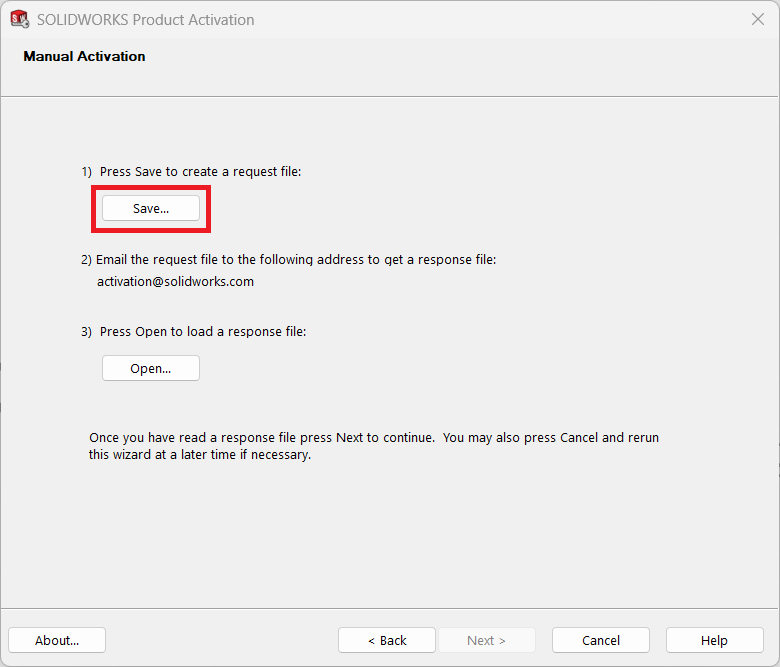
3. On the Manual Activation screen, click on the Save… button and save the activation request .txt file.
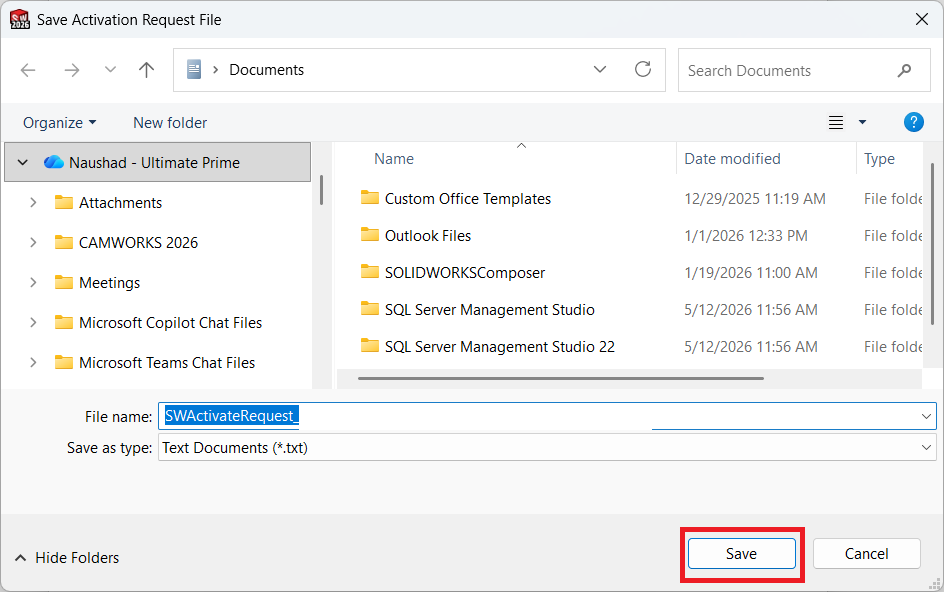
4. Transfer the file to a system with an internet connection.
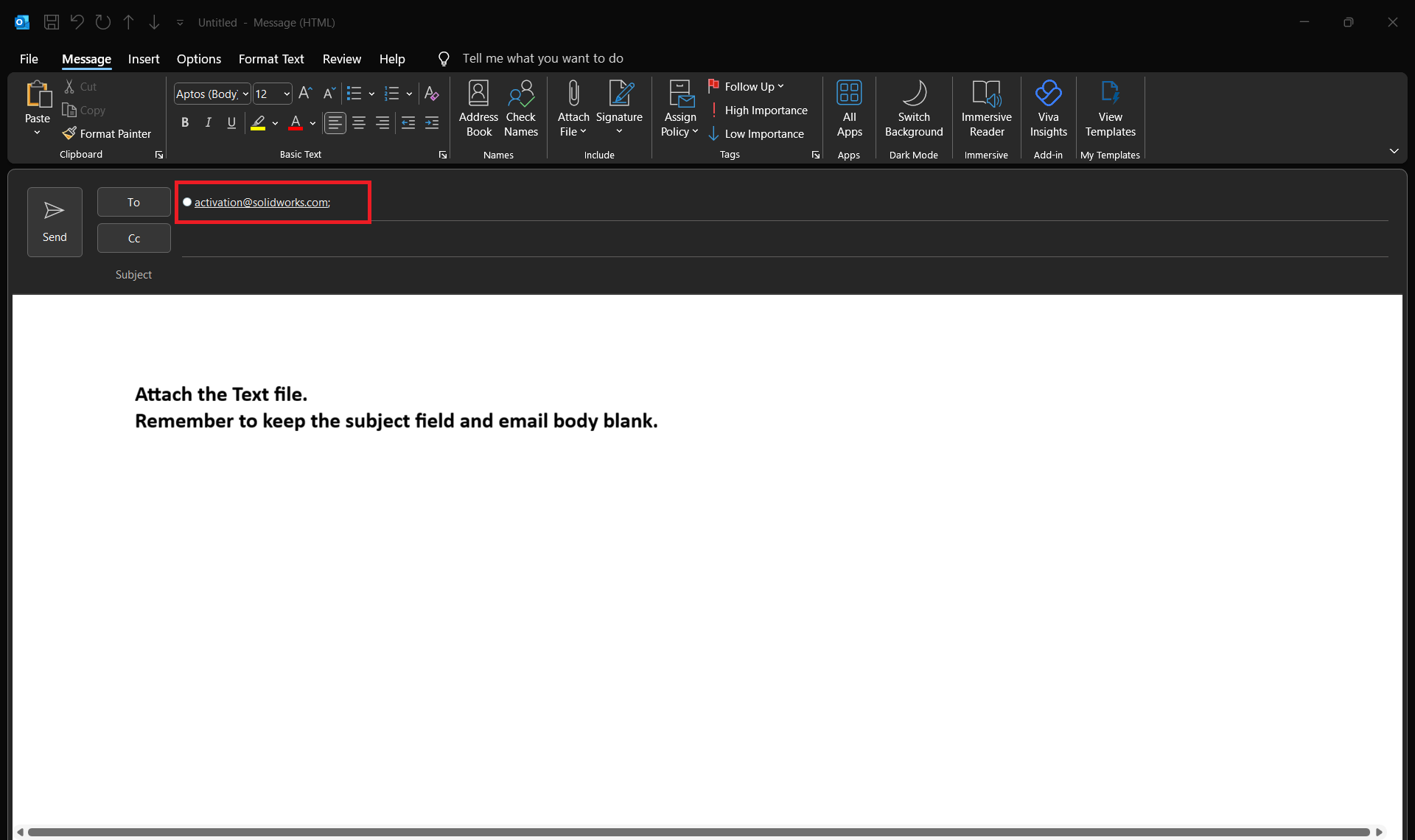
5. Email the file to activation@solidworks.com.
Leave the subject field and email body blank to avoid any delays in receiving the activation response.
6. The activation response email should be received within a few minutes of the activation request being sent. Transfer the response .txt file to the server computer.
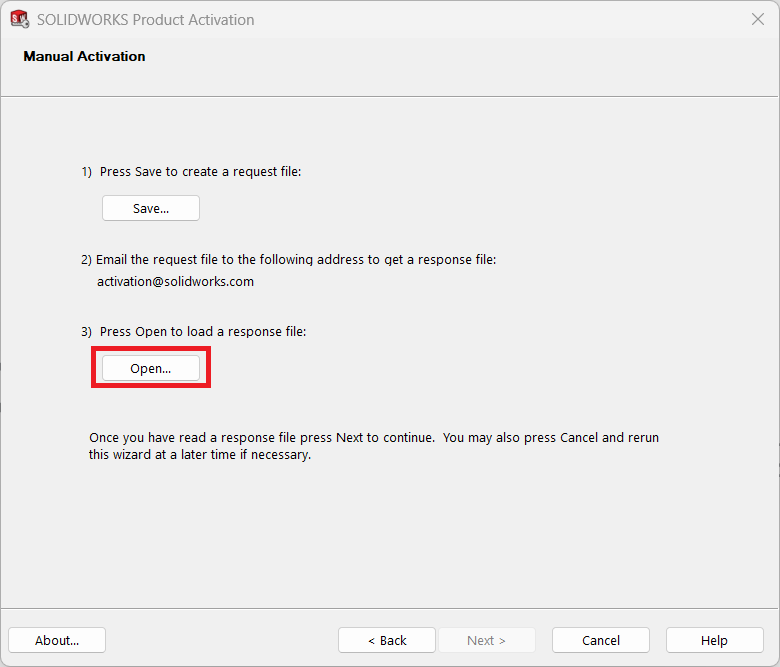
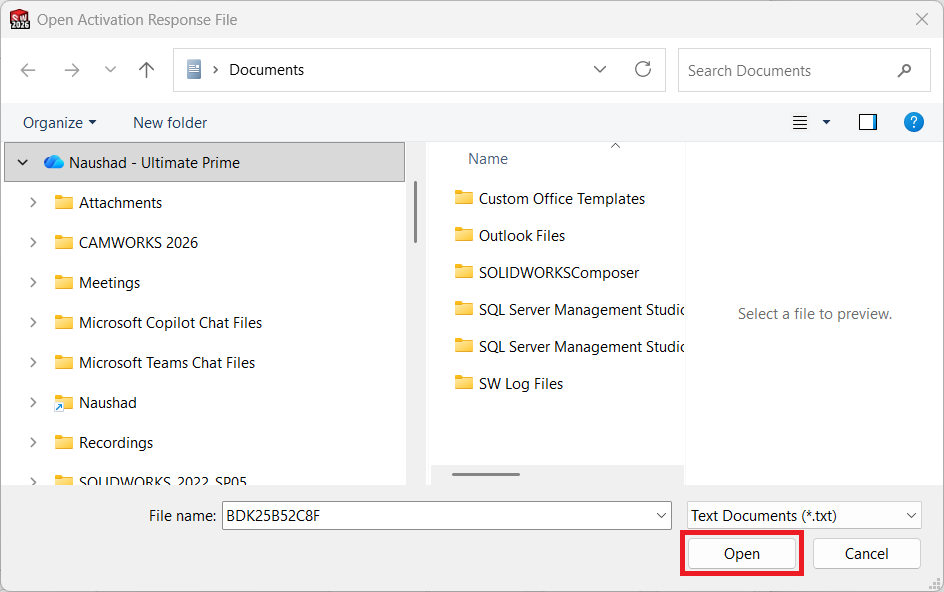
7. On the Manual Activation screen, click Open… and select the activation response file then click Open.
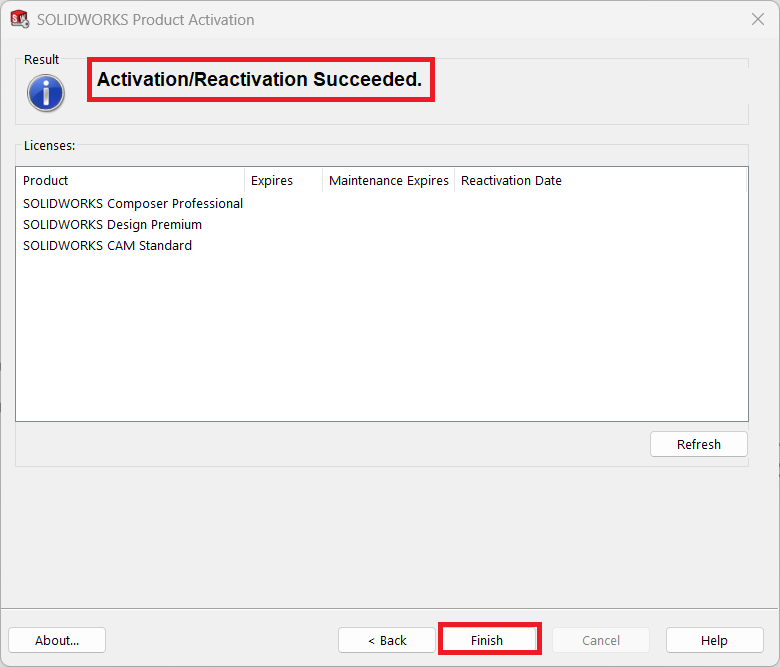
8. Once the activation successfully completes, click “Finish”