
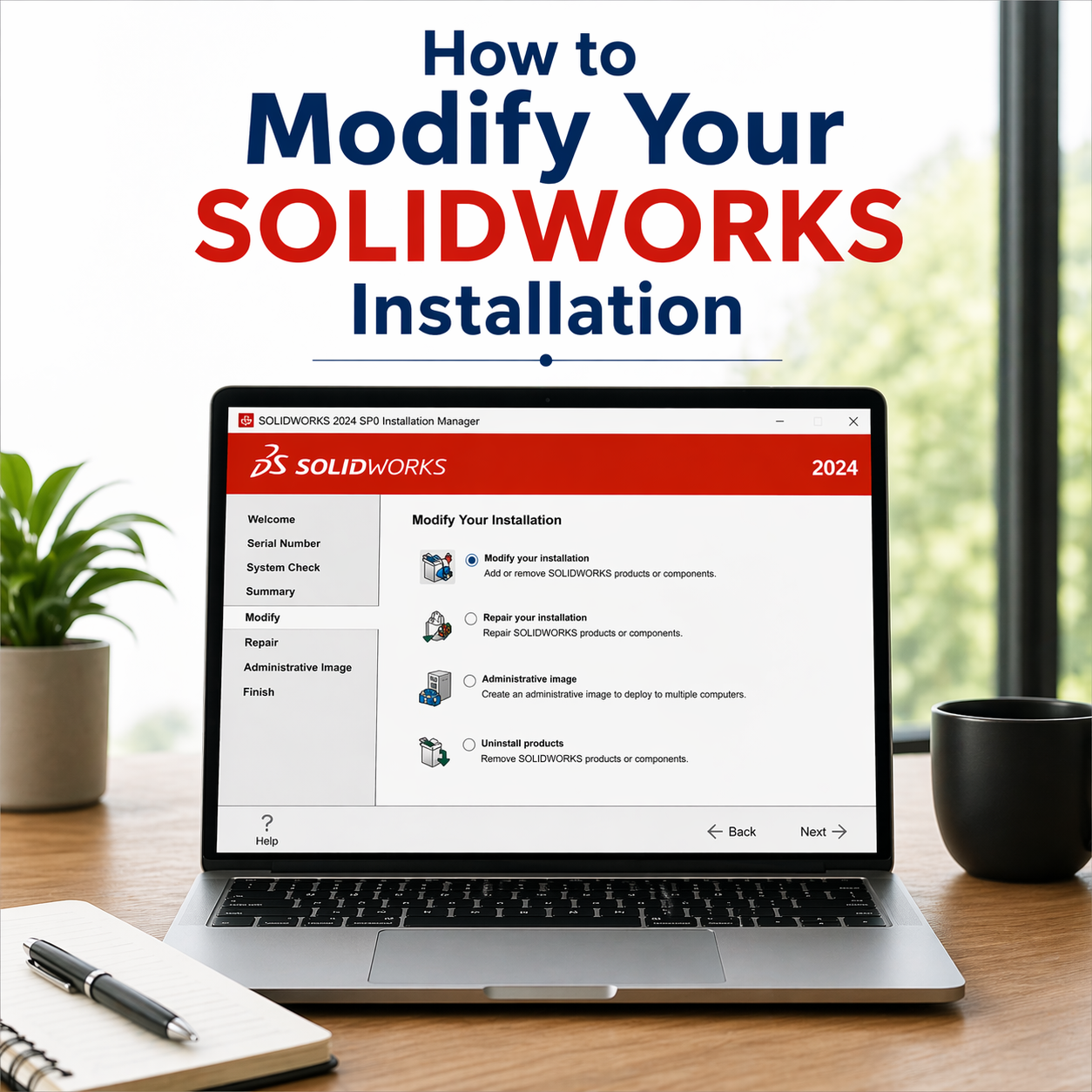
Modifying your standalone SOLIDWORKS installation allows you to add or change serial numbers, as well as update the components installed on your system. With the SOLIDWORKS Installation Manager, this process is quick and straightforward—you can make these changes without uninstalling the software or editing the Windows Registry.
Here are some common situations where you may need to modify your SOLIDWORKS installation:
- Adding or updating serial numbers
- Switching from a standalone license to a network license
- Activating a newly received serial number
- Updating your license after a trial or evaluation period
- Correcting an incorrectly entered serial number
- Adding additional SOLIDWORKS products or components to your installation
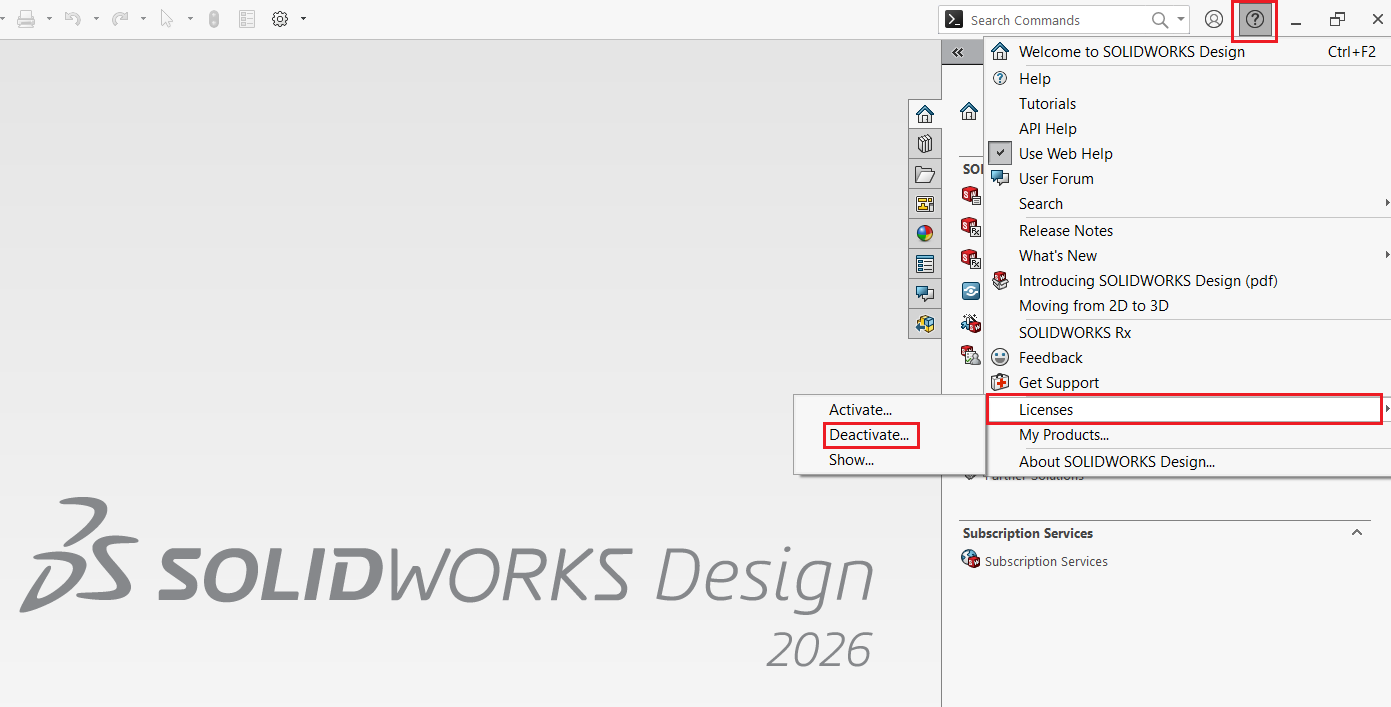
If you are switching to a different standalone serial number or moving from a standalone license to a network license, you must first deactivate your current license. To do this, go to Help > Licenses > Deactivate, and follow the on-screen instructions to complete the process.
Step-by-Step Guide to Modifying Your SOLIDWORKS Installation
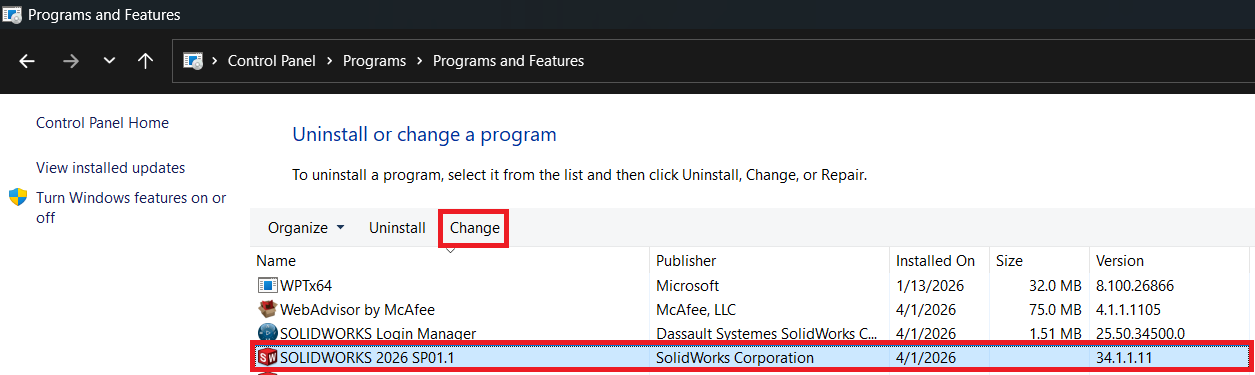
For Windows 11 users, Go to Control Panel > Programs and Features and then click Modify to launch the SOLIDWORKS Installation Manager.
Step 1 –
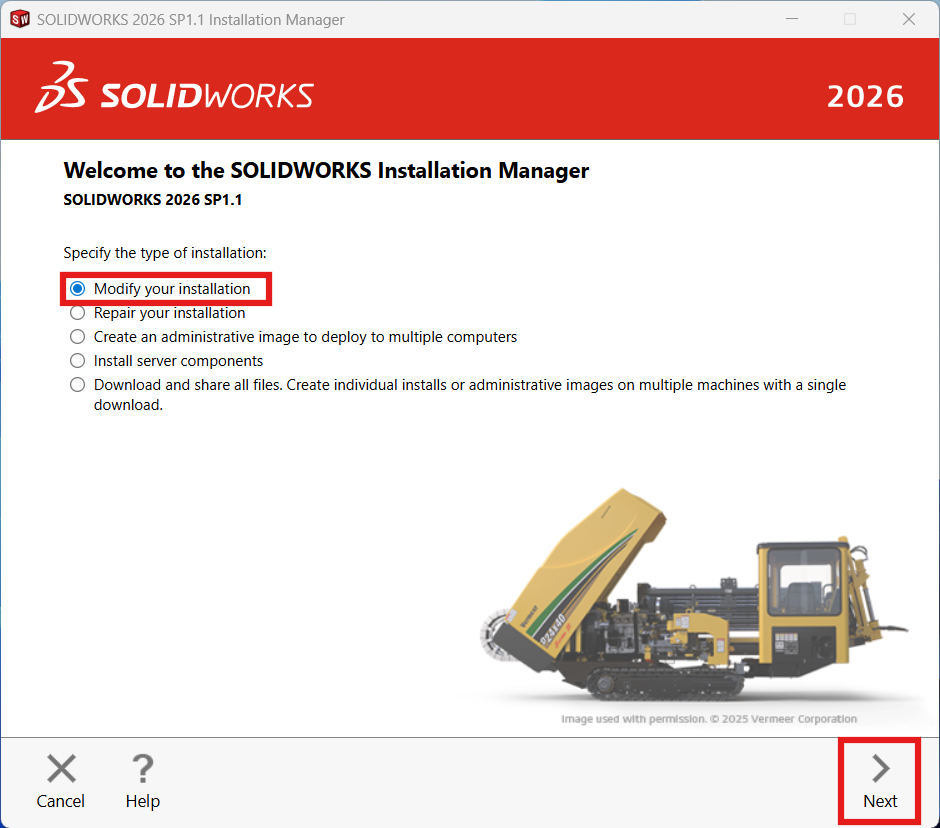
Once the SOLIDWORKS Installation Manager is launched, select the option Modify your installation and click Next.
Step 2 –
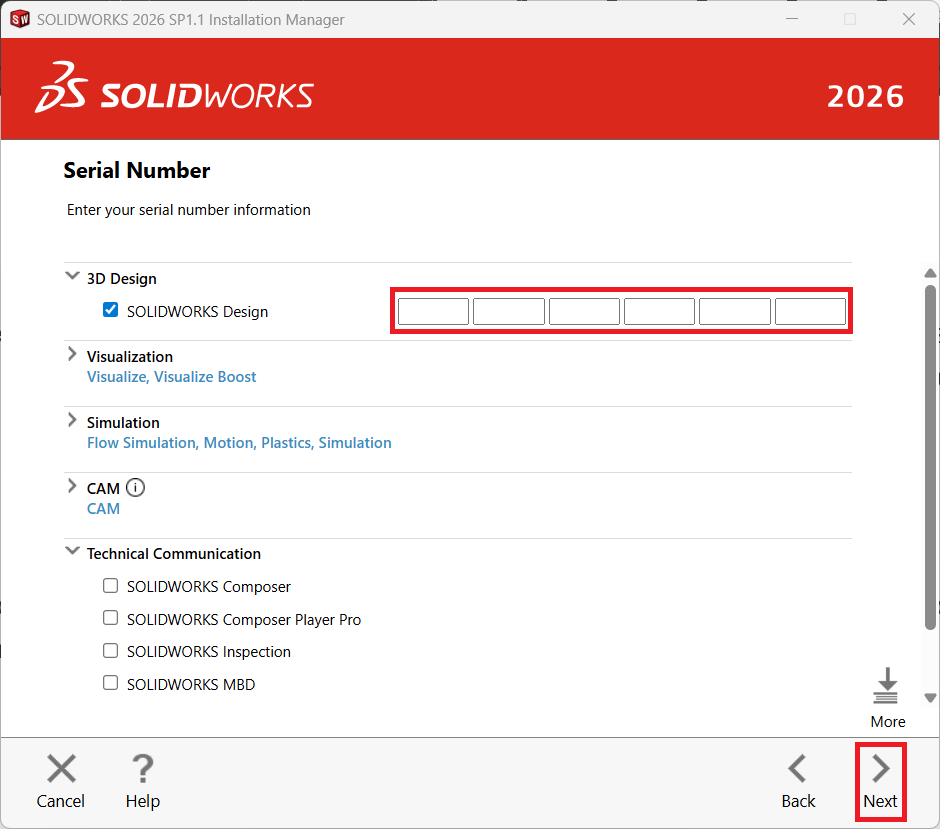
On the Serial Number screen, if you are changing the serial number, enter the new serial number and then click Next. If you have serial numbers for other SOLIDWORKS products, you can also change those serial numbers on this screen.
Step 3 –
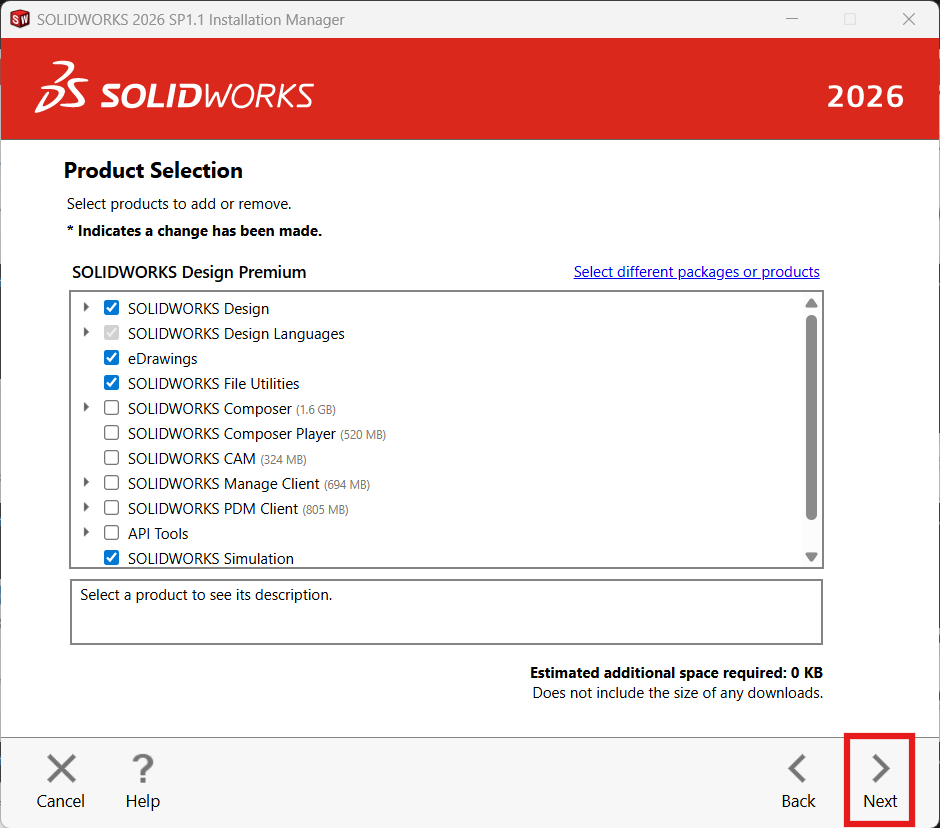
On the Product selection screen, select any products to add or remove based on your serial number’s entitlement to those products and then click Next.
Step 4 –
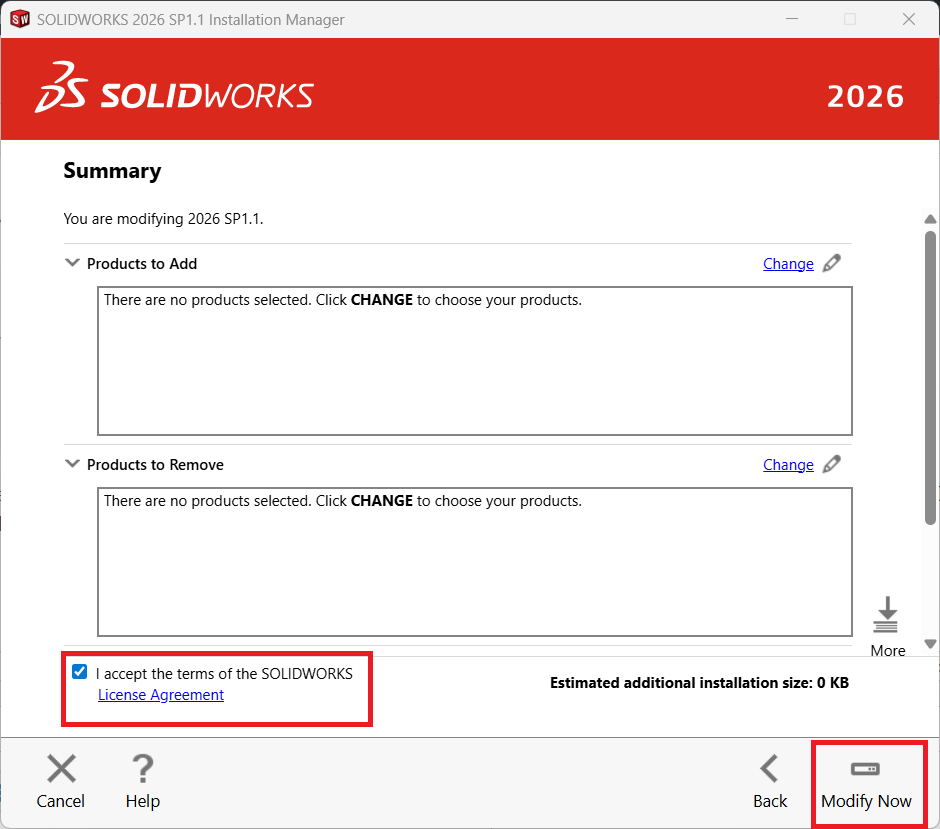
On the Summary screen, review the options and check the box labeled I accept the terms of the SOLIDWORKS License Agreement and then click Modify Now to modify the installation.
Step 5 –
Only required if you added a new serial number launch SOLIDWORKS and activate the serial number when prompted.
