
When you encounter issues in SOLIDWORKS, one of the best places to begin troubleshooting is by using the SOLIDWORKS Safe Modes. SOLIDWORKS offers two safe modes: Software OpenGL and Bypass Tools/Options Settings. This article focuses on the Software OpenGL safe mode—explaining how to access it, what it does behind the scenes, and how to interpret the results to identify potential graphics-related issues.
How to Test Software OpenGL
If the issue you are experiencing appears to be graphics-related, the first troubleshooting step is to run SOLIDWORKS in Software OpenGL safe mode.
Before launching safe mode, ensure that SOLIDWORKS is completely closed. Once closed, search for SOLIDWORKS Rx in Windows and open the version that matches the SOLIDWORKS release where the issue is occurring.
2026 and later versions:
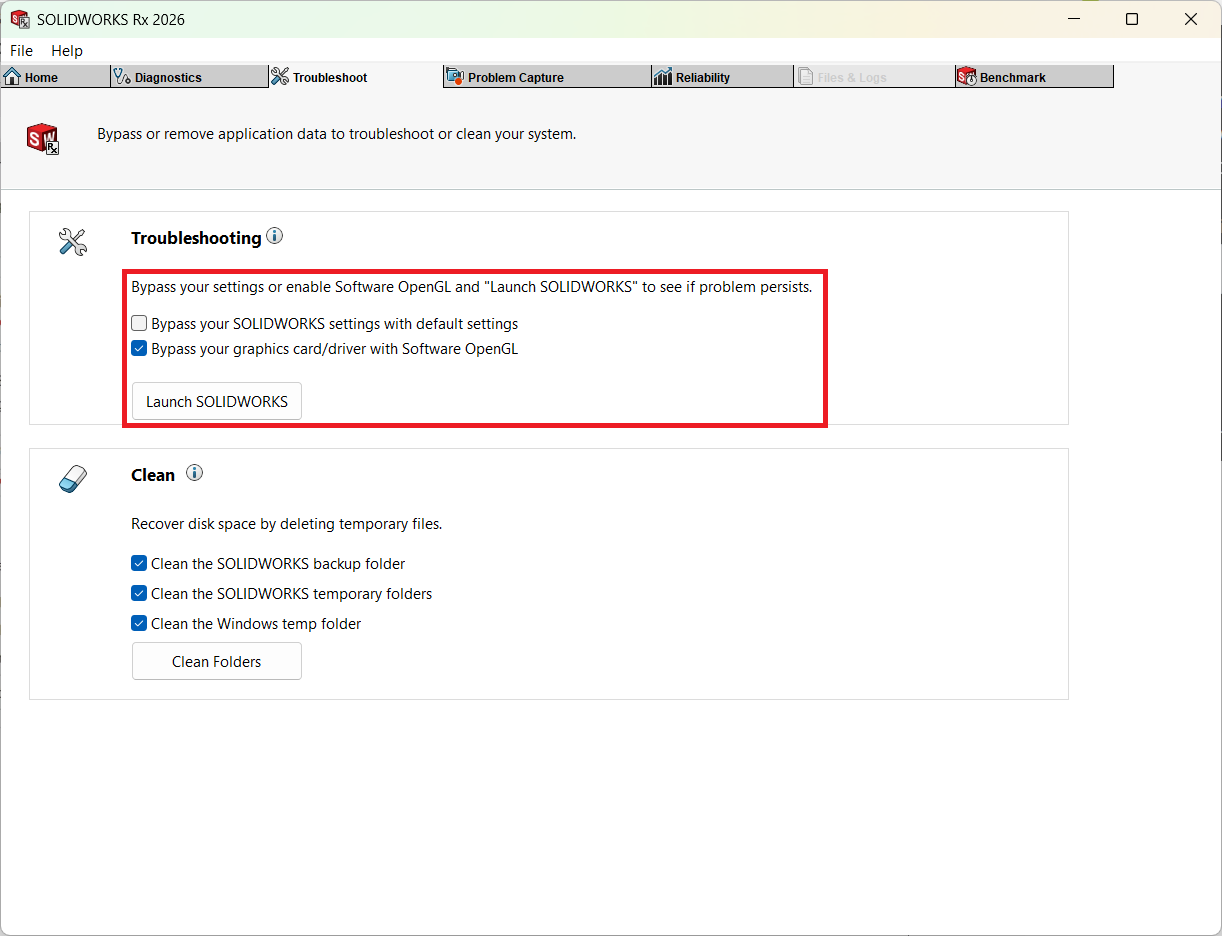
Click the troubleshoot tab at the top of the Rx window. Select the Bypass your graphics card/driver with Software OpenGL checkbox and then select the button Launch SOLIDWORKS.
2025 and earlier versions:
At the bottom of the Home tab are two safe modes. To test in OpenGL, select the link Click here to launch SOLIDWORKS in Software OpenGL mode.
What is OpenGL?
OpenGL stands for Open Graphics Library. It is an application programming interface (API) used for rendering 2D and 3D vector graphics in applications such as CAD, virtual reality, and other visualization software.
The role of the OpenGL API is to work with the graphics processing unit (GPU) to provide hardware-accelerated rendering. Most modern graphics cards include built-in support for OpenGL.
When SOLIDWORKS is launched in Software OpenGL safe mode, it bypasses the system’s graphics card and driver entirely. Instead, SOLIDWORKS uses the central processing unit (CPU) to emulate graphics processing through its software-based OpenGL implementation.
If the issue is resolved while running in this safe mode, it indicates that the problem is likely related to the system’s graphics card and/or graphics driver.
Checking on Graphics Cards and Drivers
The first step is to verify whether your system is using a certified graphics card. To identify the graphics card installed on your system, open Device Manager and expand the Display Adapters section.
You can also check the currently installed graphics driver by right-clicking the graphics card, selecting Properties, and navigating to the Driver tab. Note the Driver Version listed.
Next, cross-reference your graphics card with the SOLIDWORKS Hardware Certification website to confirm whether it is certified for your SOLIDWORKS version. From the same page, you can download the recommended certified driver by selecting the link under Recommended Driver.
If you are using a certified graphics card and driver, the next step is to check whether multiple graphics cards are present in the system. One graphics adapter commonly known to cause issues in SOLIDWORKS is Intel® UHD Graphics, especially when it is used alongside a dedicated GPU.
To prevent conflicts, you should disable the Intel graphics adapter. This can be done either through the system BIOS or within Device Manager.
If the integrated graphics card cannot remain disabled, open the NVIDIA Control Panel or AMD PRO Control Center and configure the settings so that SOLIDWORKS runs exclusively on the certified graphics card rather than the Intel adapter.
If your system does not have a certified graphics card, the Use Software OpenGL setting becomes important. Enabling this option forces SOLIDWORKS to emulate OpenGL internally, bypassing the OpenGL implementation of the uncertified graphics card.
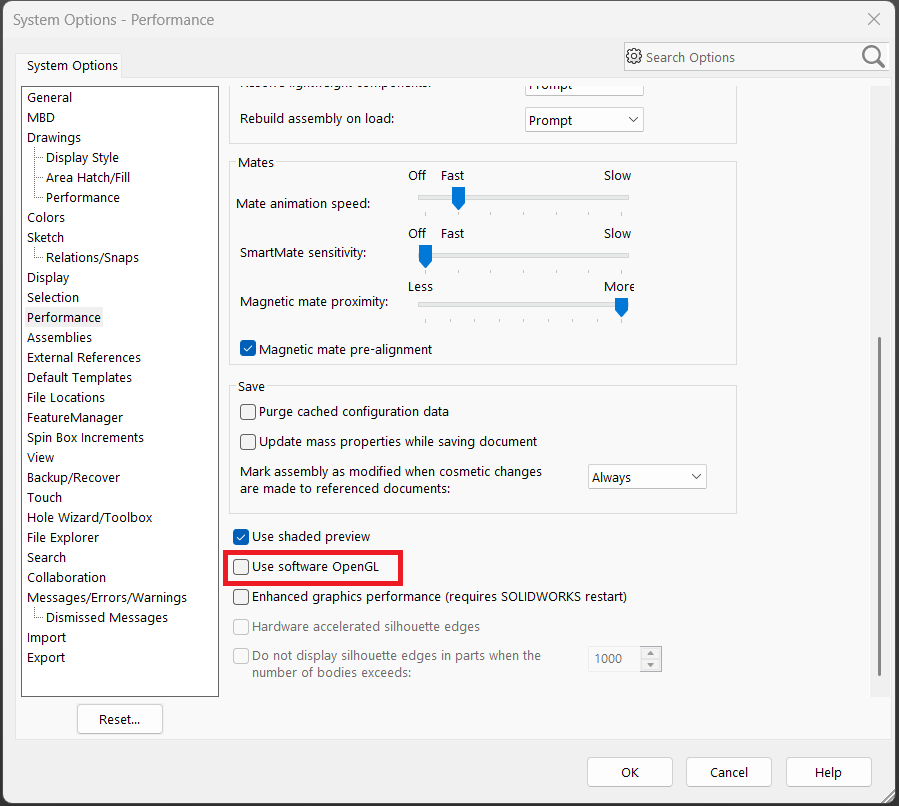
To turn on this setting, open SOLIDWORKS and go to Tools > Options > System Options > Performance and checkmark Use Software OpenGL.
If Software OpenGL is Greyed Out
There are two common reasons why the Use Software OpenGL option may be greyed out.
First, one or more files are currently open in SOLIDWORKS. This setting is only available when all documents are closed, so be sure to close any open parts, assemblies, or drawings.
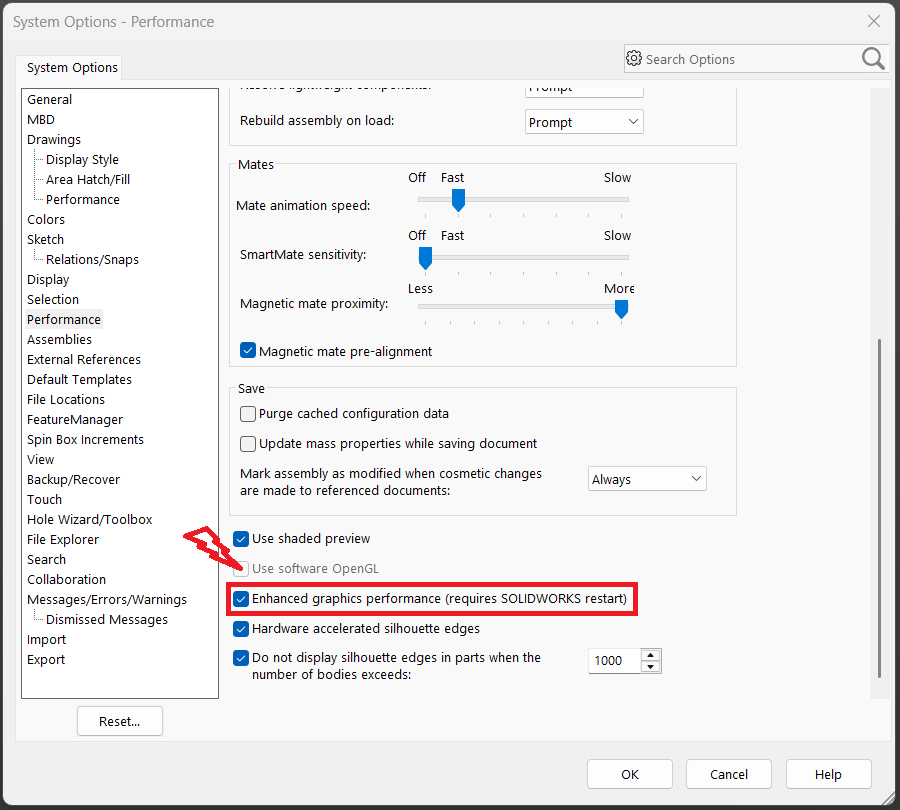
Second, starting with SOLIDWORKS 2019, the Enhanced Graphics Performance option may be enabled. When this option is checked, Software OpenGL cannot be activated. This setting is located under Tools > Options > Performance, on the same page as the Software OpenGL option.
After disabling Enhanced Graphics Performance, you must restart SOLIDWORKS before the Use Software OpenGL option becomes available.