

What happens when you open an assembly?
When opening an assembly, hundreds or thousands of parts are loaded. When these parts also have complex shapes, the loading time quickly runs high. Great for your colleagues, because you can provide them with a cup of coffee in between, but not pleasant for your own productivity. This table shows the activities that the system must perform.
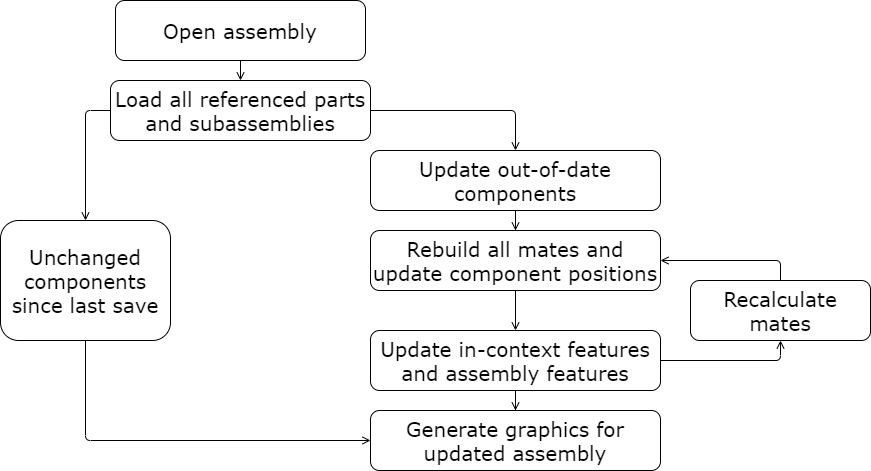
System Resources
As assemblies get bigger and bigger by expanding the design, they will demand more and more of the system resources. System resources consist mainly of the CPU, GPU and (RAM) memory. Your PC needs to load more data, which leads to slower assemblies.
Large Assembly
You may have heard of the term Large Assembly. A term defined as a large file that demands a lot of your RAM while opening, editing and saving files. But also, when creating Drawings, rotating and viewing your design and inserting and placing components.
As more of your RAM is filled up, performance decreases. Which can hurt your productivity.
The solutions of how to open an assembly
We are happy to share some solutions that will reduce the load on your RAM. This will improve performance when opening an assembly. You can achieve this by building assemblies more efficiently and by using the right SOLIDWORKS functions to open these assemblies.
In SOLIDWORKS, assemblies can be opened in three ways:
- Resolved
- Lightweight Mode
- Large Design Review
Resolved
This is the default method for many engineers to open an assembly. But is one doing the right thing? When you open an assembly in Resolved, all data is loaded onto the memory, namely:
- Features
- Solid bodies
- Surfaces
- Mates
- Display
So, this includes all the data of the model. This is the heaviest load for your computer. More often than not you’d consider buying a more capable system when you’re experiencing slowdowns, however without changing the opening method of your assemblies the issue of slow load times will persist.
Lightweight Mode
In Lightweight Mode, the entire model is loaded. Except for the operations (features). Activating this mode reduces the load on your RAM significantly.
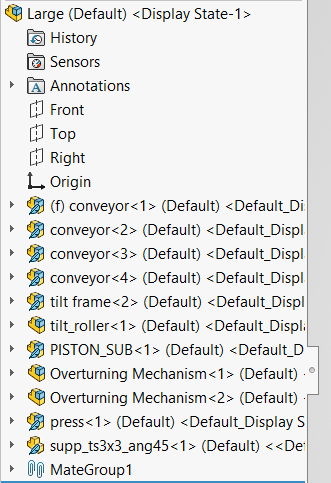
The Lightweight Mode does not hinder your assembly design process, because the body data and mates are loaded. Adding and placing components is still possible, and you can modify existing mates. Lightweight components are indicated by a blue feather symbol in the FeatureManager design tree.
You open the assembly in Lightweight Mode by selecting this option before opening the file.
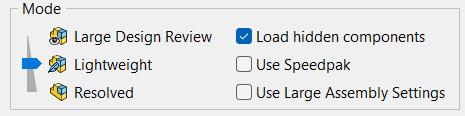
Because the Lightweight Mode does not load and does not see the features, miscommunication can occur. The risk is that if a colleague makes changes in a part, it will not be visible in the Lightweight Assembly.
To be notified, the option ‘Check out-of-date lightweight components’ may be useful.
This option can be found via Options -> System Options -> Performance.
With ‘Indicate’, such parts are indicated by a red feather symbol, instead of a blue feather symbol. With ‘Always Resolve’, these parts are never loaded with Lightweight Mode.
Large Assembly Settings
In the image below you can see the option “Use Large Assembly Settings” which you can activate. This option automatically adjusts certain settings in SOLIDWORKS to further improve the performance of your computer.
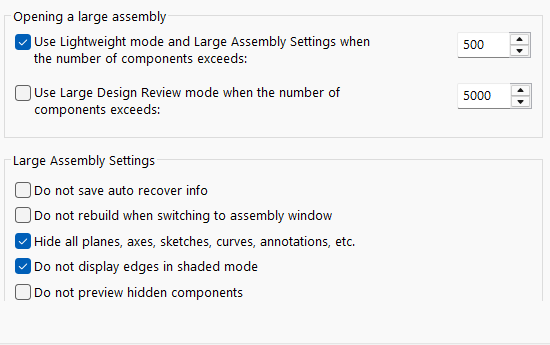
As a user, you decide which options to apply. You can find this drop-down list above via: Options -> System Options -> Assemblies -> Large Assembly Settings.
Large Design Review
Large Design Review (LDR) is a powerful option for opening large assemblies. While Lightweight Mode loads only the body data of the referenced components, Large Design Review only displays the graphics data, requiring even less of your memory.
With Large Design Review Mode, only the display data is loaded. Because of this, assemblies are opened within seconds instead of minutes. That makes this option most ideal when you want to quickly check something in the assembly. At the same time, users are slightly more limited in their editing options.
With Large Design Review, users can:
- review the FeatureManager design tree
- measure items
- create sections
- hide and show components
- create and modify walk-throughs
Still editing your assembly within Large Design Review Mode? You can do so by using the Edit Assembly option. You can activate this option before you open the assembly. If you forget, you can do it afterwards by right-clicking on the assembly’s name in the Feature Manager Design Tree. And then choosing ‘Edit assembly’.
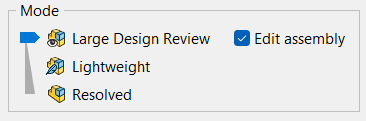
With this option you can:
- add, delete and move components
- edit, delete and add mates
- create component patterns
- save changes
